

Connecting to the Stripe connector
Overview
Stripe is an online payment processing platform that offers payment processing software and API to manage flow of funds for e-commerce websites and mobile applications. You can use skyData’s built-in connector for importing data from Stripe. Our platform collects, analyzes, and provides a solution to transform data into meaningful information for generating valuable insights.Prerequisite
- You have a stripe account and credentials such as API Key. Each API user has credentials that must be used to authenticate requests.
To import Data using the Stripe connector
- In the left pane, go to Dataflow > Imports.

- Click New Dataflow to create dataflow.
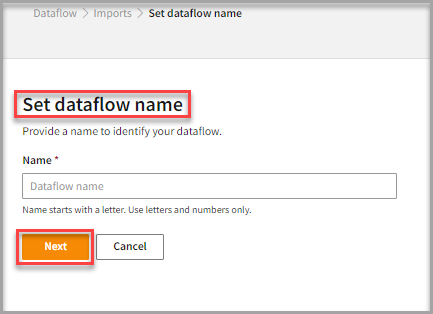
- Enter a Name to identify your Dataflow.
The name must start with a letter and can only include letters and numbers, with no spaces between them.
- Click Next.
Add Stripe Connector
- In the All categories or Services and apps tab, select the stripe connector to start the configuration.
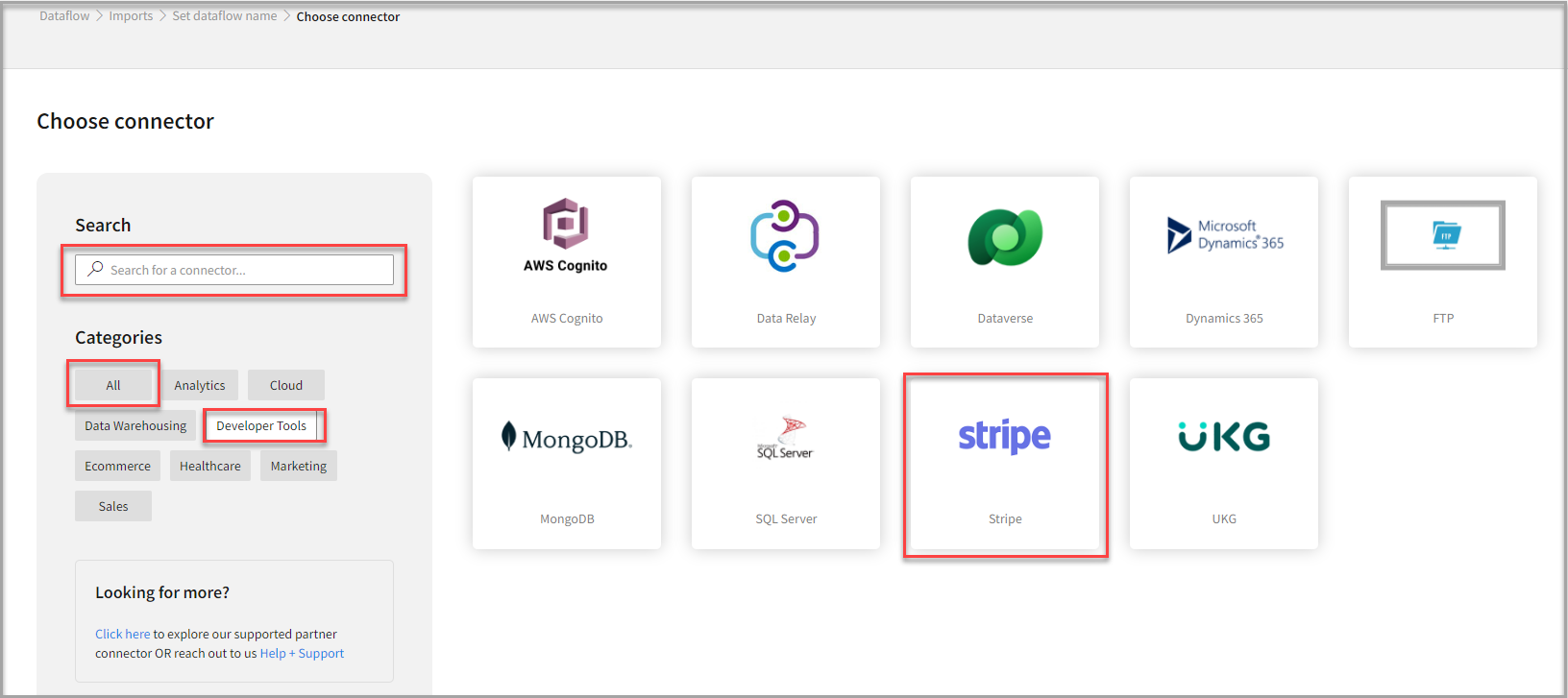
- Also, you can use the Search function to find the stripe connector.
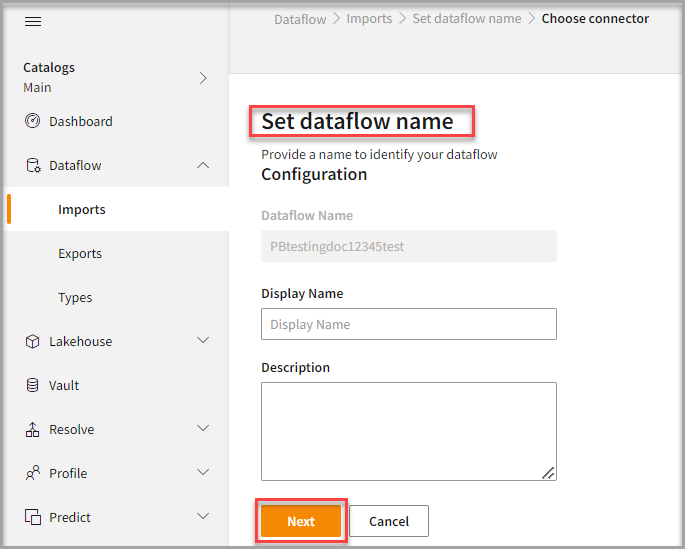
- In the Set dataflow name page, enter the Display Name to identify your dataflow.
- In the Description box, you can enter an explanation of the connector.
- Click Next.
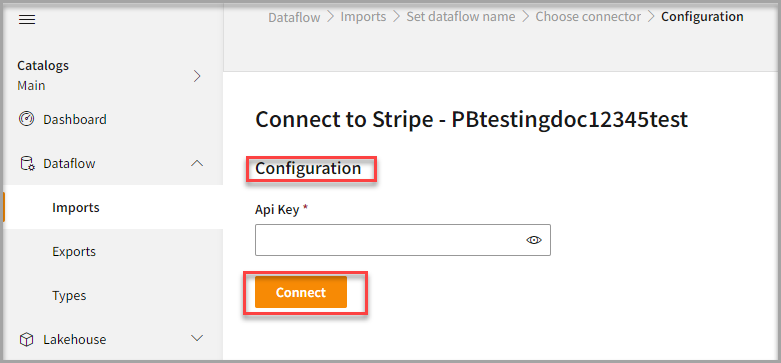
To configure Stripe
Follow the below steps to configure the connection to Stripe:- Enter the Api Key to configure with the Stripe connector. For details about the API key, click API reference.
- Click Connect.
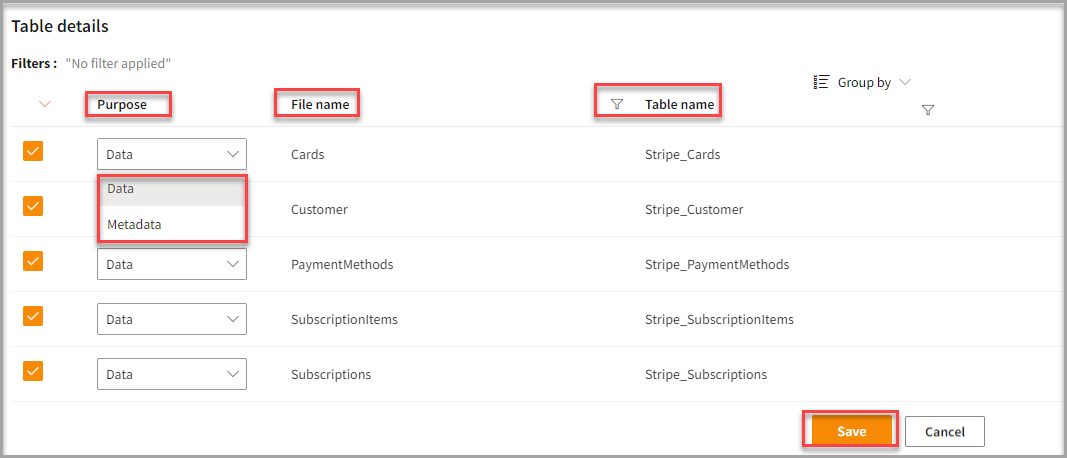
- You can enter the Table Details to process the data.
After configuration, all tables that are part of the connector are listed in the Table Details section. By default, it displays a single table upon successful connection, showing information specific to the client connector and the tables it supports. For multiple tables, you can select only those tables you want to import and process. For example, to import customer data, choose the tables that contain customer information such as name, email, address, and contact details.
- Click Save to apply the changes.
Run, edit, and delete the imported data
- After saving the connection, the Stripe connector appears on the Dataflow page. Also, you can see the list of created tables in the Databases section.
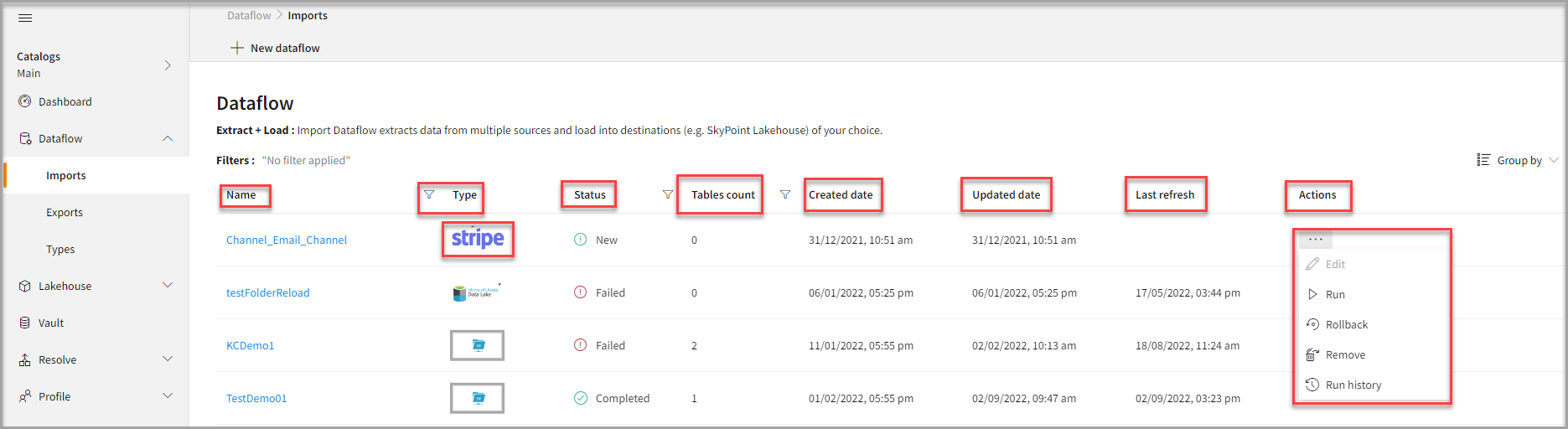
- Select the horizontal ellipsis in the Actions column and do the following:
You can view the error message for data import failures from a data source in the Dataflow under Run History > Description.