
- Import data
- Setup guide
Overview
AWS Cognito is a user identity and data synchronization service that provides authentication, authorization, and user management for your web and mobile apps. You can use SkyPoint AI’s built-in connector for importing data from AWS Cognito.This document will guide you through the process of connecting AWS Cognito to Skypoint AI.Prerequisite
You will need the following details to configure and import data using AWS Cognito:- AWS account
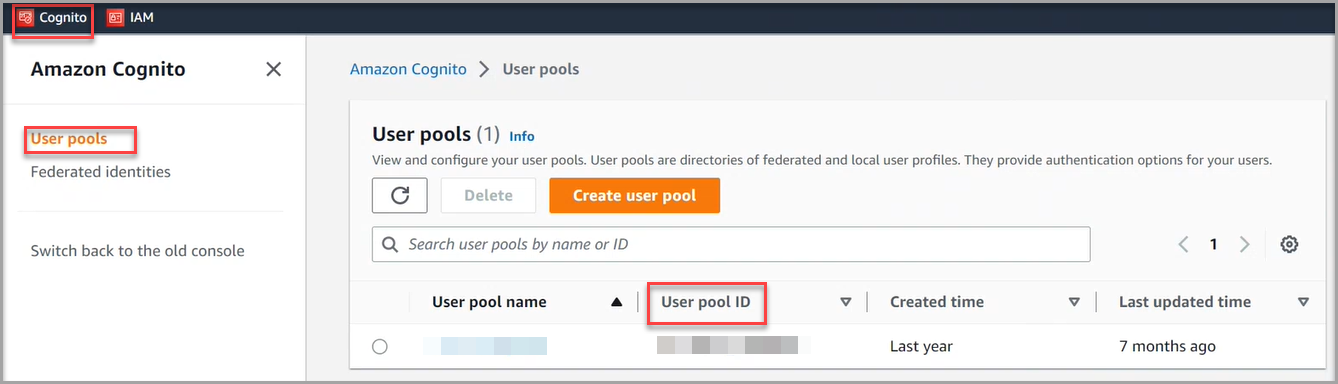
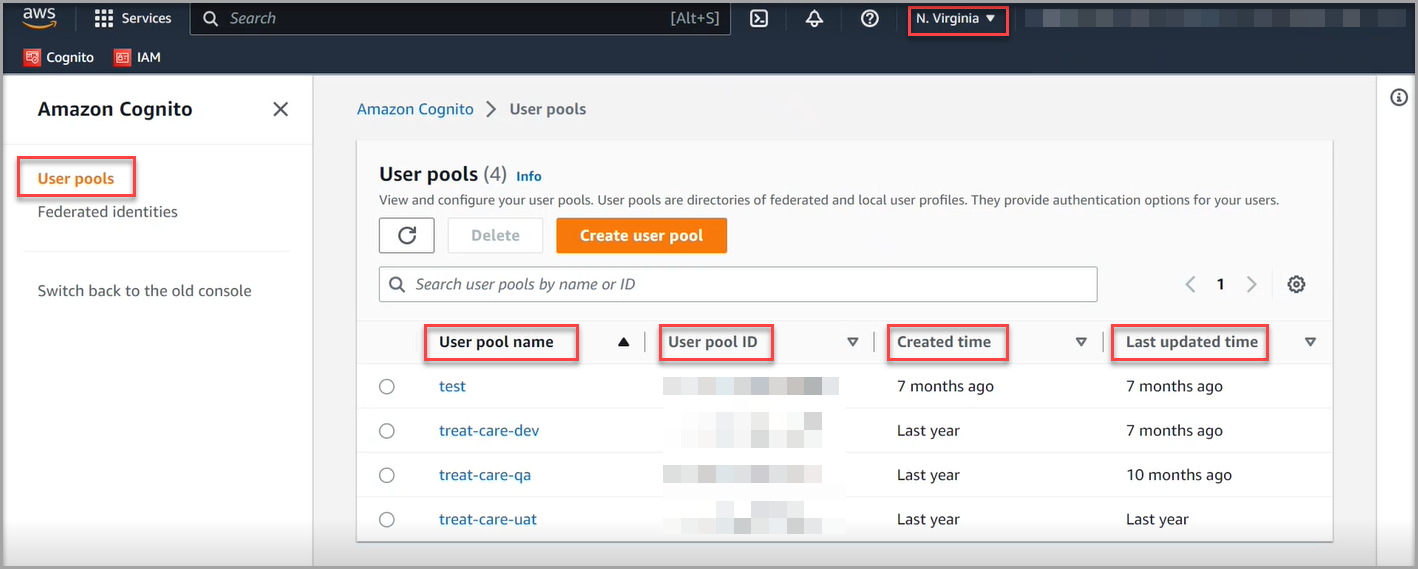
- User Pool ID
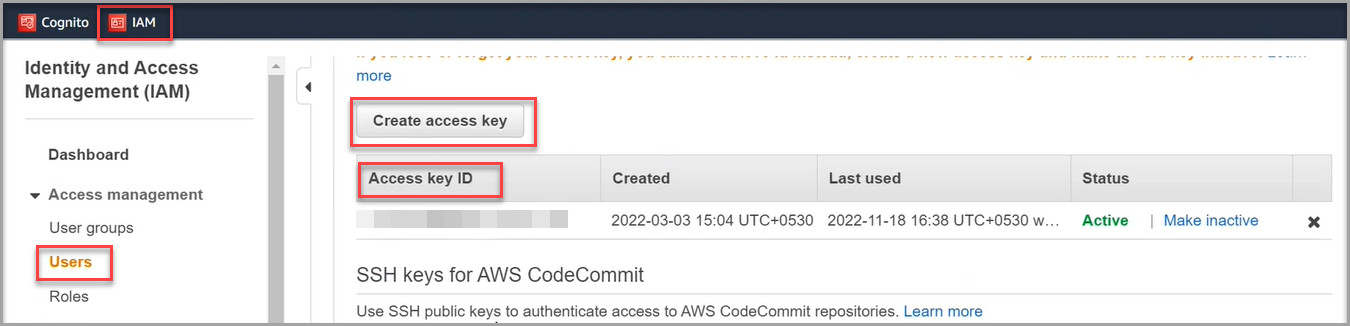
- Access key ID
- Secret access key.
You can refer to the InforHMS Setup Guide document to learn more about the Prerequisites.
Import Data using AWS Cognito connector
Follow the below steps to create a new dataflow for the Cognito connector:- In the left pane, go to Dataflow > Imports.

- Click New Dataflow to create dataflow.
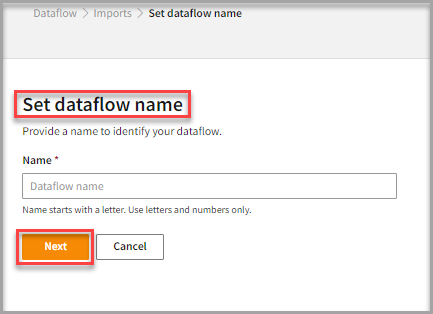
- Enter a Name to identify your Dataflow.
The name must start with a letter and contain only letters and numbers, with no spaces between the characters.
- Click Next.
Add AWS Cognito Connector
- In the All categories or Services and apps tab, select the AWS Cognito connector to start the configuration.
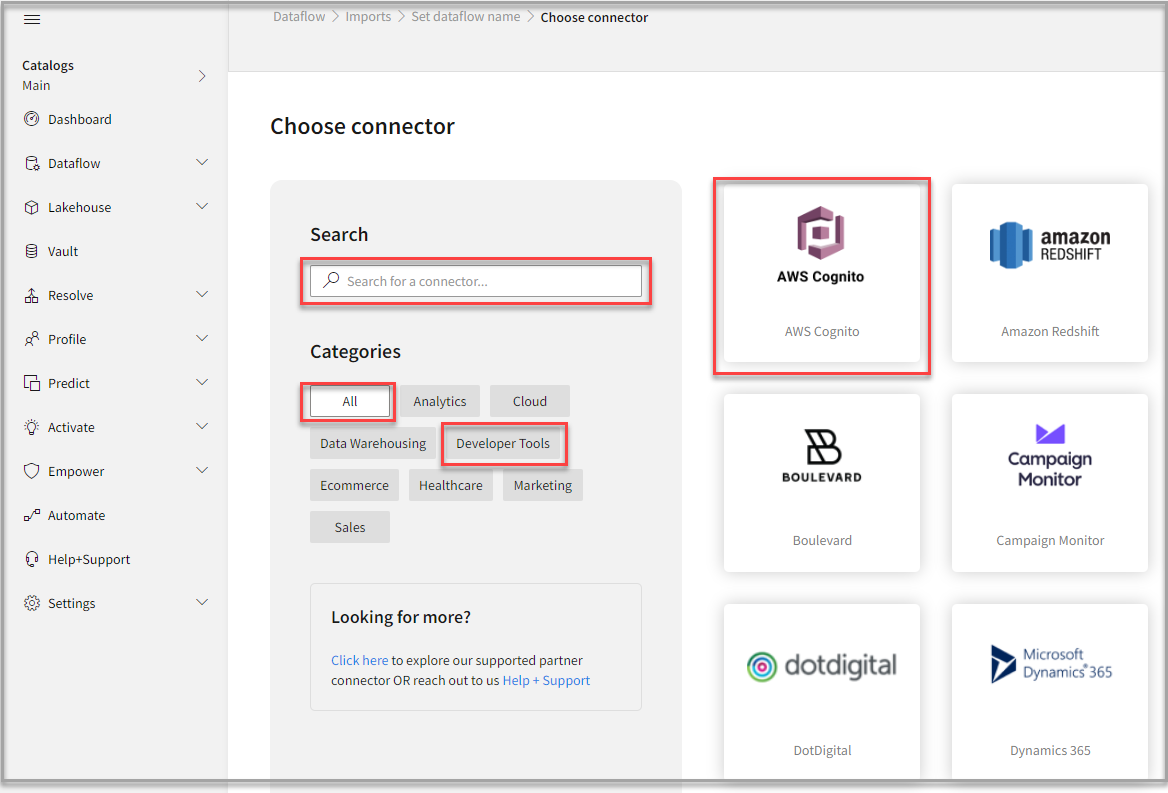
- Also, you can use the Search function to find the AWS Cognito connector.
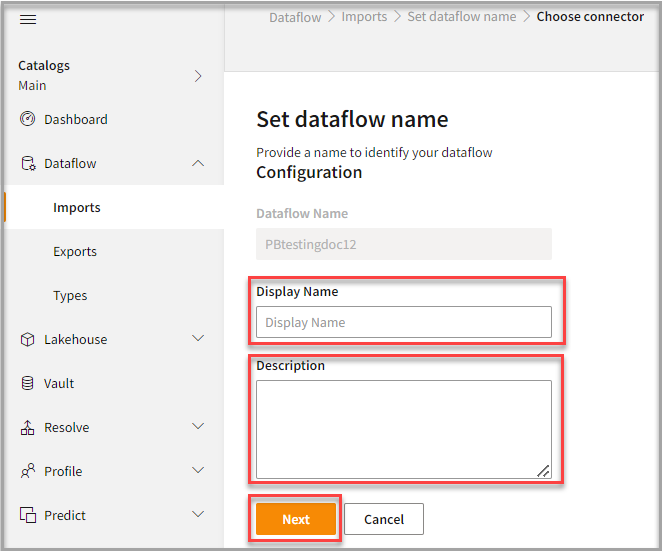
- In the Set dataflow name, enter the Display Name to identify your dataflow.
- In the Description box, you can enter an explanation of the connector.
- Click Next.
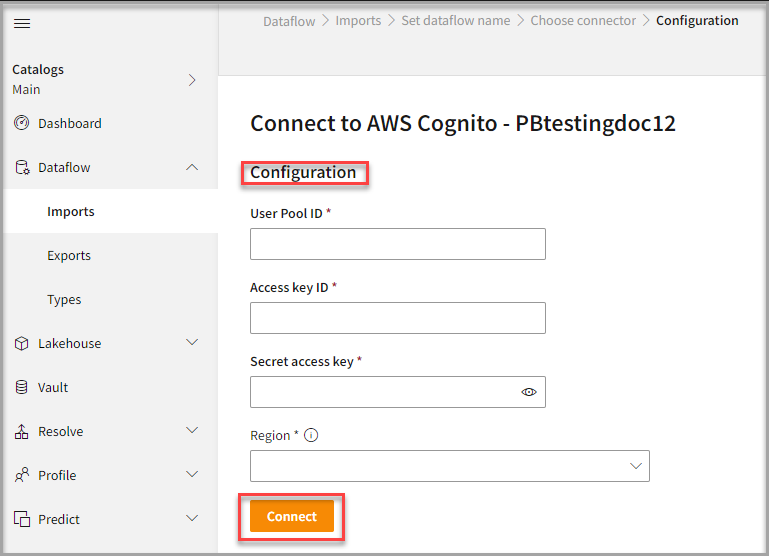
To configure AWS Cognito
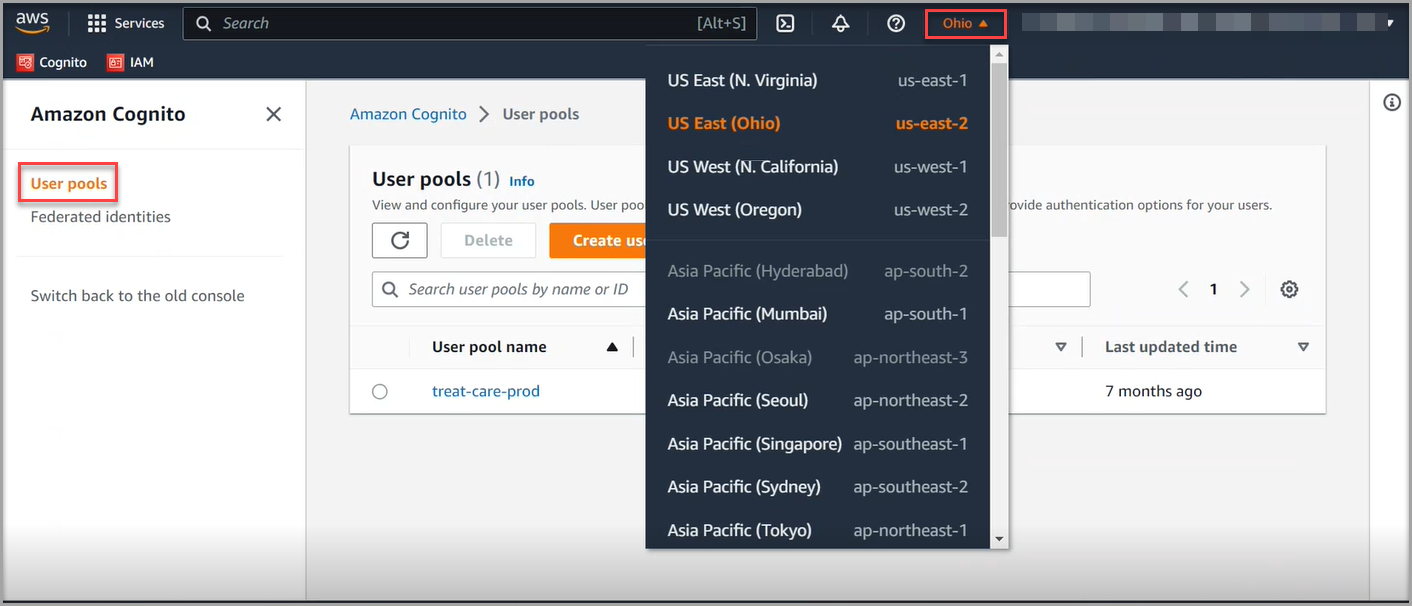
- Enter your credentials such as User Pool ID, Access key ID, Secret access key, and Region to configure with the AWS Cognito connector.
- Click Connect.
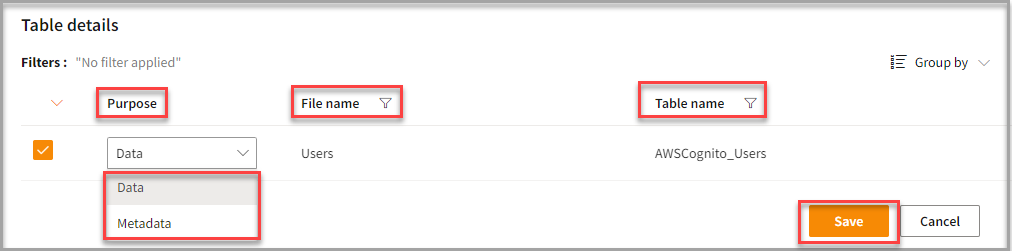
- Enter the Table Details to process the data.
After configuration, all tables that are part of the connector are listed in the Table Details. For a single table, it displays by default, showing information specific to the client connector and the tables it supports upon successful connection. However, for multiple tables, you can select only those tables you want to import and process. For example, to import customer data, choose the tables containing customer information such as name, email, address, and contact details.
- Click Save to apply the changes.
Run, edit, and delete the imported data
- After saving the connection, the AWS Cognito connector appears on the Dataflow page. Also, you can see the list of created tables in the Databases section.
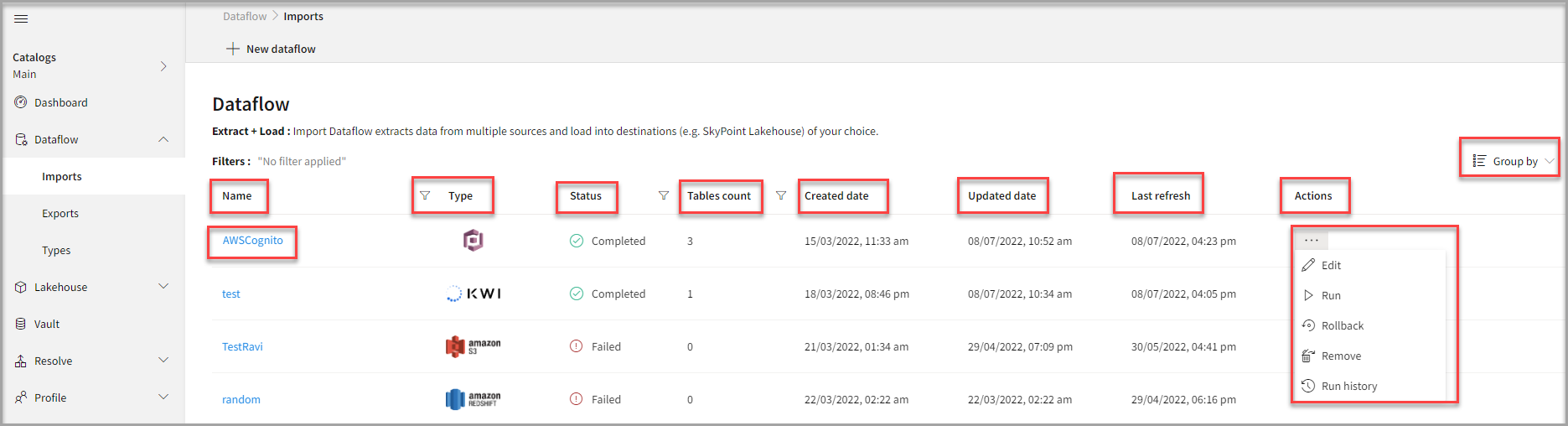
- Select the horizontal ellipsis in the Actions column and do the following:
You can view the error message for data import failures from a data source in the Dataflow under Run History > Description.