

Connecting to Dataverse
Overview
Dataverse is an easy to use, easy to manage, compliant, secure, scalable, and globally available SaaS data service that stores your data within a set of tables. It helps you to acquire insights and motivate corporate action by enabling the use of any sort of data or app.Prerequisite
You will need the following details to configure and import data using Dataverse connector:- Service Uri
- Office 365 Username and Password.
Import data using Dataverse connector
Follow the below steps to create a new dataflow for the Dataverse import connector:- Go to Dataflow > Imports.
- Click New dataflow.
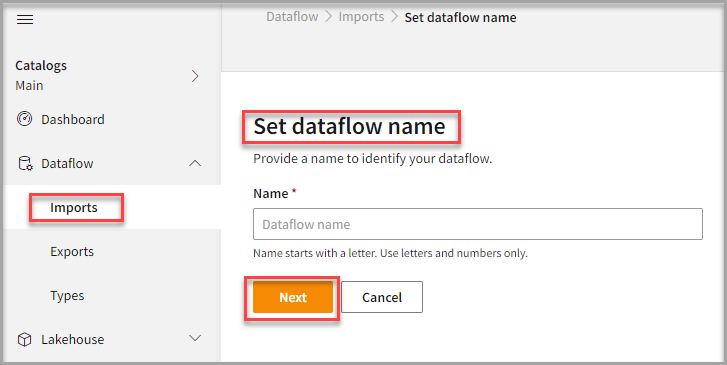
- Enter Dataflow name in the Name text area.
- Click Next.
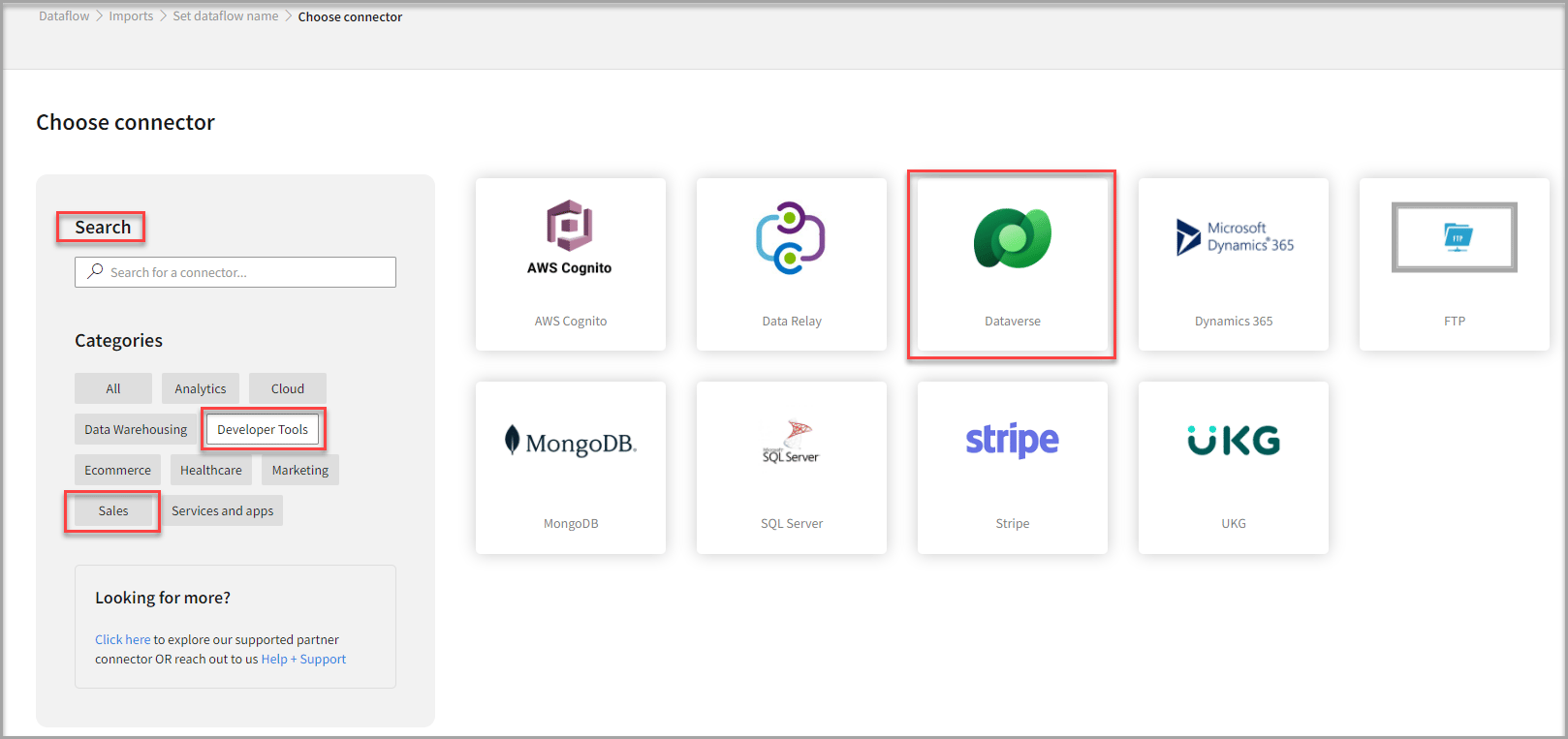
To add Dataverse connector
- In the Choose connector page, select Dataverse connector.
You can also use the Search feature to find the connector. The Dataverse connector is listed under both the Developer Tools and Sales categories.
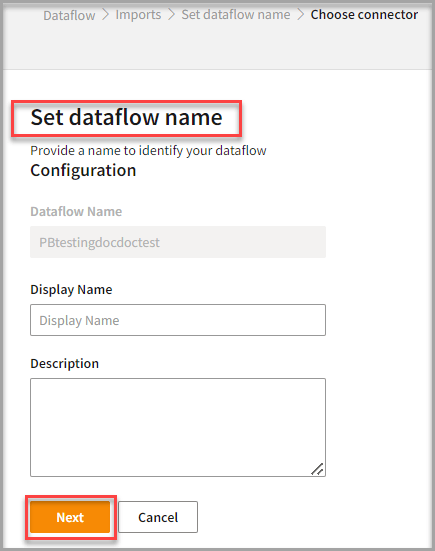
- Enter Display Name for your dataflow in the text area.
- Enter Description for your dataflow in the text area.
- Click Next.
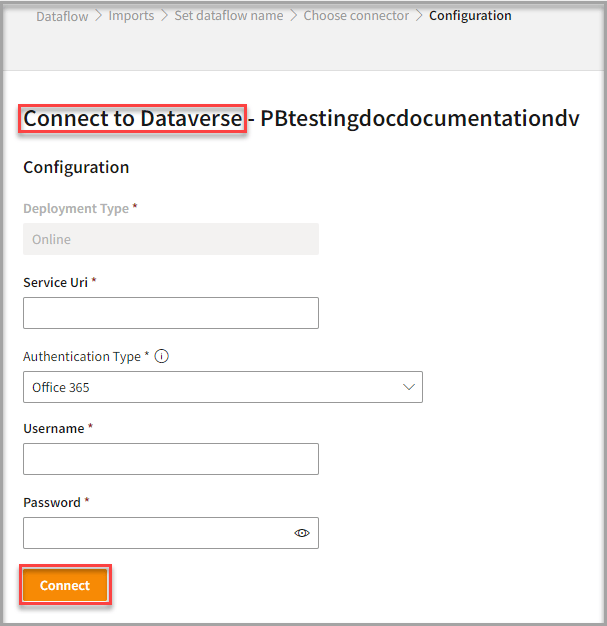
To configure Dataverse
Follow the below steps to configure the connection to Dataverse:- Enter the Service Uri details in the text area.
- Select an Authentication Type option from the drop-down list.
- Enter your Username and Password.
- Click Connect.
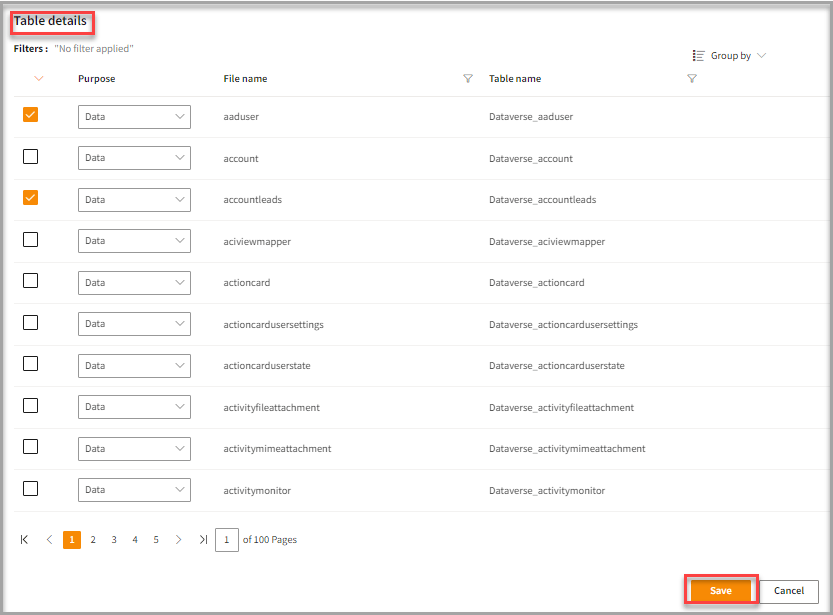
- Enter the Table Details to process the data.
- Click Save.
Run, edit, and delete the imported data
Once you save the connector, the Dataverse connector gets displayed in the list of tables created in the Dataflow page.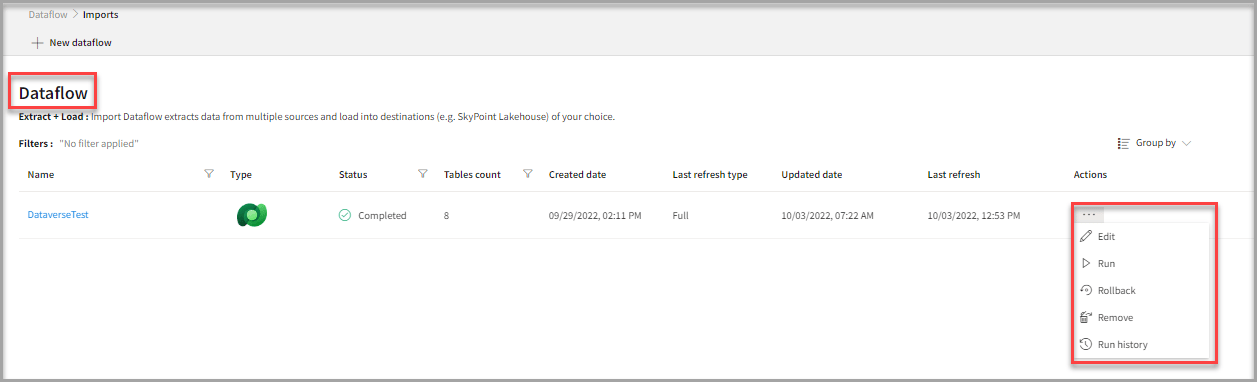
- Select the horizontal ellipsis in the Actions column and do the following: