

Connecting to Infor HMS
Import data
Overview
Infor HMS creates full industry suites in the cloud and deploys technology that prioritizes the user experience, leverages data science, and integrates easily into existing systems. You can use skyData’s built-in connector for importing data from Infor HMS. This document will guide you through the process of connecting Infor HMS to skyData.Prerequisite
You will need the following details to configure and import data using Infor HMS:- Display Name
- Account Key
- Storage Path.
You can refer to the Infor HMS Setup Guide document to learn more about the Prerequisites.
To import data using Infor HMS connector
Follow the below steps to create a new dataflow for the Infor HMS import connector:- Go to Dataflow > Imports.
- Click New dataflow.
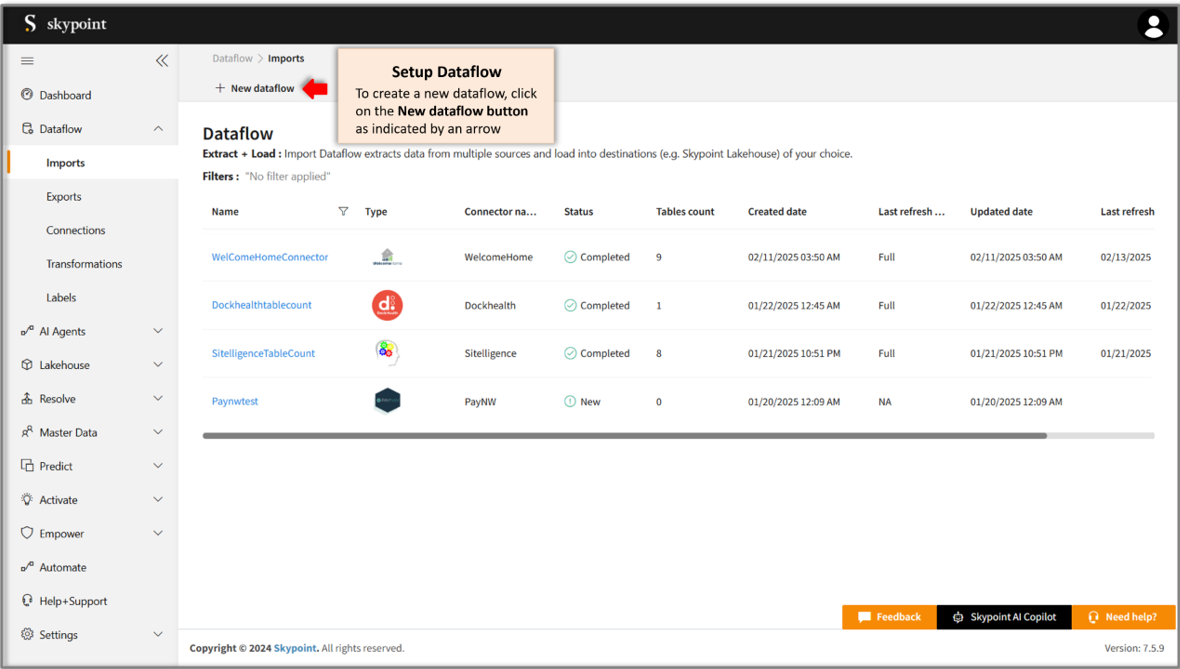
- In the Set dataflow name page, type dataflow name in Name text area.
- Click Next.
To add Infor HMS connector
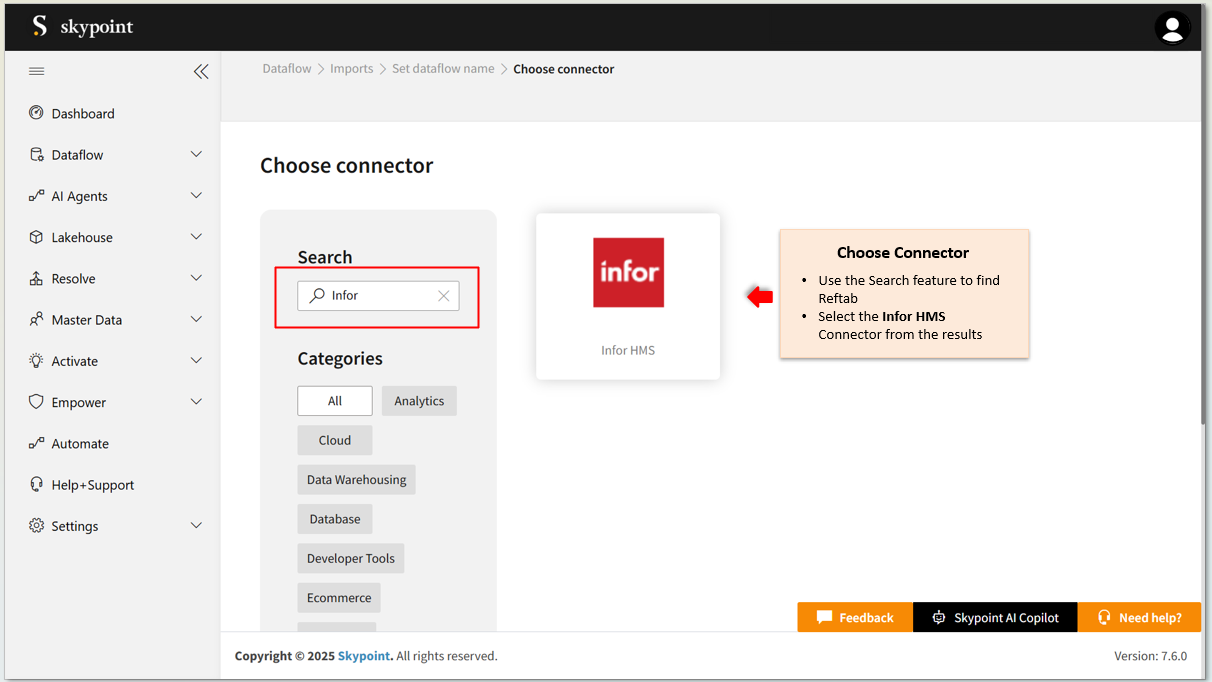
- In the Choose connector page, select Infor HMS connector.
Use the Search function to locate the connector. You’ll find the Infor HMS connector under the Healthcare category.
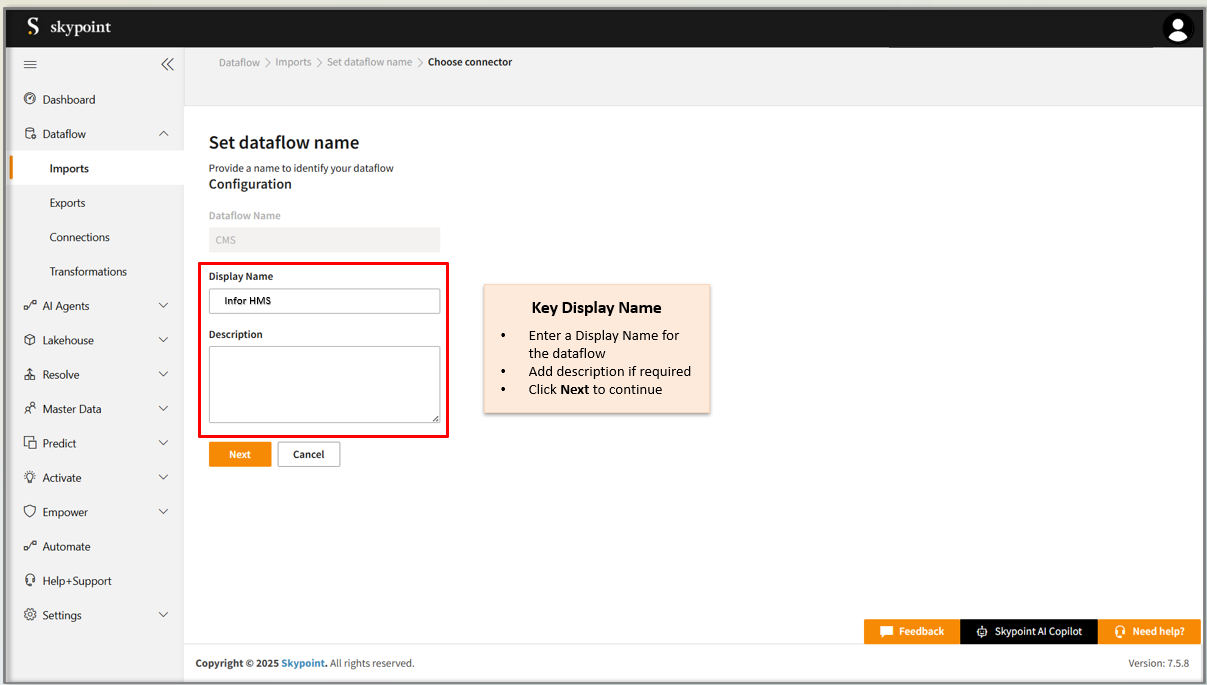
- Enter Display Name for your dataflow in the text area.
- Enter Description for your dataflow in the text area.
- Click Next.
To configure Infor HMS
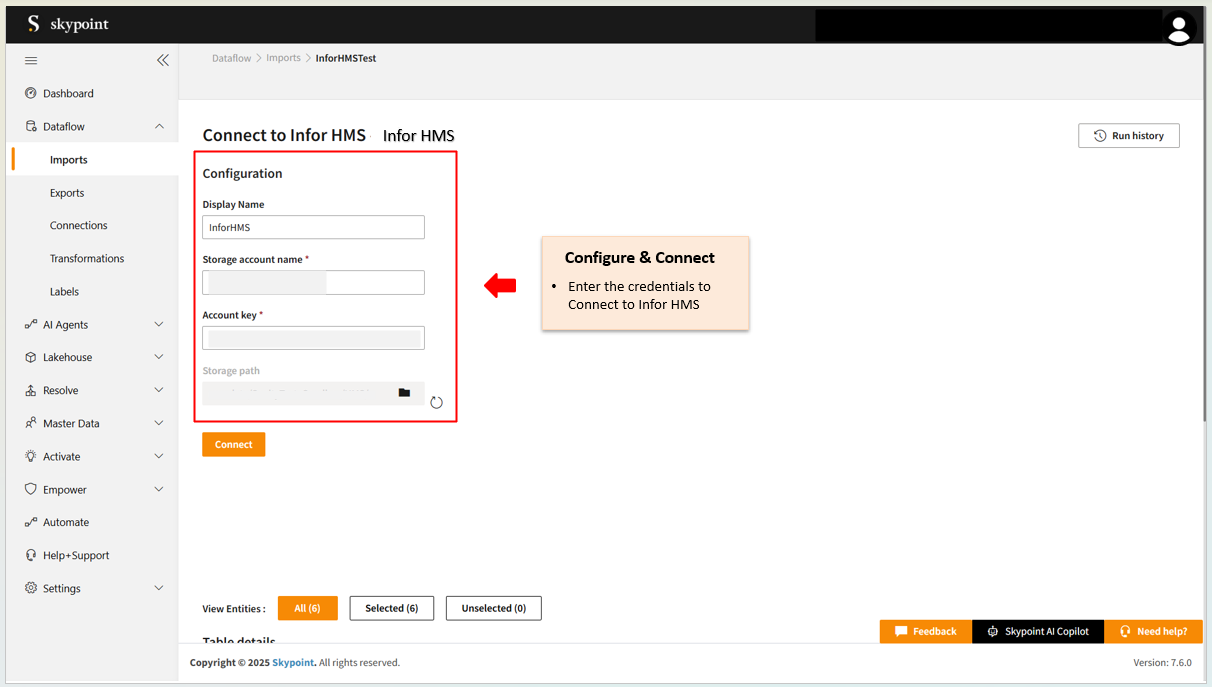
Follow the below steps to configure the connection to Infor HMS:- Enter Display account name in the text area.
- Enter Account key in the text area.
- Click the Folder icon in Storage path text area.
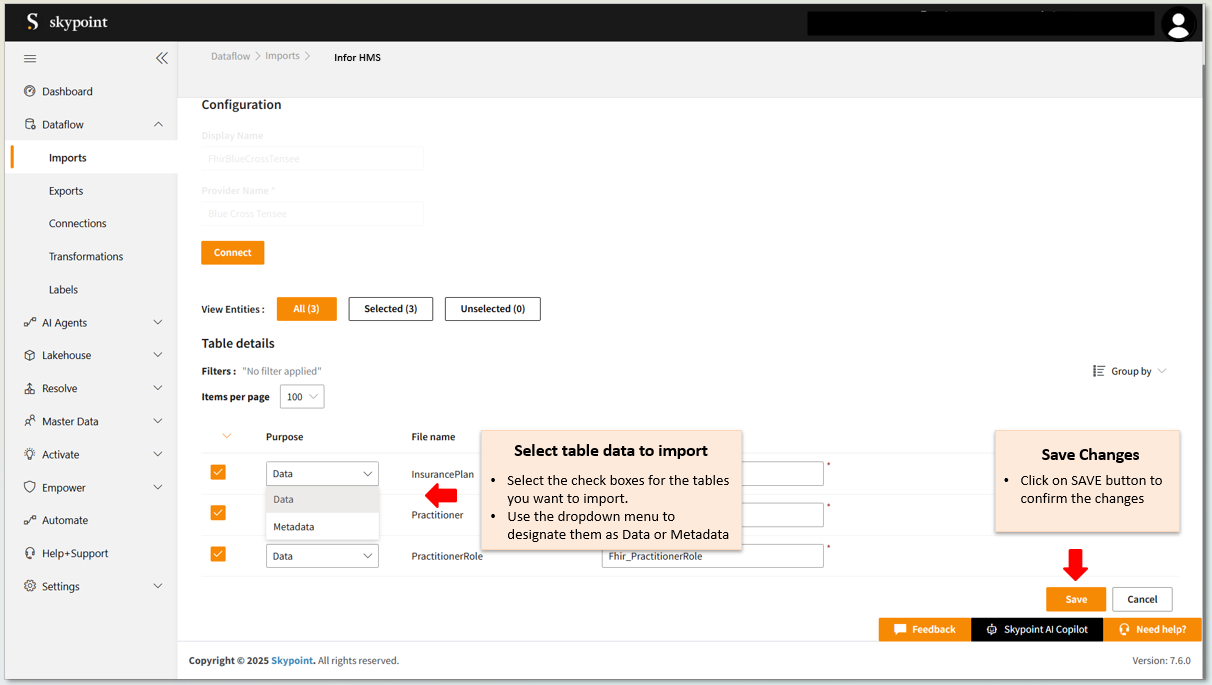
- Enter the Table Details to process the data.
- Click Save.
Run, edit, and delete the imported data
Once you save the connector, the Infor HMS connector gets displayed in the list of tables created in the Dataflow page.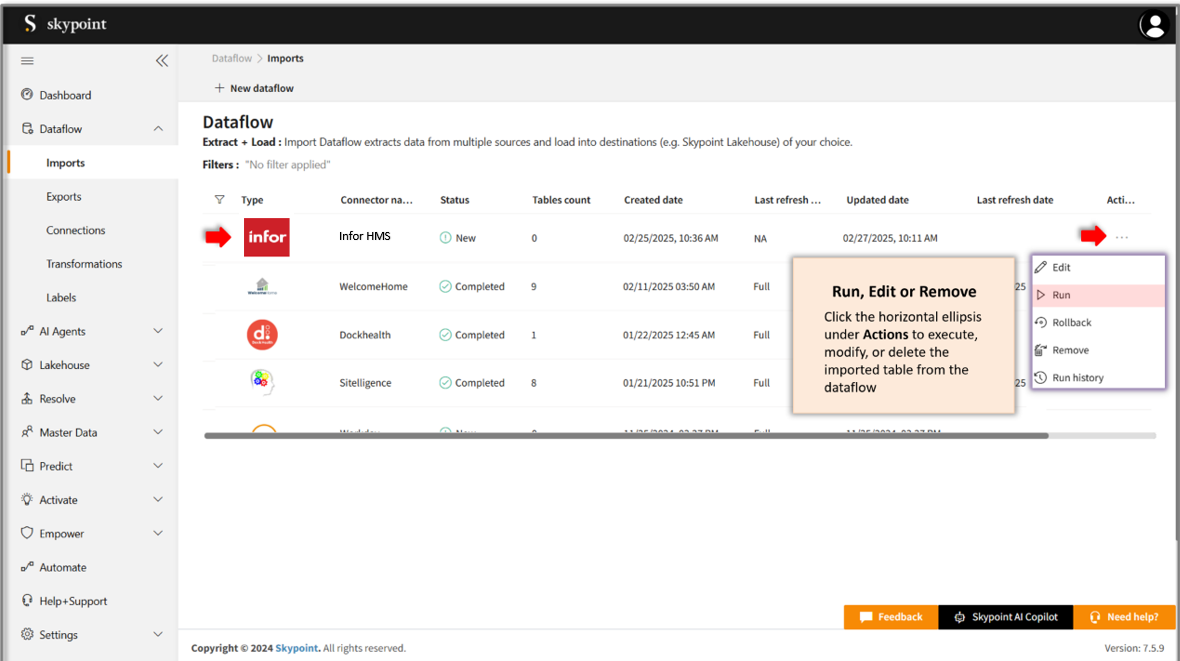
- Select the horizontal ellipsis in the Actions column and do the following:
Setup guide
Overview
This document will help you gather all credentials for connecting Infor HMS with skyData.Prerequisite
You must have the following details:- Infor HMS account
- API for integration.
To call API
skyData will expose API for the following five entities:- Reservations
- GuestProfile
- Inventory
- Rate
- GuestStayRevenue
Finding Storage account
The Storage account name will be shared with you from skyData.Finding Account key
The Account key will be shared with you from skyData.Selecting Storage Path
Follow the below steps on the skyData platform Configuration page to select Storage Path:- Click the folder icon in Storage Path text area.
- Select raw-data and then select the folder inside it.
- Select HMS.
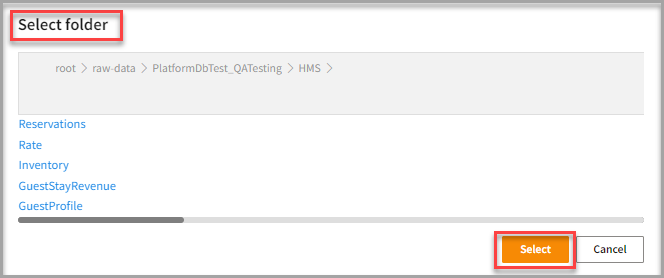
- In the HMS folder, click Select.
Follow the steps in Connecting to Infor HMS import connector to complete your integration.