
- Import data
- Setup guide
Overview
Google cloud Storage enables you to store, access, and maintain data so that you do not need to own and operate data centers, moving expenses from a capital expenditure model to operational. You can use SkyPoint AI’s built-in connector for importing data from Google Cloud Storage.This document will guide you through the process of connecting Google Cloud Storage to SkyPoint AI.Prerequisite
You will need the following details to configure and import data using Google Cloud Storage:- Access key ID and Secret access key
- Project ID
- Service URL
- Service account JSON file
- Google cloud bucket.
Permissions required for Service account
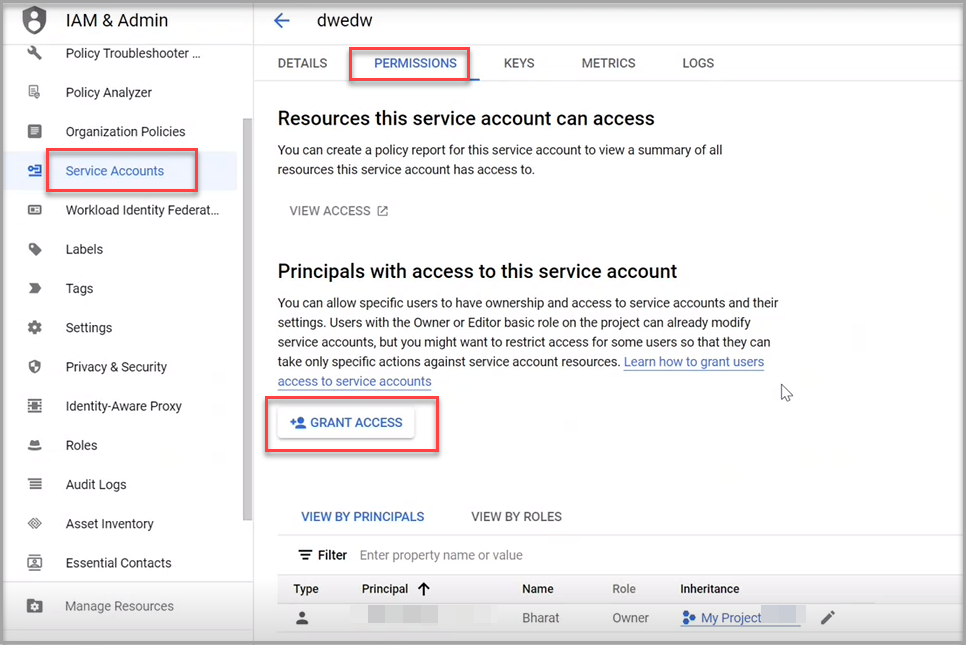
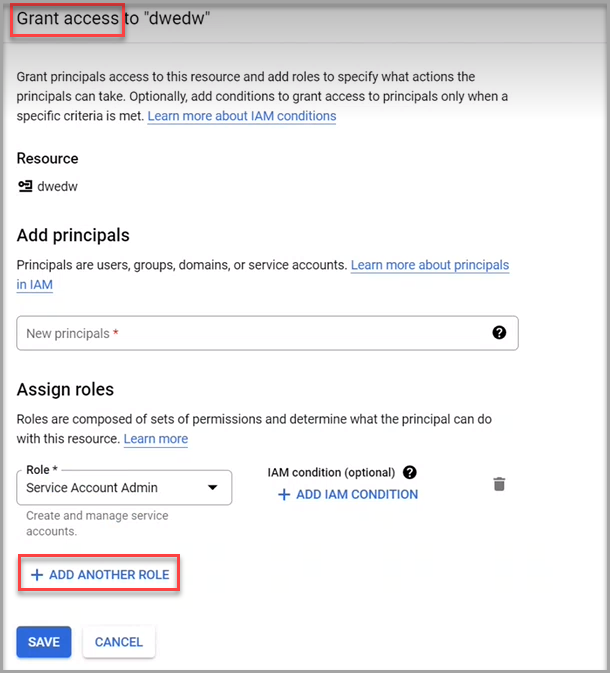
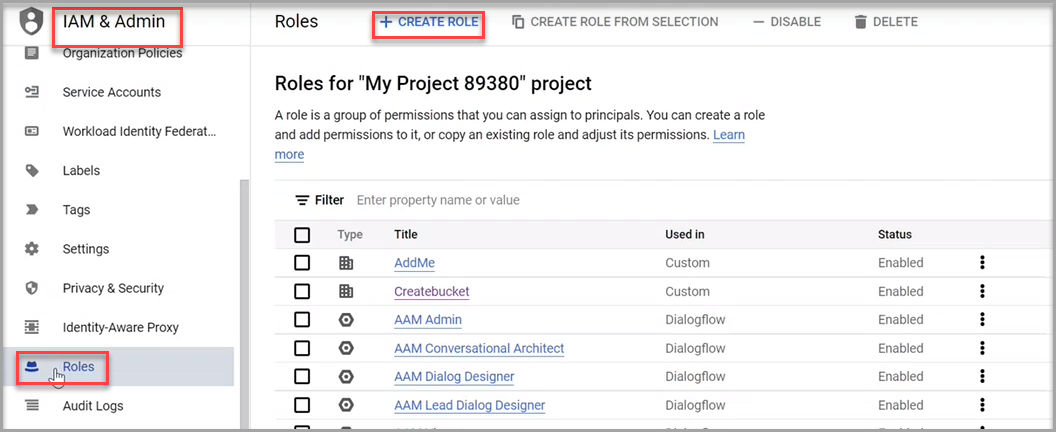
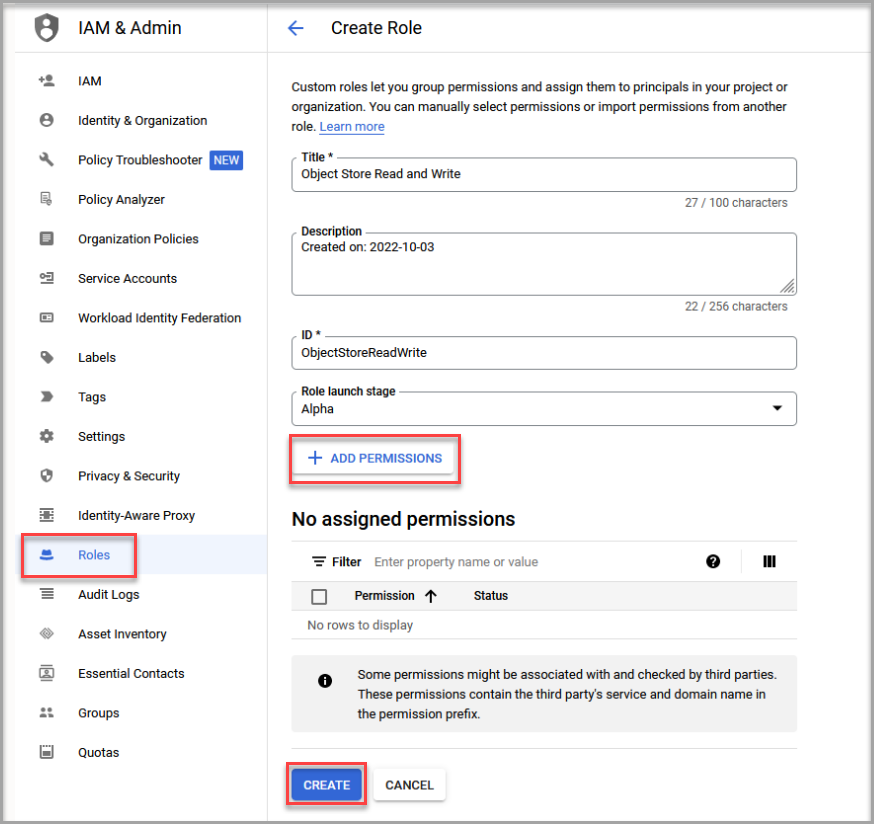
You can control the access to the resources in your Google Cloud project with the help of IAM (Identity and Access Management). The resources comprise of Cloud Storage buckets and objects that are stored within buckets, along with other Google Cloud entities such as Compute Engine instances.Permissions allow principals to perform specific actions on buckets or objects in Cloud storage. There are two options to prepare the Google cloud permissions and storage:- Option 1: Using the Transfer Appliance Cloud Setup Application
- Option 2: Configuring Google Cloud permissions and Cloud Storage step-by-step.
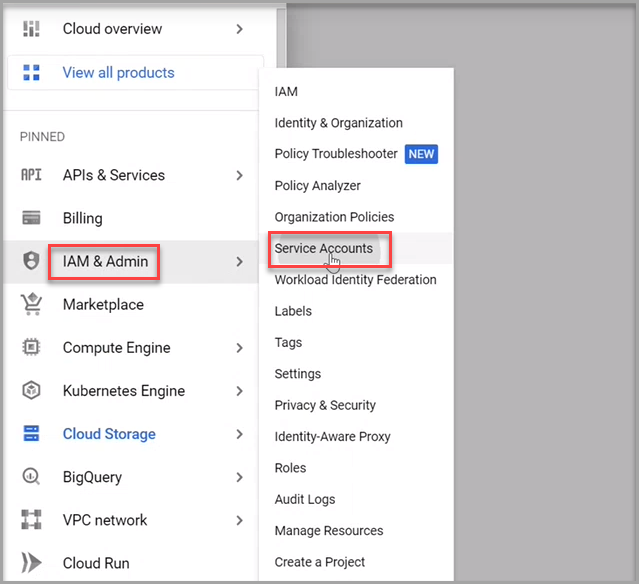
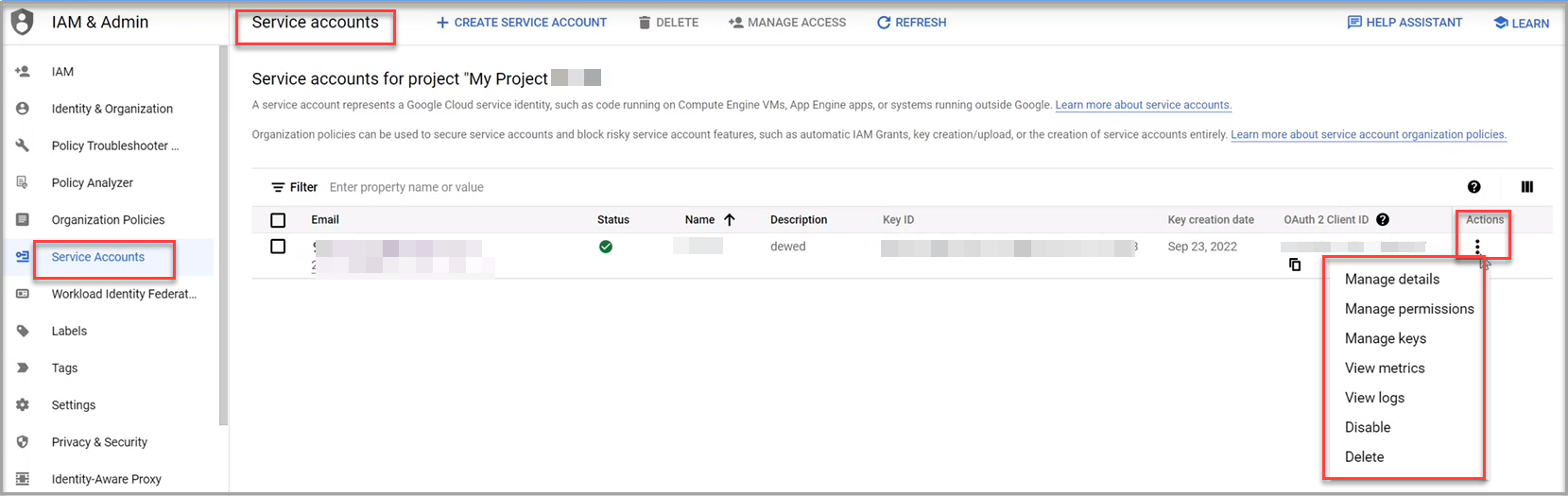
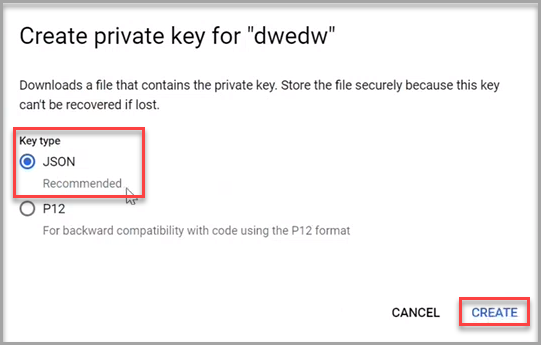
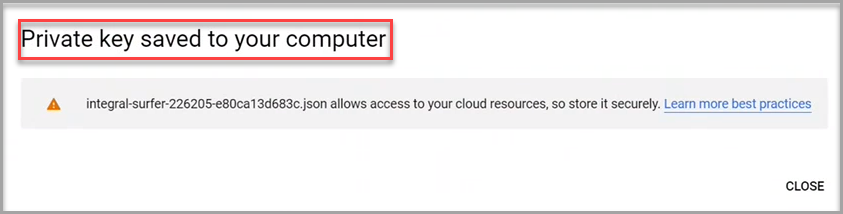
You need to create the JSON file and Permissions by logging into Google Cloud Console. You can refer to the Setting up Google Cloud Storage document to learn more.
Import data using Google Cloud Storage connector
Follow the below steps to create a new dataflow for the Google Cloud Storage import connector:- Go to Dataflow > Imports.
- Click New dataflow.
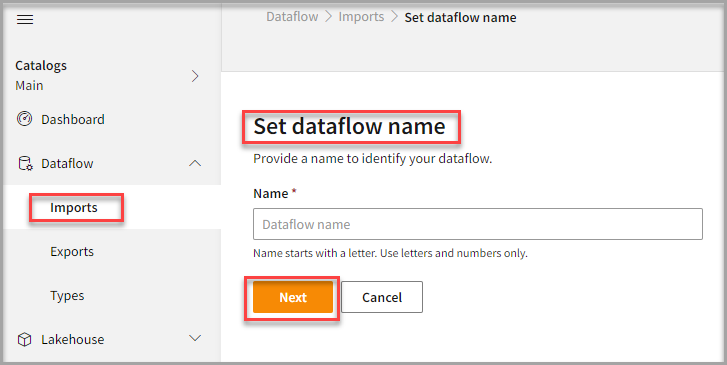
- In the Set dataflow name page, type dataflow name in the Name text area.
- Click Next.
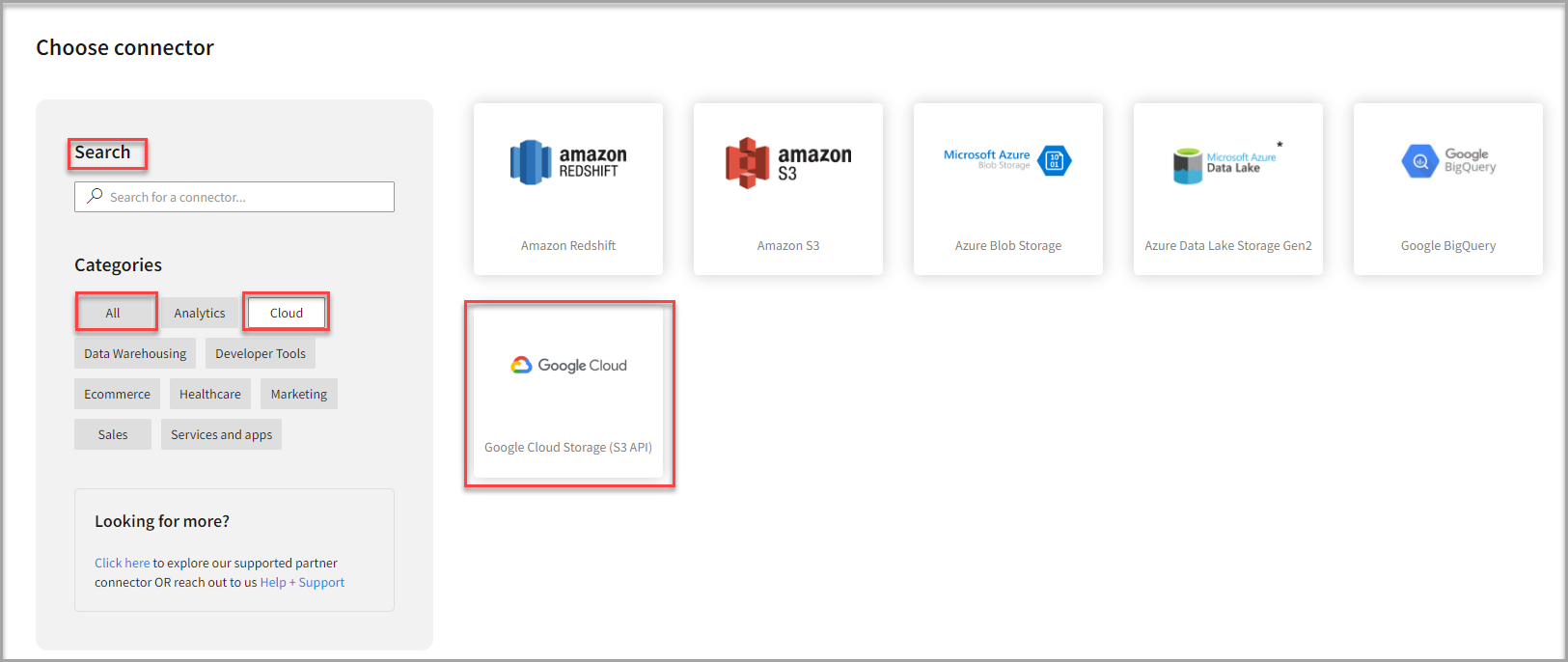
To add Google Cloud Storage connector
- In the Choose connector page, select Google Cloud Storage connector.
You can use the Search feature too to find the connector. Also, the Google Cloud Storage connector can be found under Cloud category.
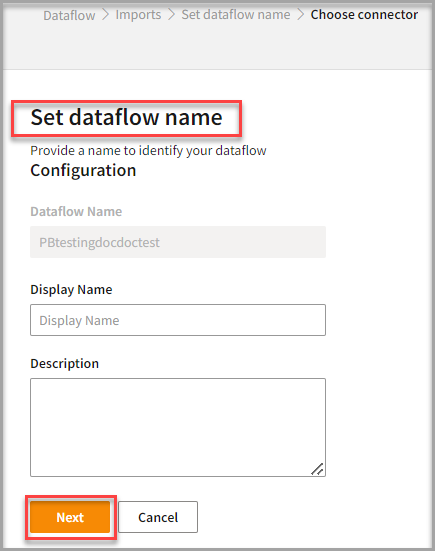
- Enter Display Name for your dataflow in the text area.
- Enter Description for your dataflow in the text area.
- Click Next.
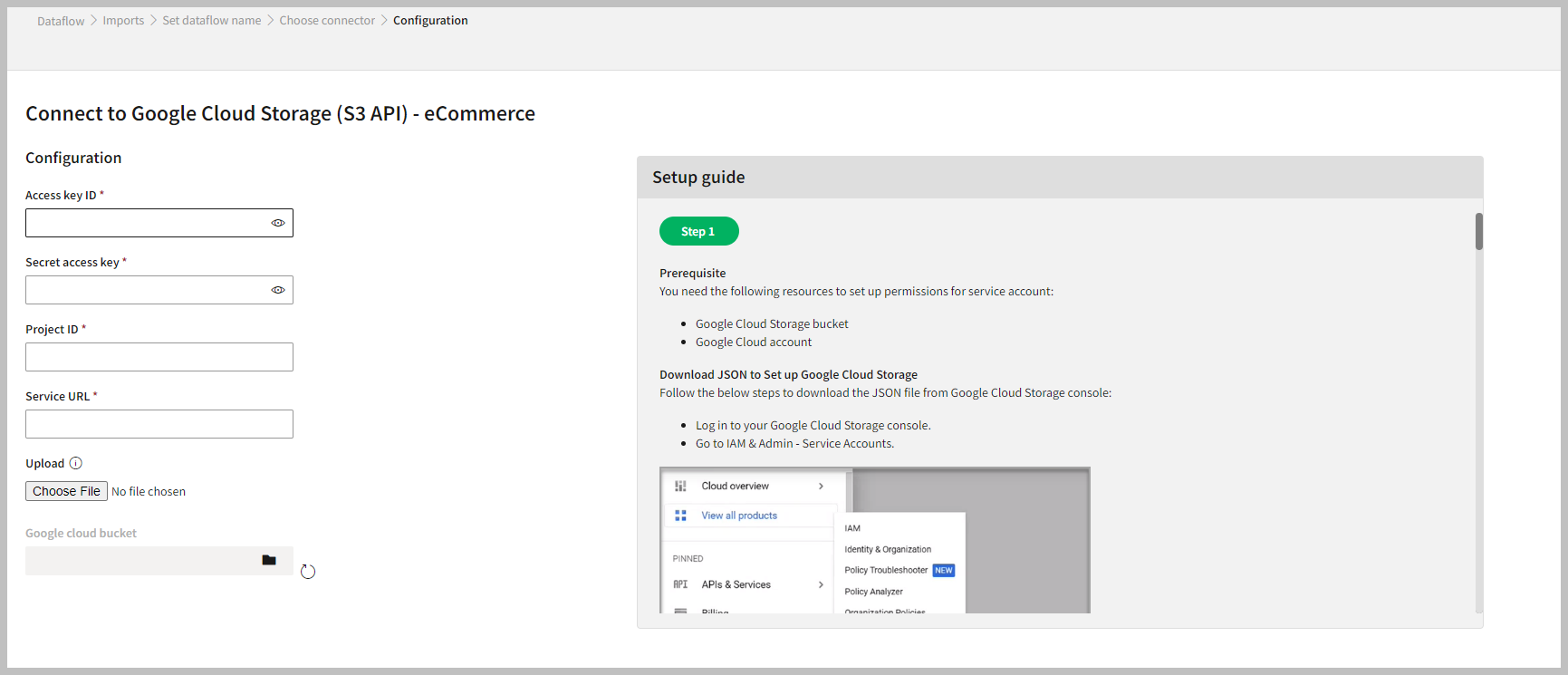
To configure Google Cloud Storage
Follow the below steps to configure the connection to Google Cloud Storage:- Enter your credentials such as Access key ID, Secret access key, Project ID, and Service URL to configure with Google Cloud Storage.
- Click Choose file to upload the JSON file.
- Click the Folder icon in the Google cloud bucket text area.
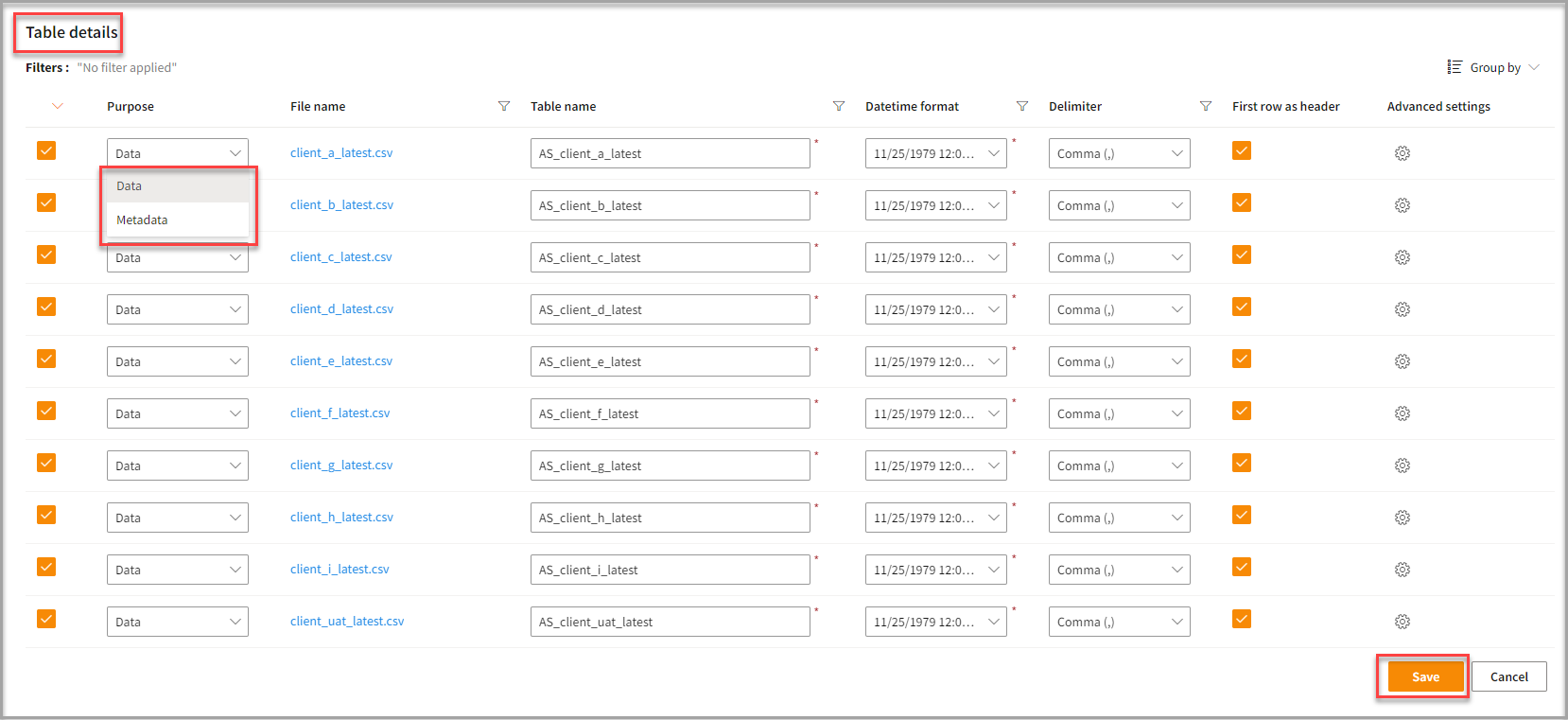
- Enter the Table Details to process the data.
- Click the Advanced settings for your desired file name.
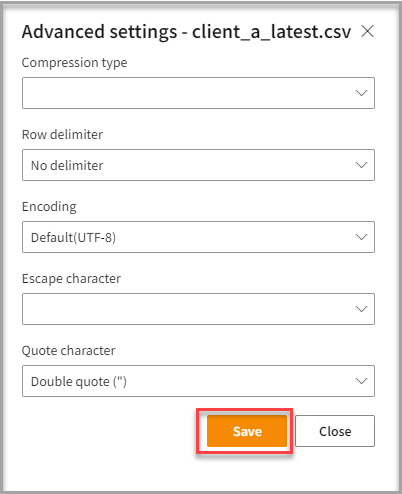
- Click Save on the Advanced settings pop-up to save the advanced settings.
- Click Save.
Run, edit, and delete the imported data
Once you save the connector, the Google Cloud Storage connector gets displayed in the list of tables created in the Dataflow page.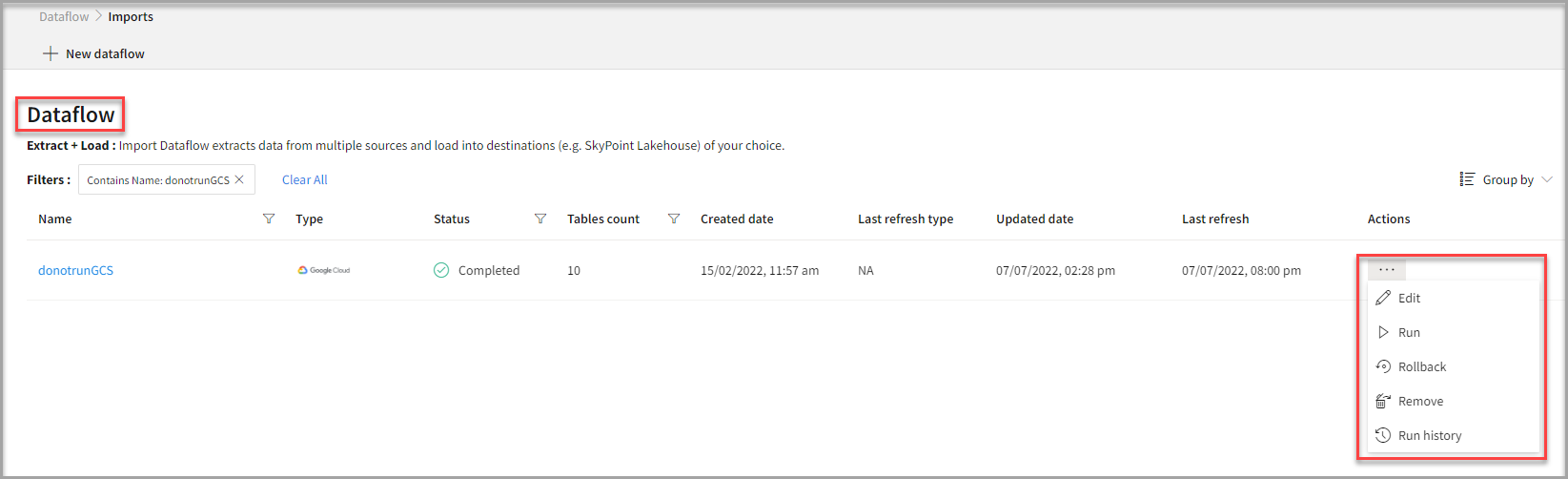
- Select the horizontal ellipsis in the Actions column and do the following: