

Connecting to PointClickCare
Overview
PointClickCare (PCC) connector facilitates the secure transfer of patient information from the Electronic Health Record (EHR) system, ensuring patient data privacy and compliance with regulations. This enables healthcare providers to access and share important patient information across different systems, improving the quality of care and enhancing collaboration among healthcare teams. You can connect the PCC to skyData Studio and perform various tasks such as data ingestion, unification, transformation, and enrichment to gain insights from the data. You can use skyData’s built-in connector for importing data from PCC. This document will guide you through the process of connecting PCC to the skyData.Prerequisite
You will need the following details to configure and import data using the PCC⇗ connector:- Client Id
- Client Secret
- Application Name
- Organization Uuid
- Certificate
- Certificate Password (optional)
To import data using the PCC connector
Follow the below steps to create and configure a new dataflow for the PCC import connector:- Go to Dataflow > Imports.
- Click New dataflow.
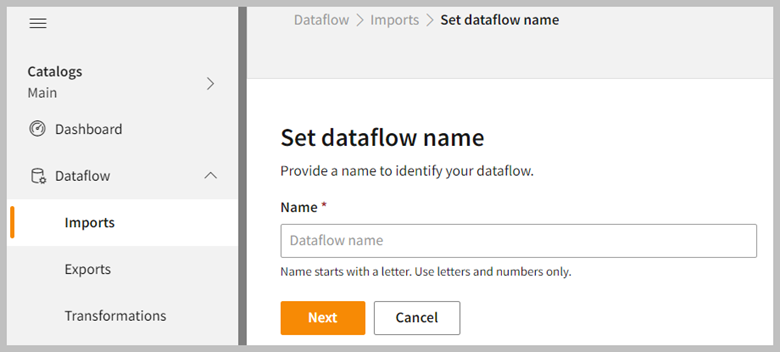
- Enter the dataflow name in the Name text area.
- Click Next.
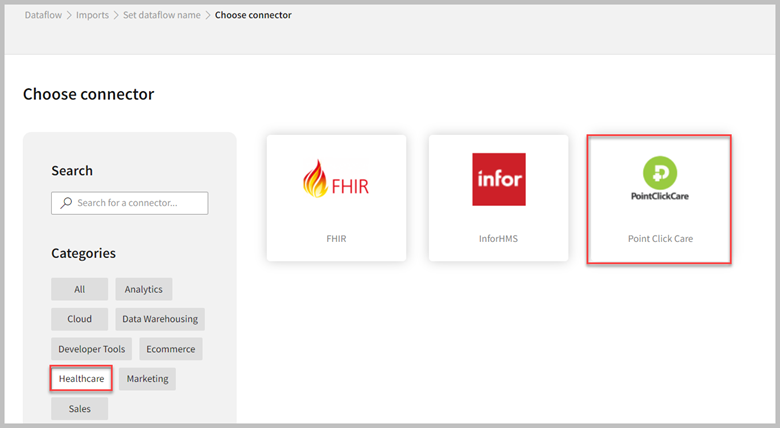
Add PCC connector
- In the Choose connector page, select PointClickCare connector. You can use the Search feature to find the connector. Also, the PCC connector can be found under the Healthcare category.
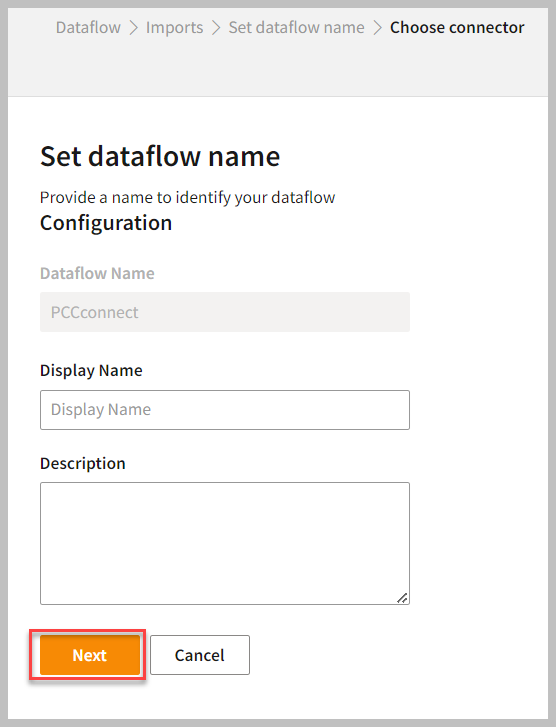
- Enter the Display Name for your dataflow in the text area.
- You can add a Description in the text area.
- Click Next.
Connect to the PCC account
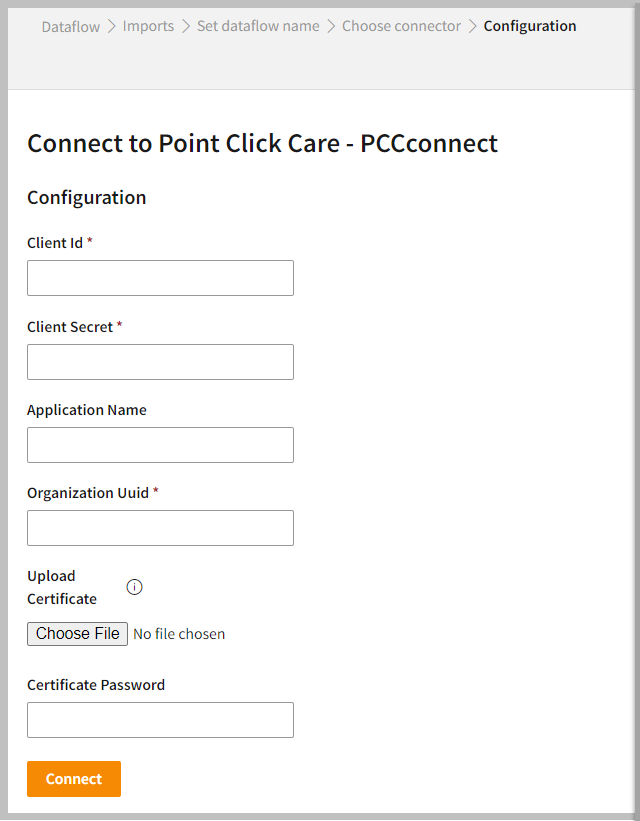
Log in to your PCC account using your username and password. If you do not have an account, you can create one by visiting the PCC website⇗. Go to the PCC developer portal⇗ and register your application to use API. When an application is registered, you will get the credentials to establish configuration.- Enter Client Id the unique identifier assigned to your application.
- Enter the Client Secret code assigned to your application.
- Enter the Application Name assigned to your application.
- Enter the Organization Uuid assigned to your organization within the PCC system.
- Upload the Certificate used in the SSL/TLS protocol to encrypt the communication between the client and server and establish a secure connection.
- If necessary, enter the Certificate Password associated with the client certificate.
- Click Connect.
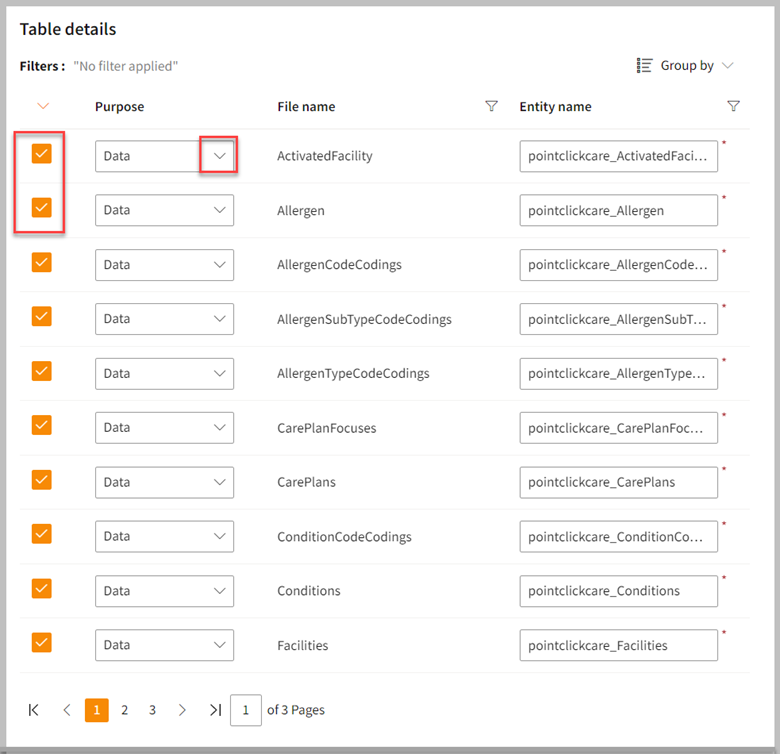
- In the Table details section, each table is identified by a row. Click the checkbox to select the table for import and use the dropdown to mark it as Data or Metadata.
In the Table Details section, all tables are selected by default. You can select only the tables you want to import and process. For example, to import customer data, choose the tables that contain customer information, such as name, email, address, and contact details.
- Click Save to apply the changes.
Run, edit, and delete the imported data
Once the table is imported, you can execute, modify, and remove the imported table from the Dataflow. Follow the below steps:- Go to the Dataflow > Imports page.
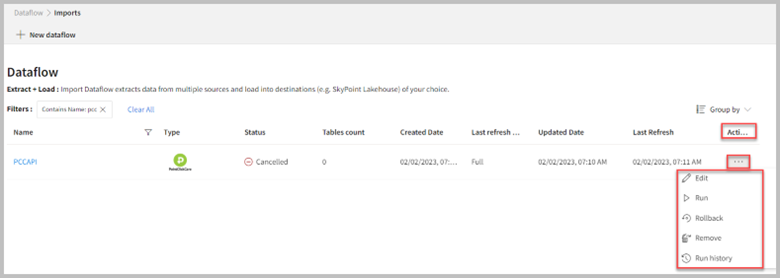
- Select the horizontal ellipsis under the Actions column and do the following:
You can view the error message for data import failures in the Dataflow under Run History > Description. Additionally, you can see the status, start time, and end time of the data pipeline execution.