

Connecting to PayNW Reports
PayNW’s reporting capabilities offer comprehensive dashboards, analytics, and customizable reports that provide real-time insights into payroll, HR, and employee data. You can leverage the built-in PayNW Reports connector in SkyPoint AI Studio to seamlessly import employee timesheet data & more. This streamlines data integration, enhances efficiency, and ensures smooth data management on the platform by enabling organizations to make informed decisions. This document will guide you through the process of connecting PayNW Reports to the skyData.Prerequisite
You need the following details to configure and import data using the PayNWReports⇗ connector:- Company
- Company ID
- Username
- Password
- API Key
- Report ID
- Client Company
To import data using the PayNW Reports connector
Follow the below steps to create and configure a new dataflow for the PayNW Reports import connector:- Navigate to Dataflow > Imports.
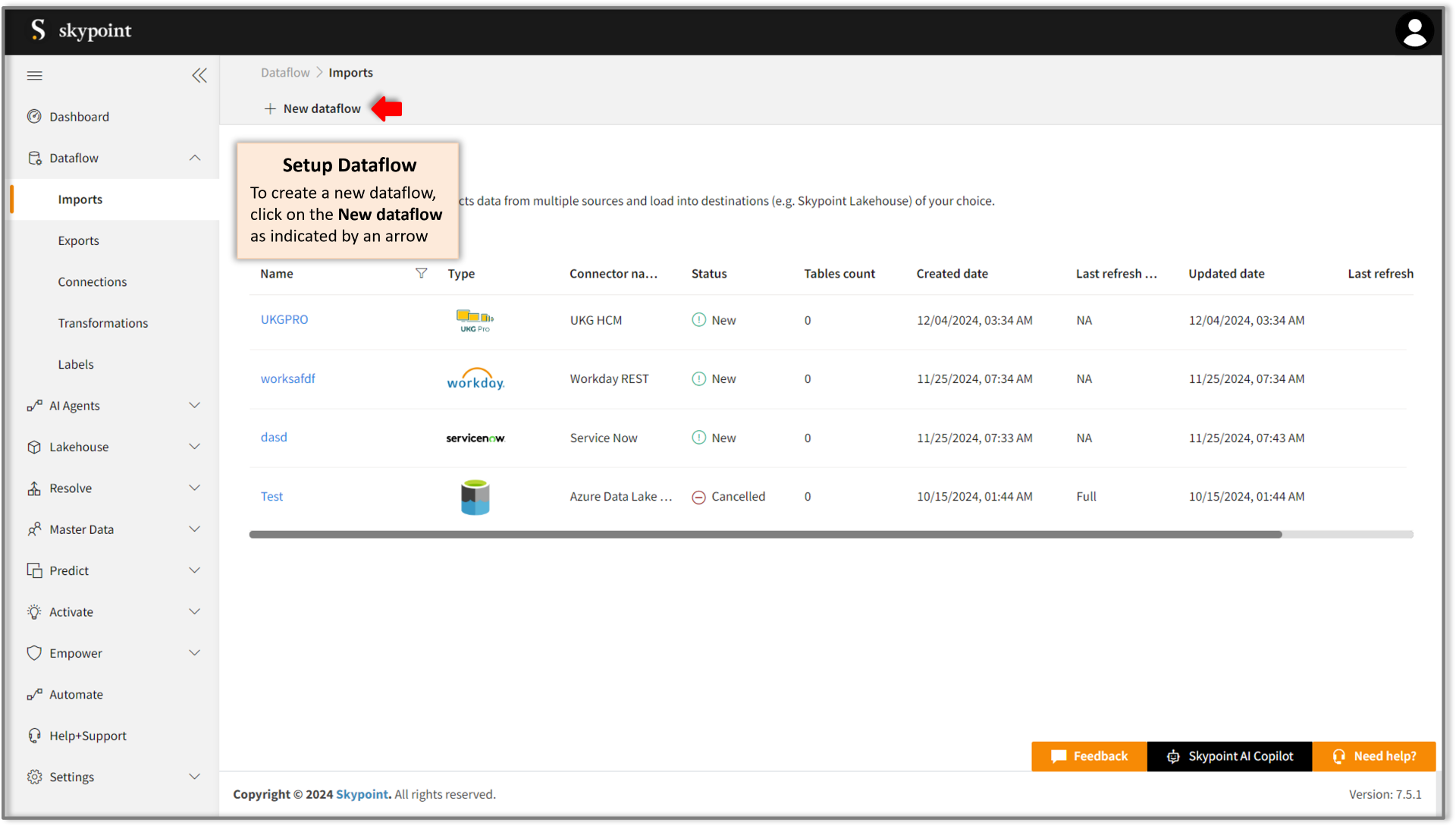
- Click New dataflow as indicated by an arrow.
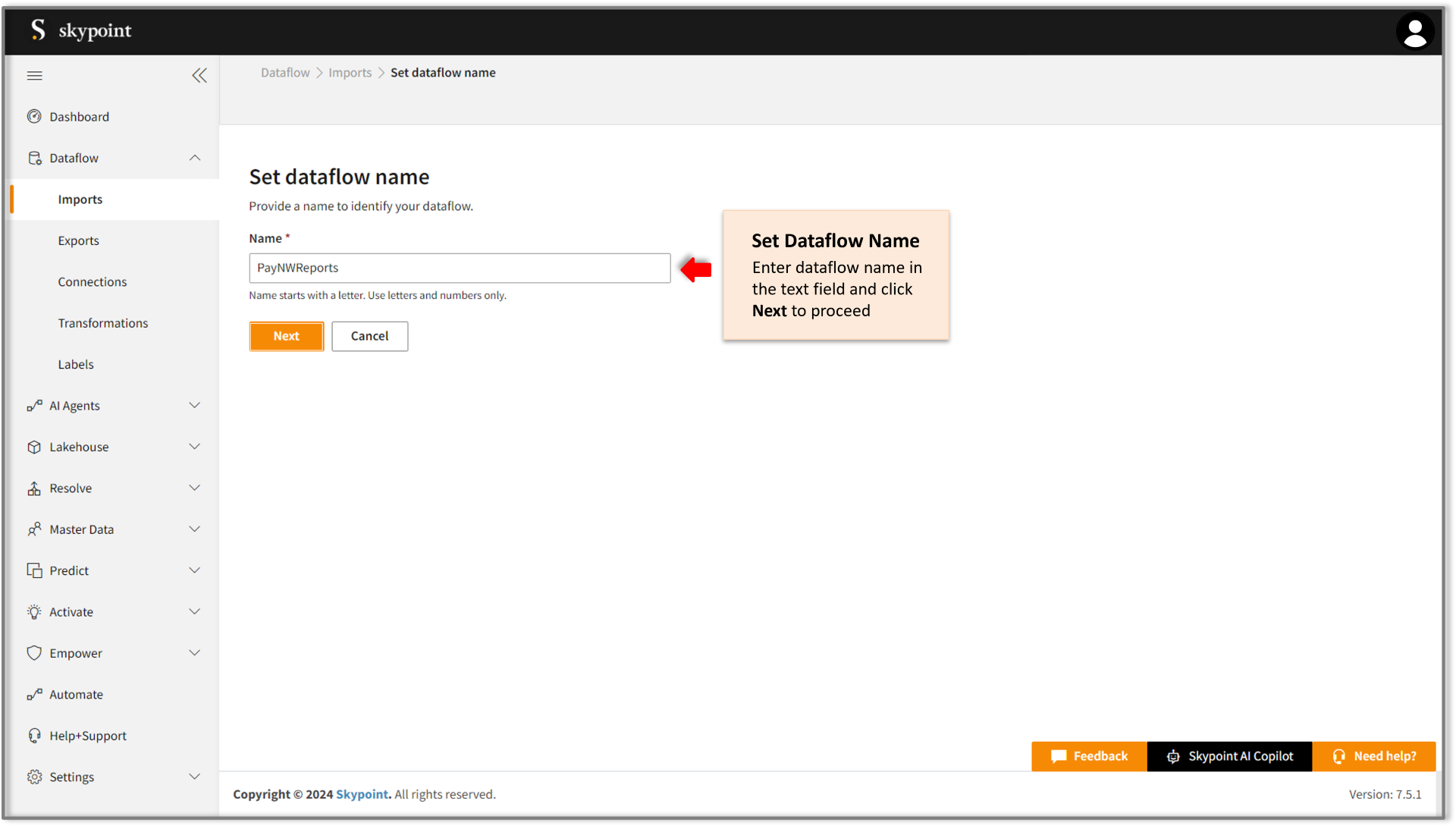
- Enter the desired name for the dataflow in the Name text field.
- Click Next to proceed.
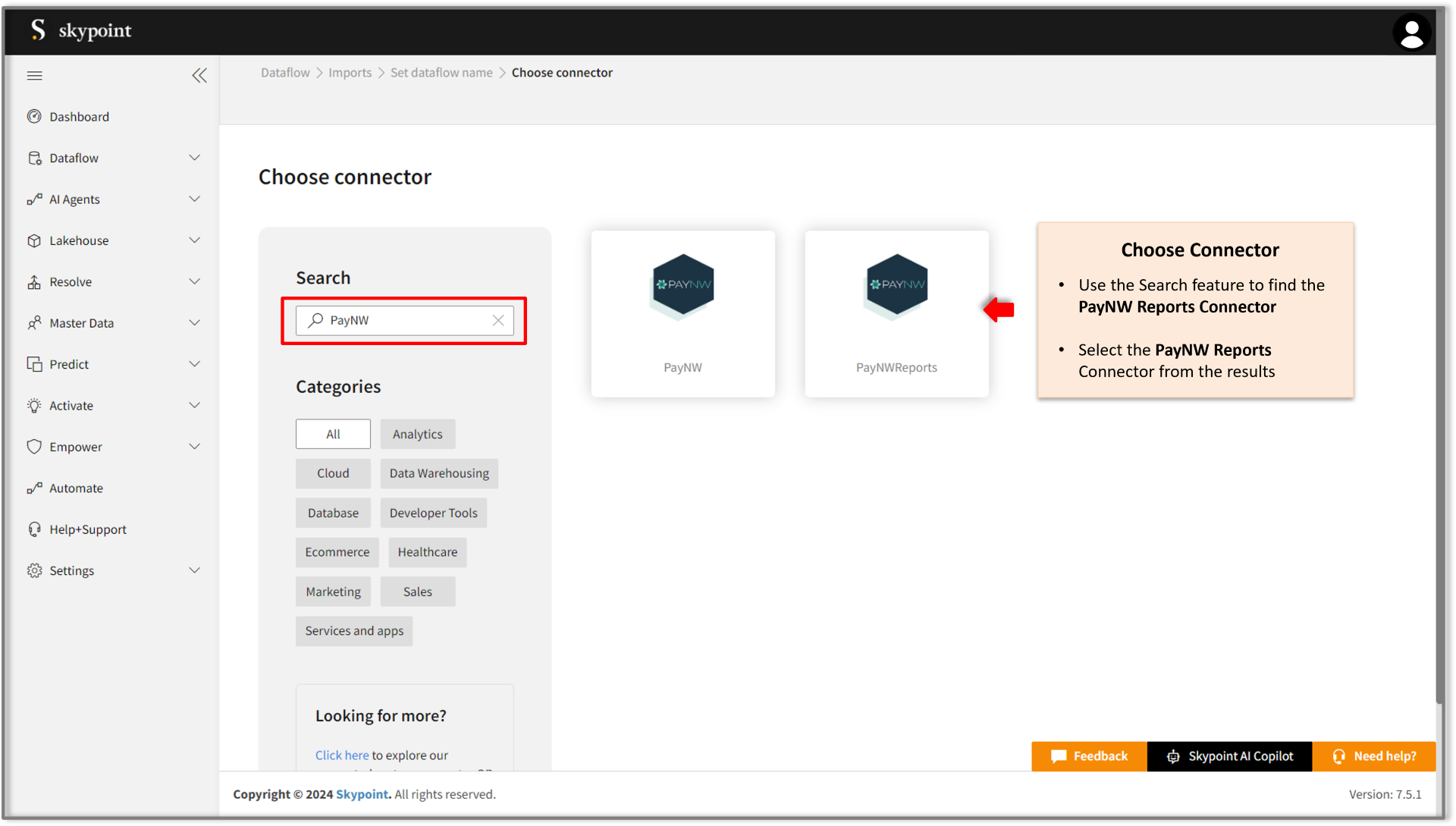
Add PayNW Reports connector
- On the Choose Connector page, use the Search feature to locate and select the PayNW Reports Connector.
- Enter the Display Name for your dataflow in the provided text field.
- Optionally, add a Description in the designated text area.
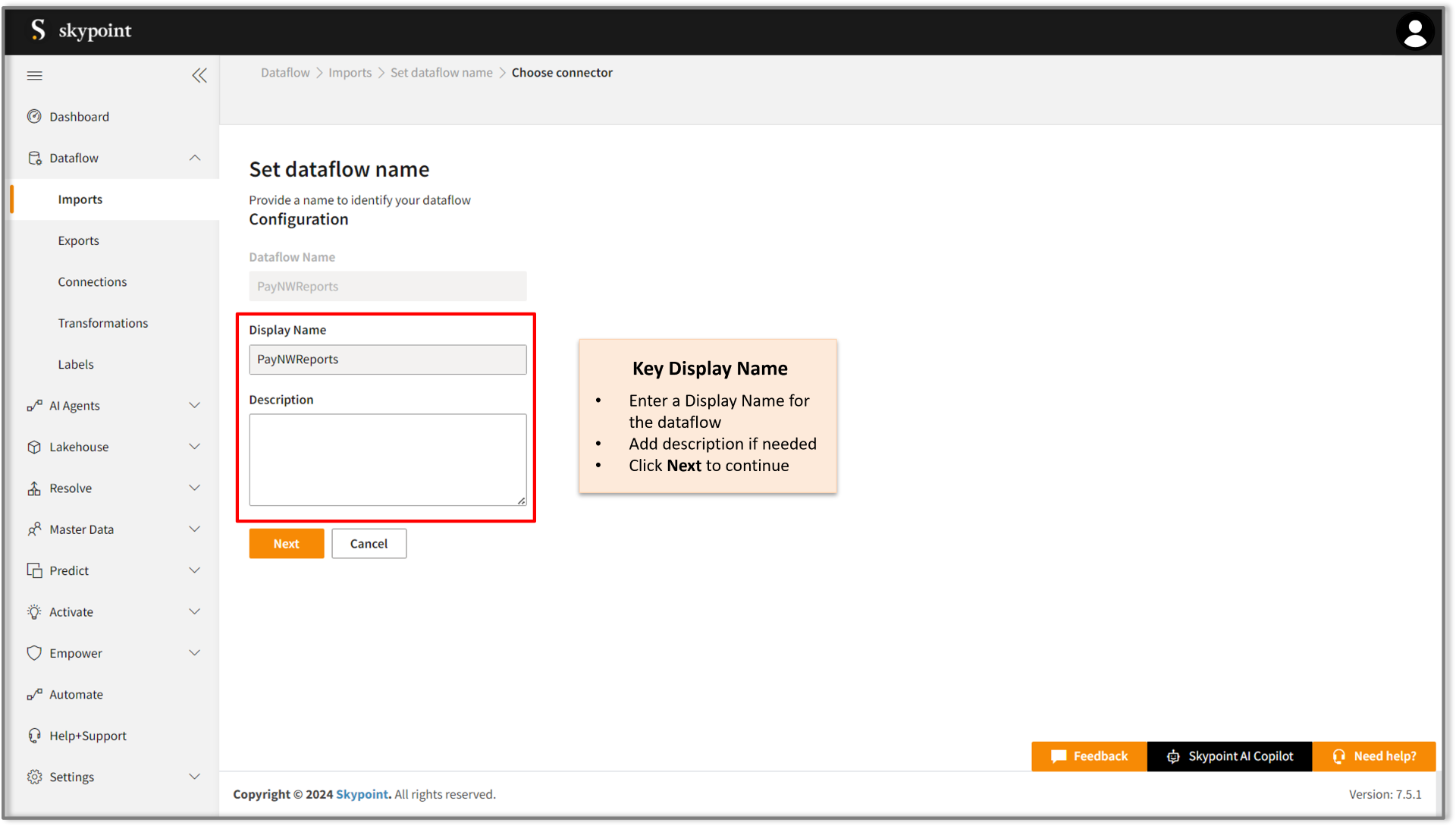
- Click Next to proceed.
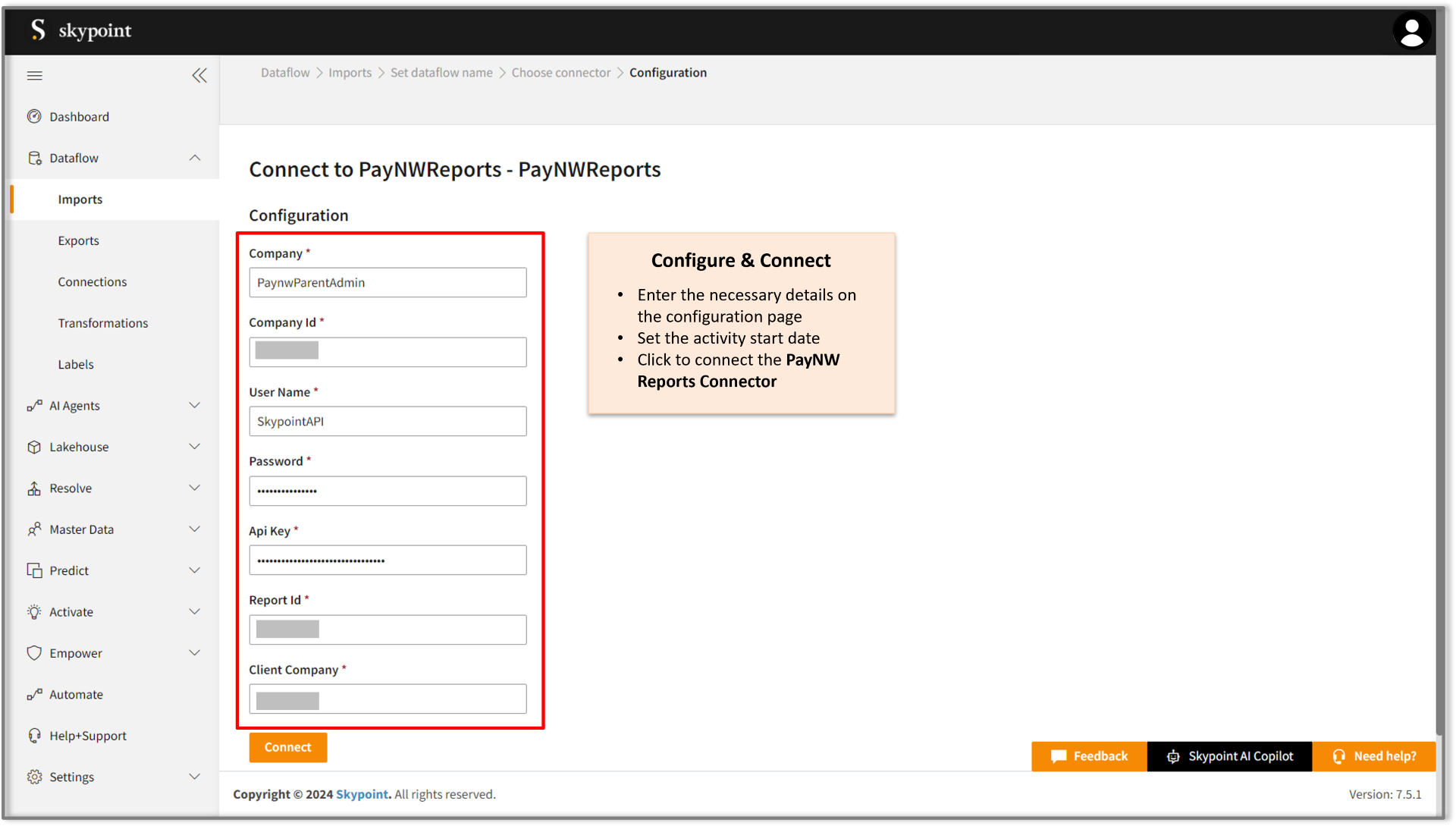
Connect to the PayNW Reports account
- Fill in the required details on the Configuration page.
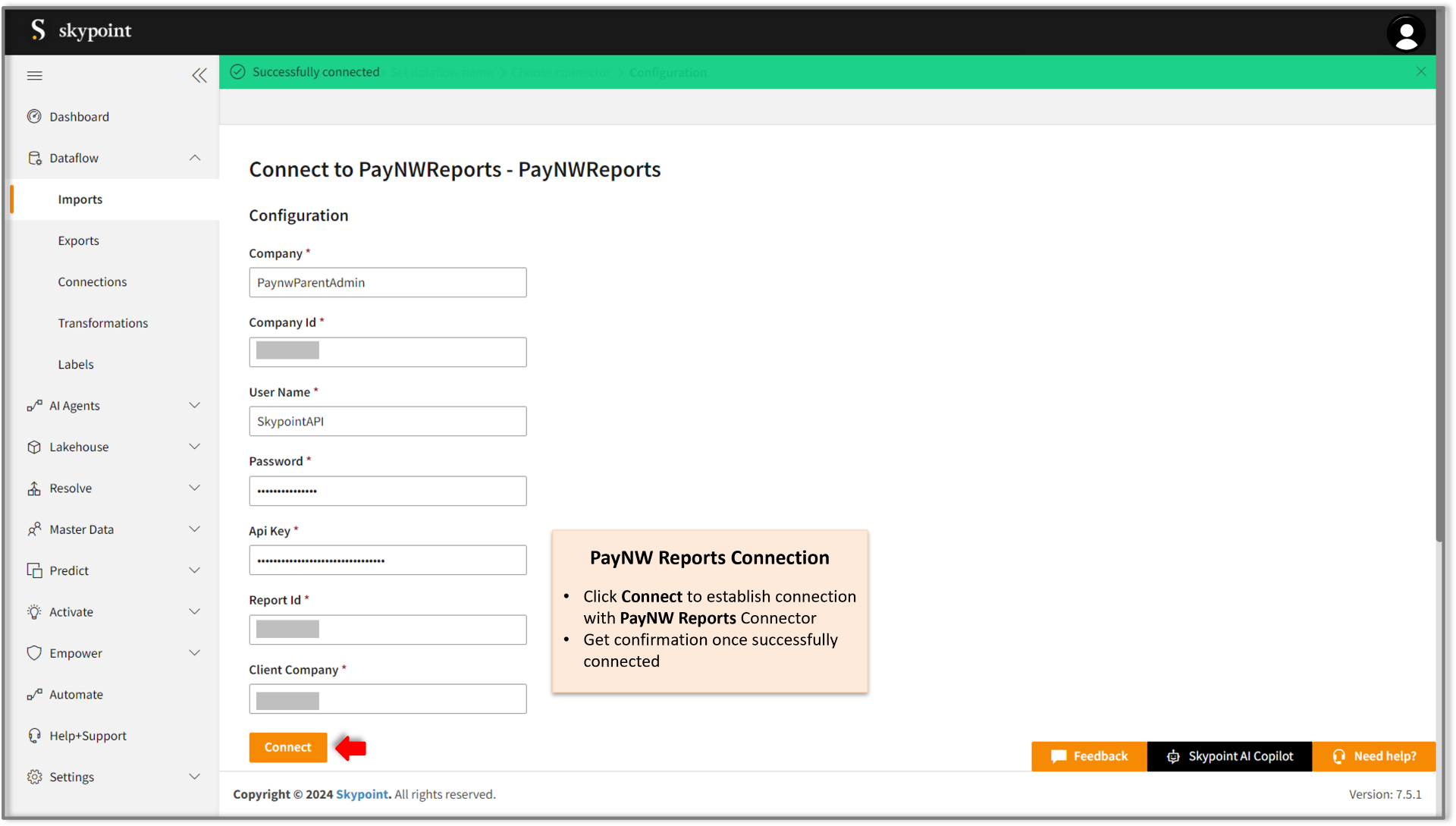
- Click Connect.
- Scroll down to the Table Details section, select the checkboxes for the tables you wish to import, and use the dropdown menu to label them as either Data or Metadata.
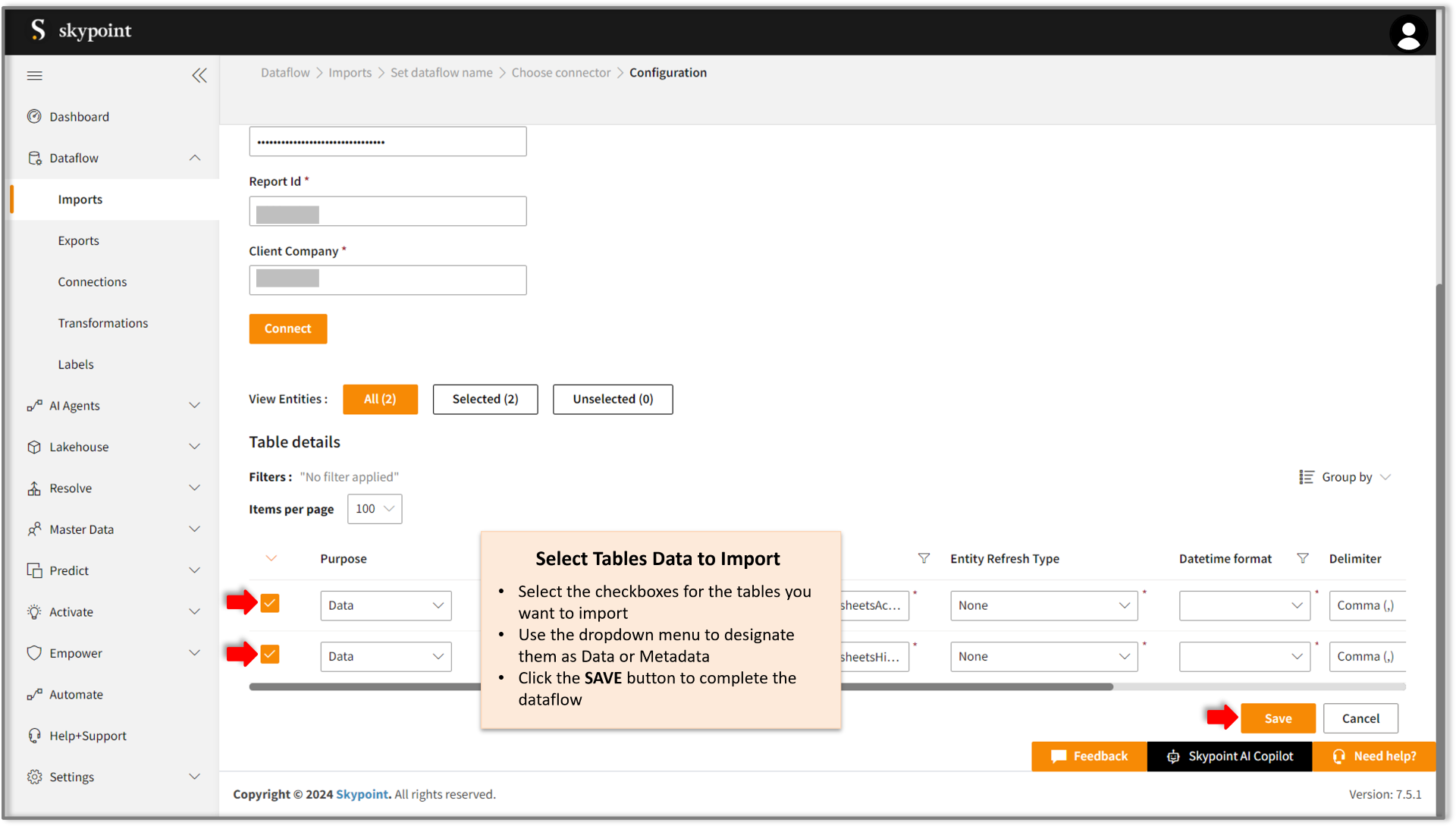
By default, all tables in the Table Details section are selected. You can choose to import only specific tables that are relevant to your data processing needs. For example, to import employee data, select tables containing details like name, email, address, and contact information.
- Click Save to apply the changes.
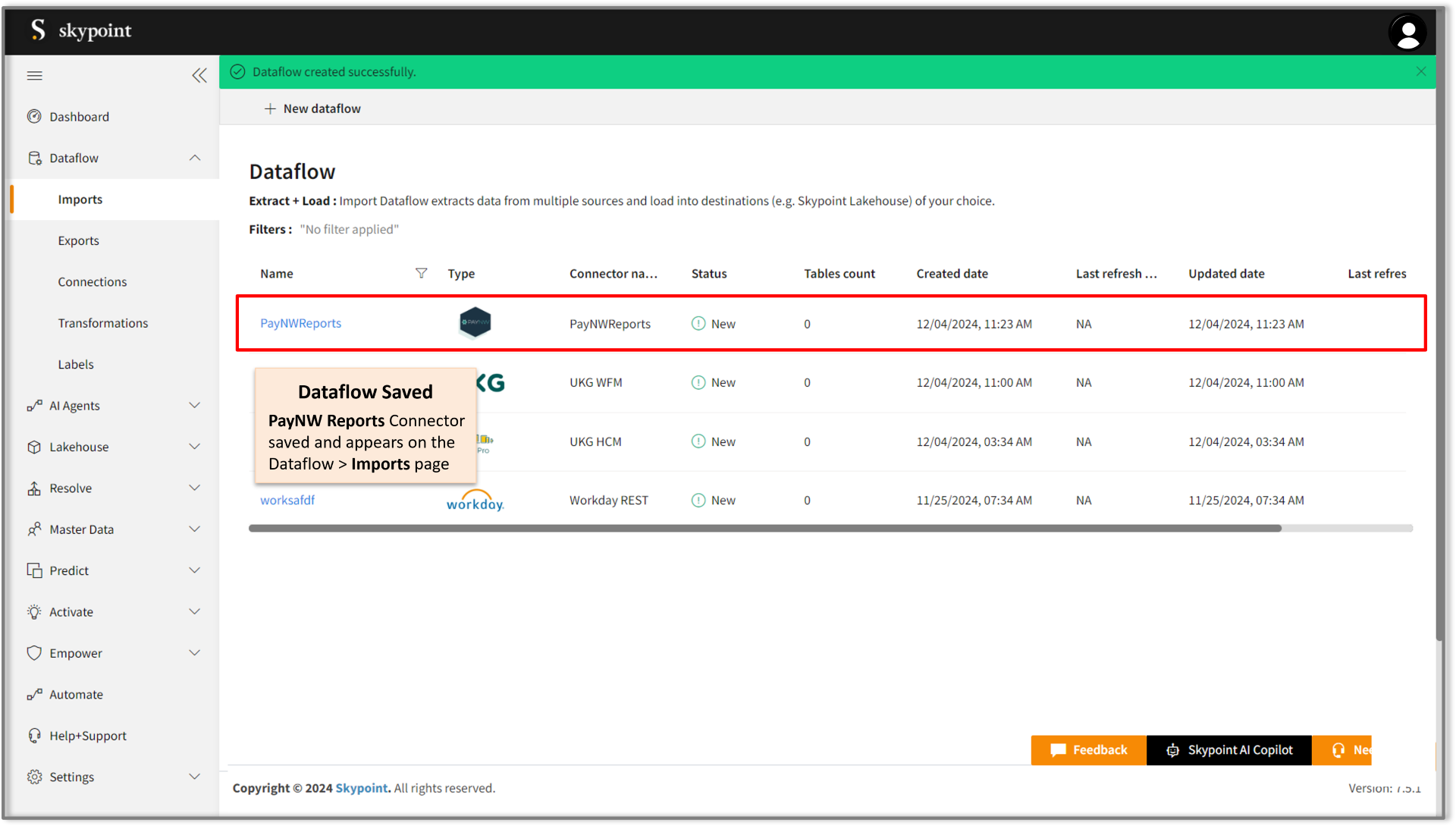
Run, Edit, and Delete the imported data
Once the table is imported, you can execute, modify, and remove the imported table from the Dataflow. Follow the below steps:- Go to the Dataflow > Imports page.
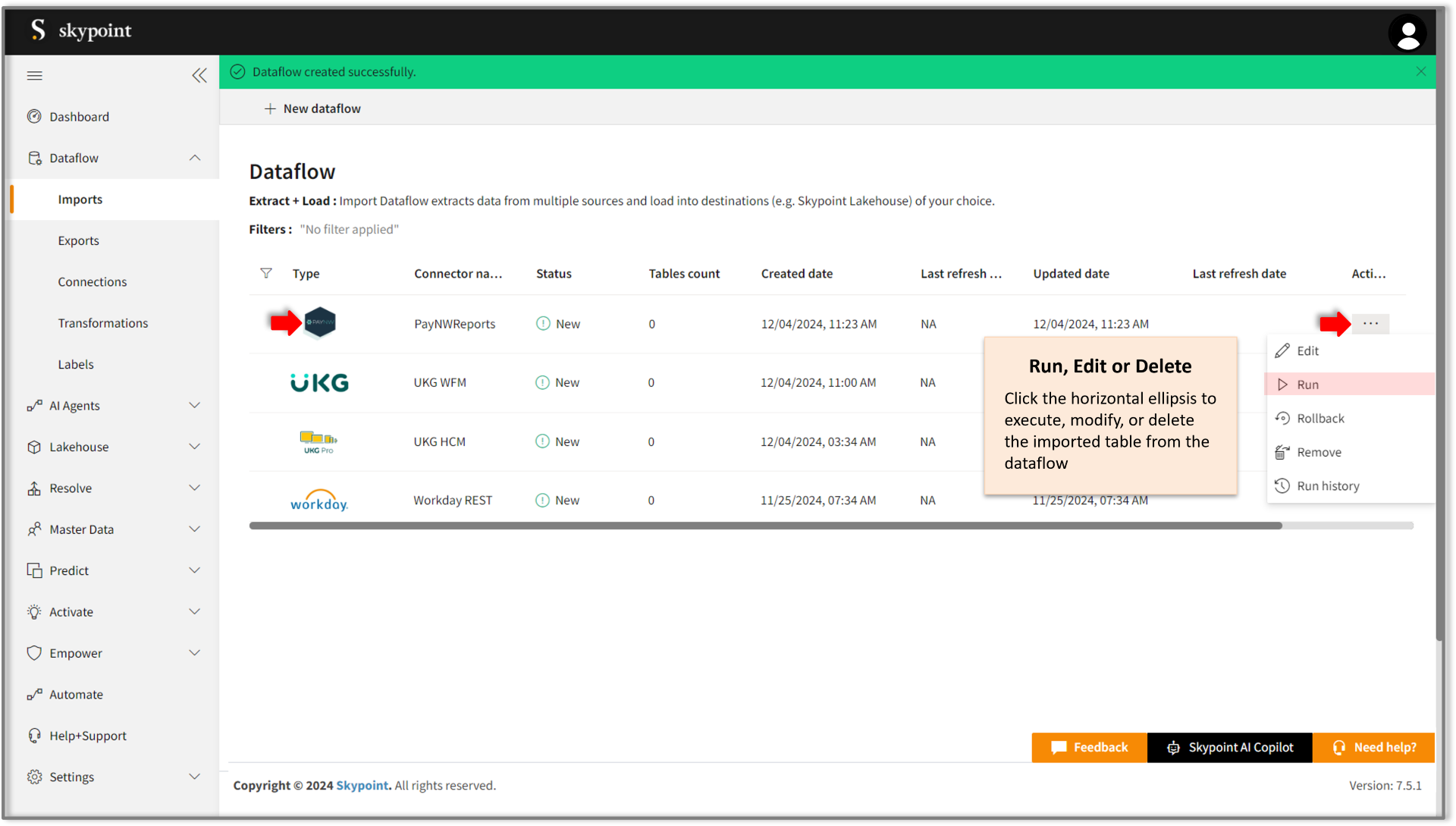
- Select the horizontal ellipsis under the Actions column and do the following:
- Click Run to execute the dataflow. Once the execution is successful, the data pipeline status will update to Completed, as illustrated in the figure below.
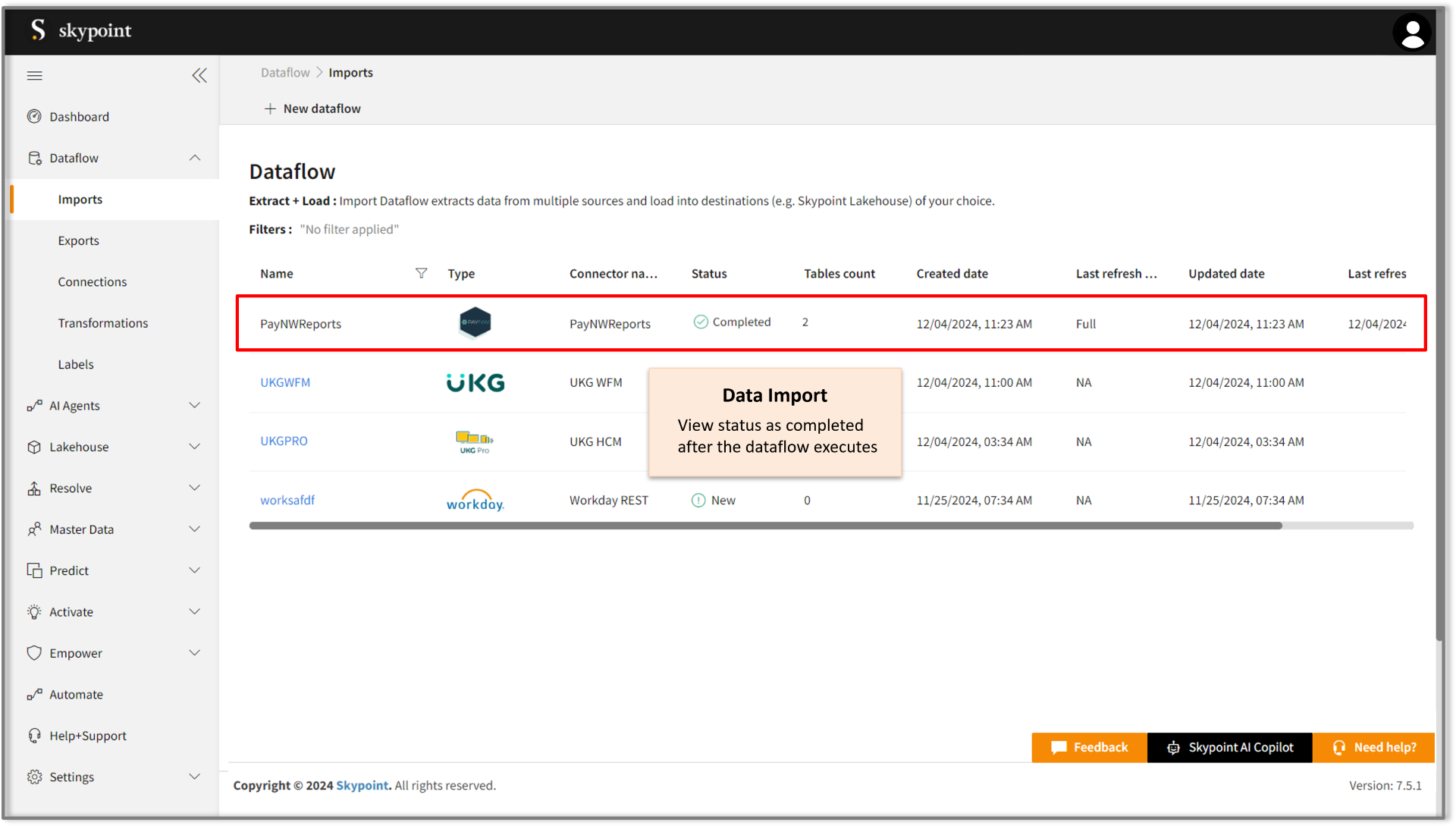
In the Dataflow’s Run History Description, you can view error messages related to data import failures from a data source. Additionally, you can check the status, start time, and end time of the data pipeline execution.