

Connecting to Campaign Monitor
Overview
Campaign Monitor is a leading email marketing platform that helps businesses to design and send personalized email messages. You can amplify your business growth with all the resources to manage new subscriptions, send email newsletters and generate reports. You can use skyData’s built-in connector for importing data from Campaign Monitor. skyData collects, analyzes, and provides a solution to transform data into meaningful information for generating valuable insights.Prerequisite
You will need the following details to configure and import data with Campaign monitor:- Client ID
- API Key.
Import data using Campaign Monitor connector
Follow the below steps to create a new dataflow for the Campaign Monitor import connector:- Go to Dataflow > Imports.
- Click New dataflow.
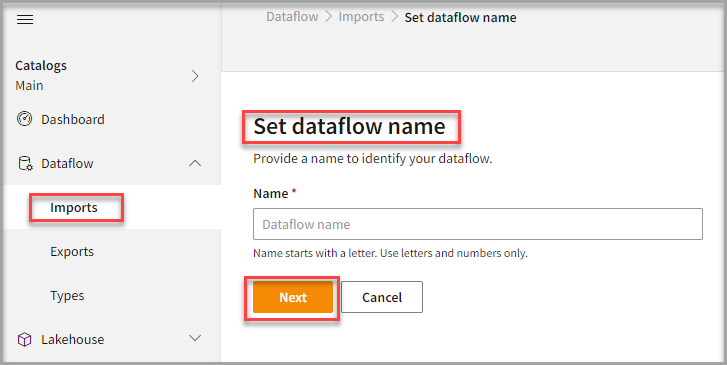
- In the Set dataflow name page, enter dataflow name in the Name text area.
- Click Next.
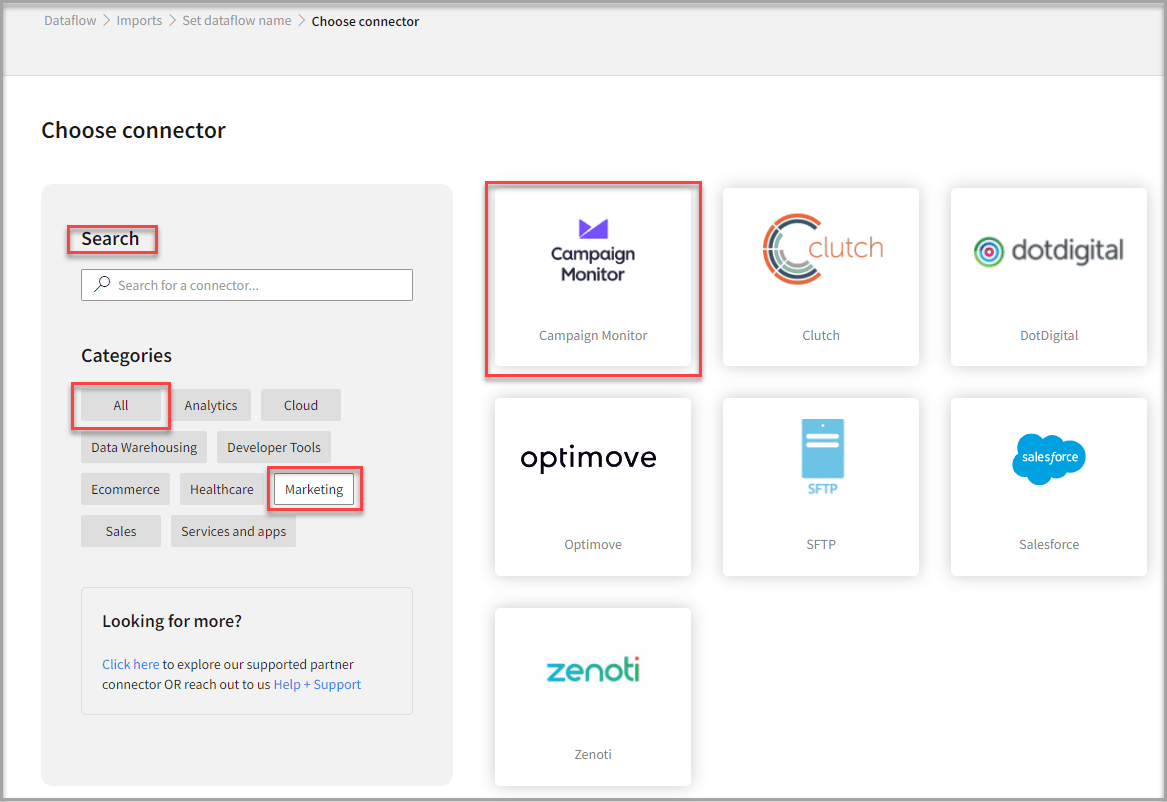
To add Campaign Monitor connector
- In the Choose connector page, select Campaign Monitor connector.
You can also use the Search feature to find the connector. Additionally, the Campaign Monitor connector is located under the Marketing category.
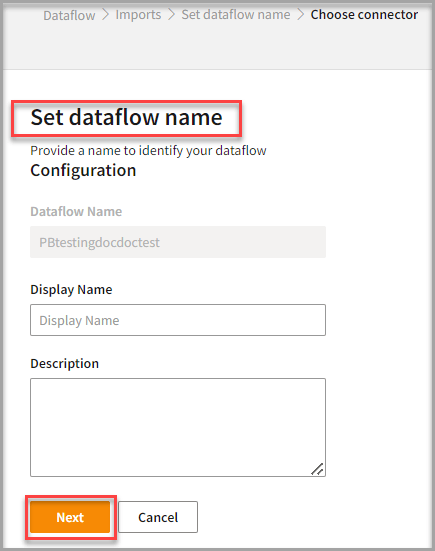
- Enter Display Name for your dataflow in the text area.
- Enter Description for your dataflow in the text area.
- Click Next.
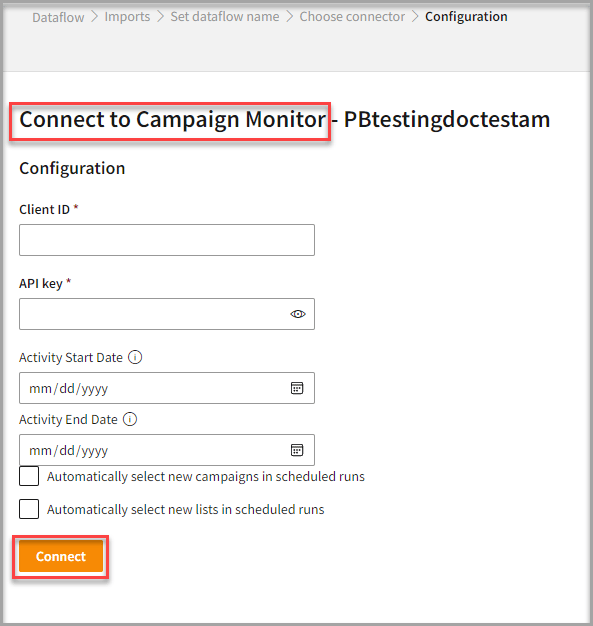
To configure Campaign Monitor
Follow the below steps to configure the connection to Campaign Monitor:- Enter your credentials such as Client ID and API Key to configure with the Boulevard connector.
- Select Activity Start Date to set a start date range to import activities since the beginning.
- Select Activity End Date to set an end date range to import activities till today.
- Click Connect.
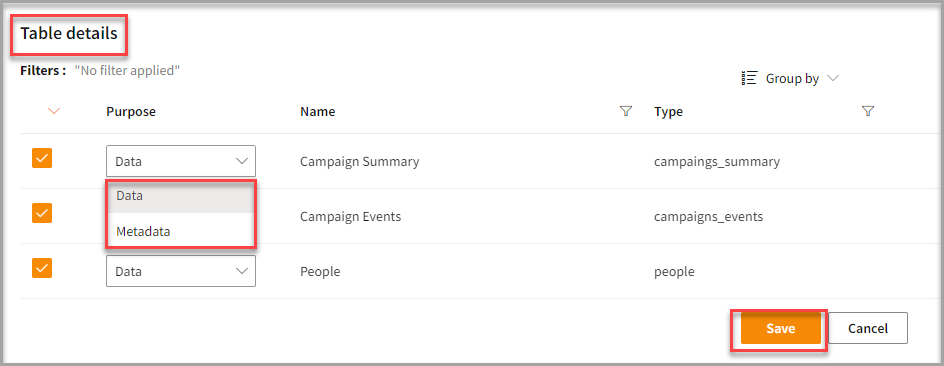
- Enter the Table Details to process the data.
- Click Save.
Run, edit, and delete the imported data
Once you save the connector, the Campaign Monitor connector gets displayed in the list of tables created in the Dataflow page.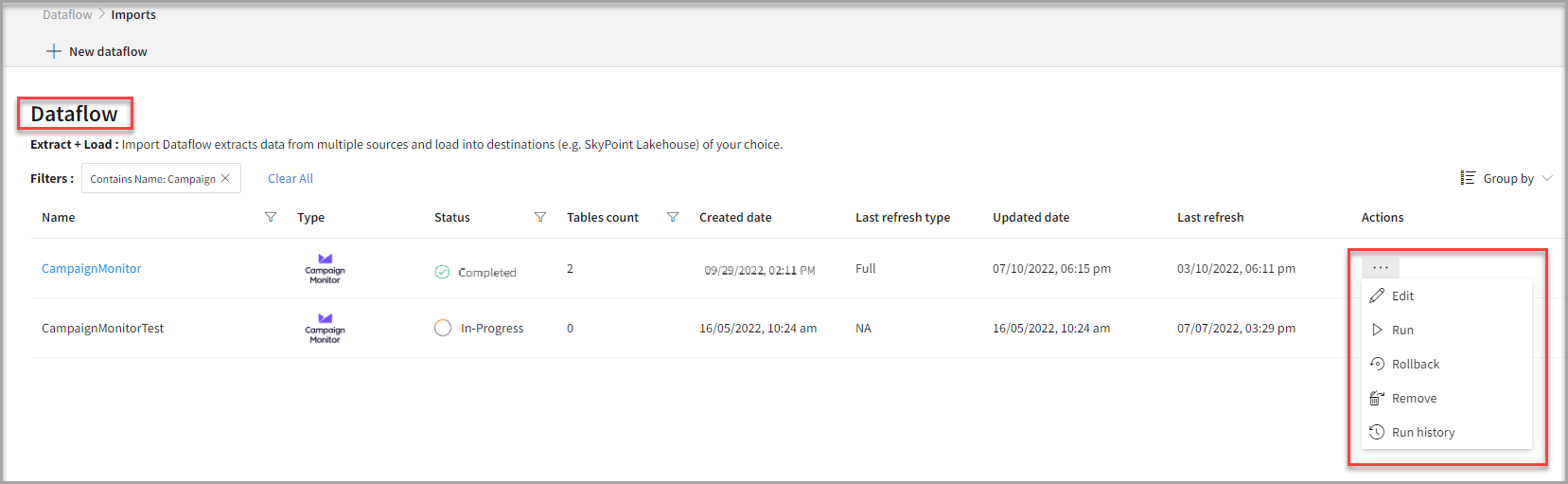
- Select the horizontal ellipsis in the Actions column and do the following: