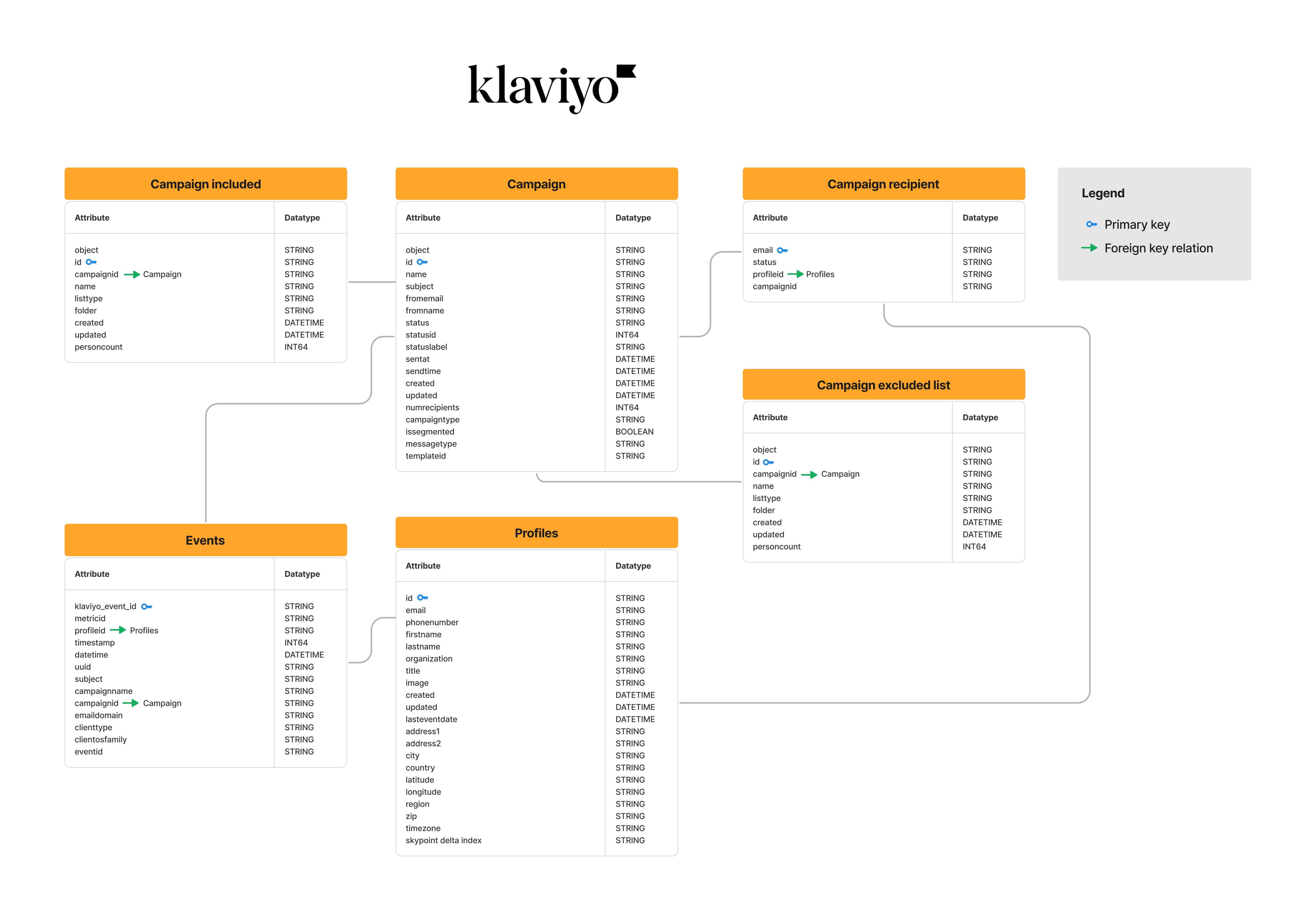

Connecting to Klaviyo
Import data
Overview
Klaviyo provides a marketing automation platform used primarily for email and SMS marketing. You can use skyData’s built-in connector for importing data from Klaviyo. This document will guide you through the process of connecting Klaviyo to skyData.Prerequisite
You will need the following details to configure and import data using Klaviyo:- Klaviyo Account
- API Key.
To create the API key, log in to your Klaviyo account. For more information, refer to the Setting up Klaviyo document.
Import Data using Klaviyo connector
- In the left pane, go to Dataflow > Imports.

- Click New Dataflow to create dataflow.
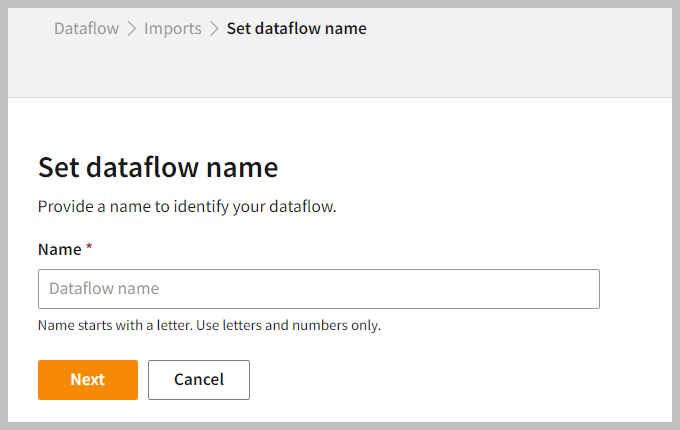
- Enter a Name to identify your Dataflow.
The name must start with a letter and can only contain letters and numbers, with no spaces between the characters.
- Click Next.
Add Klaviyo Connector
Follow the below steps to add Klaviyo connector: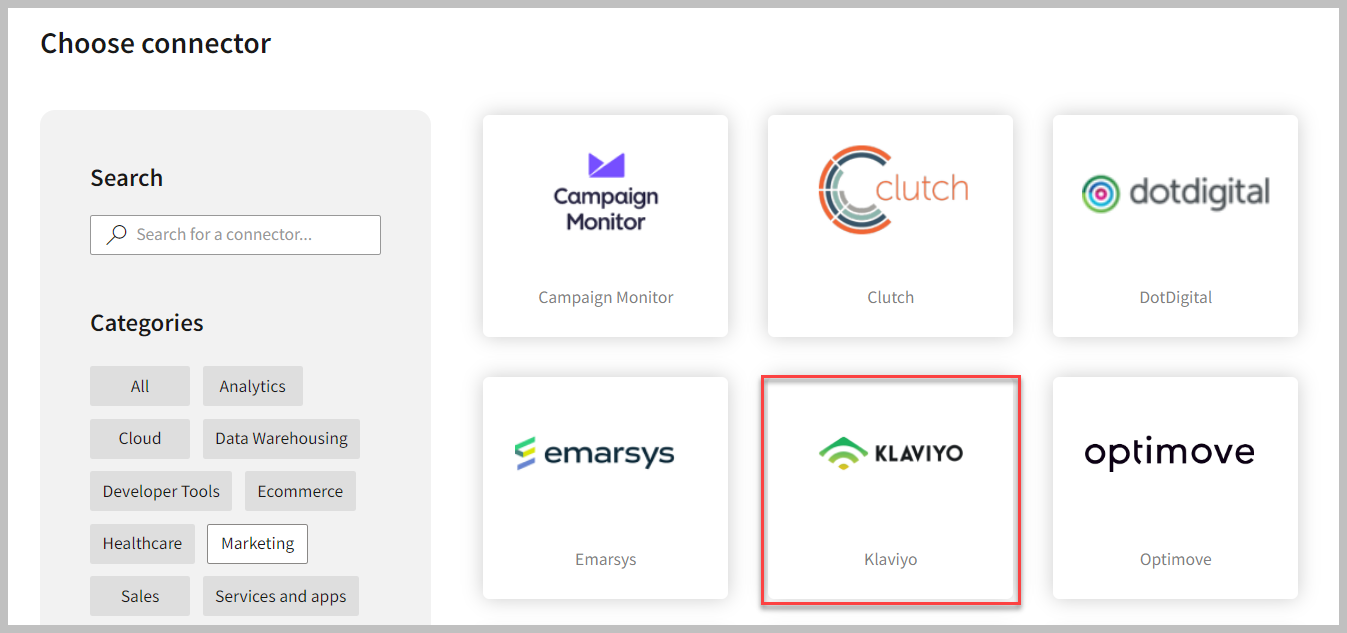
- In the All or Marketing categories tab, select the Klaviyo connector to start the configuration.
- Also, you can use the Search function to find the Klaviyo connector.
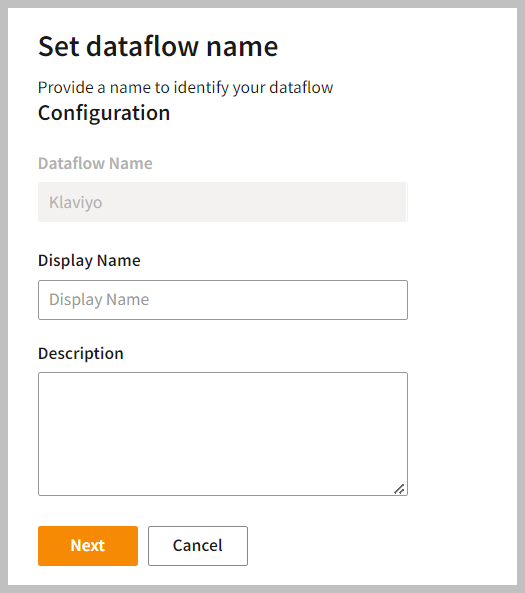
- Enter the Display Name to identify your dataflow.
- In the Description box, you can enter an explanation of the connector.
- Click Next.
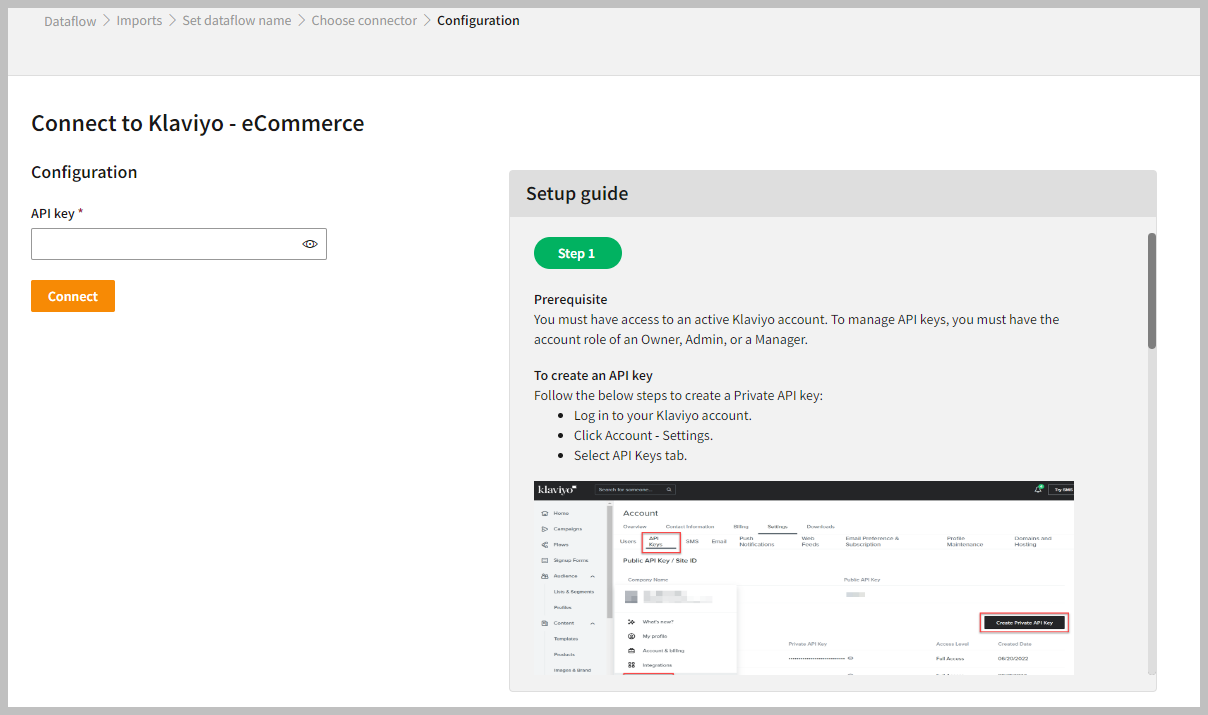
To configure Klaviyo
- Enter API Key to configure with the Klaviyo connector.
- Click Connect.
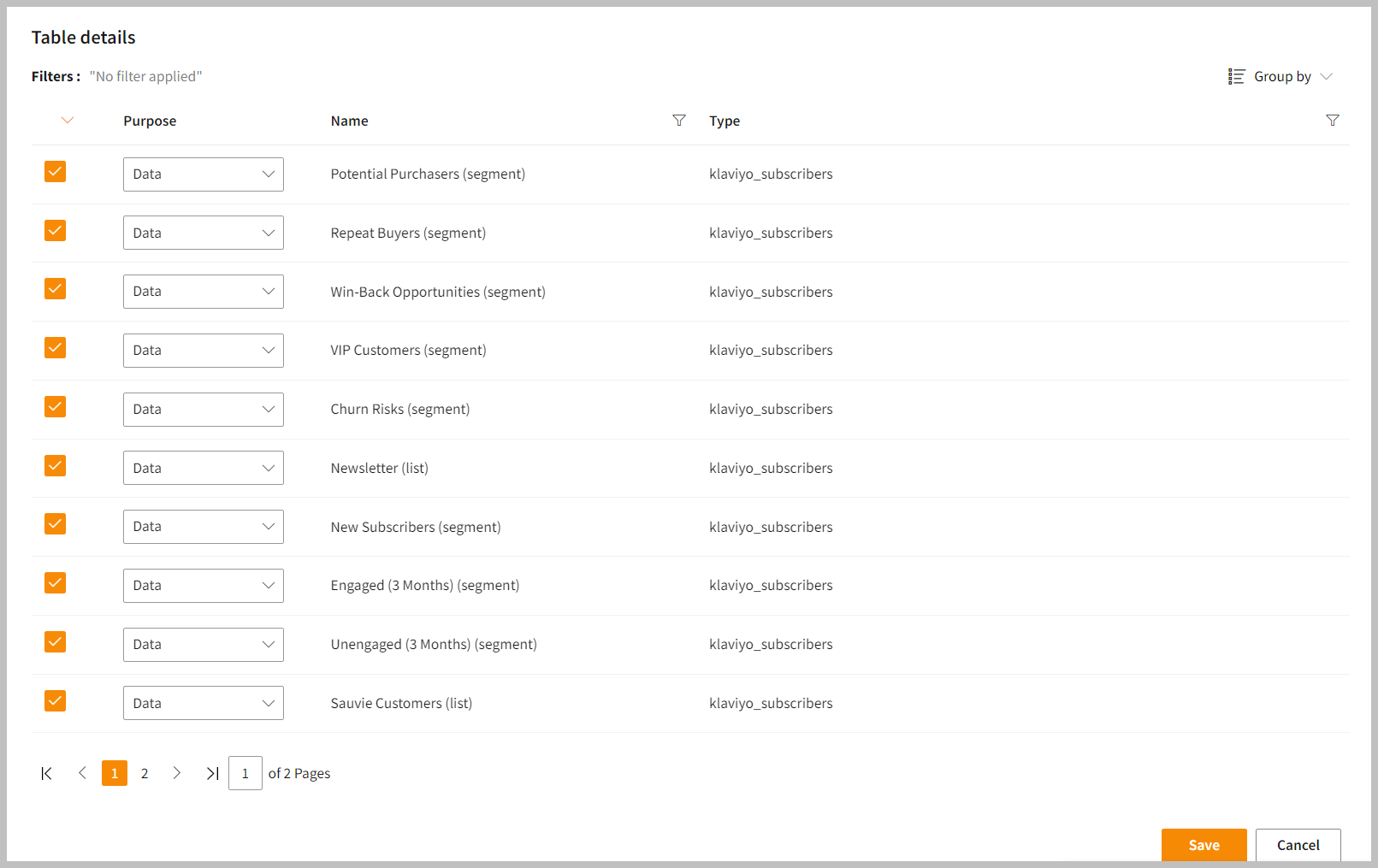
- You can enter the Table Details to process the data.
In the Table Details column, all fields are selected by default. You can select only those fields that you want to import and process the data.
- Click Save to apply the changes.
Run, edit, and delete the imported data
After saving the connection, the Klaviyo connector appears on the Dataflow page. Also, you can see the list of created entities in the Databases section.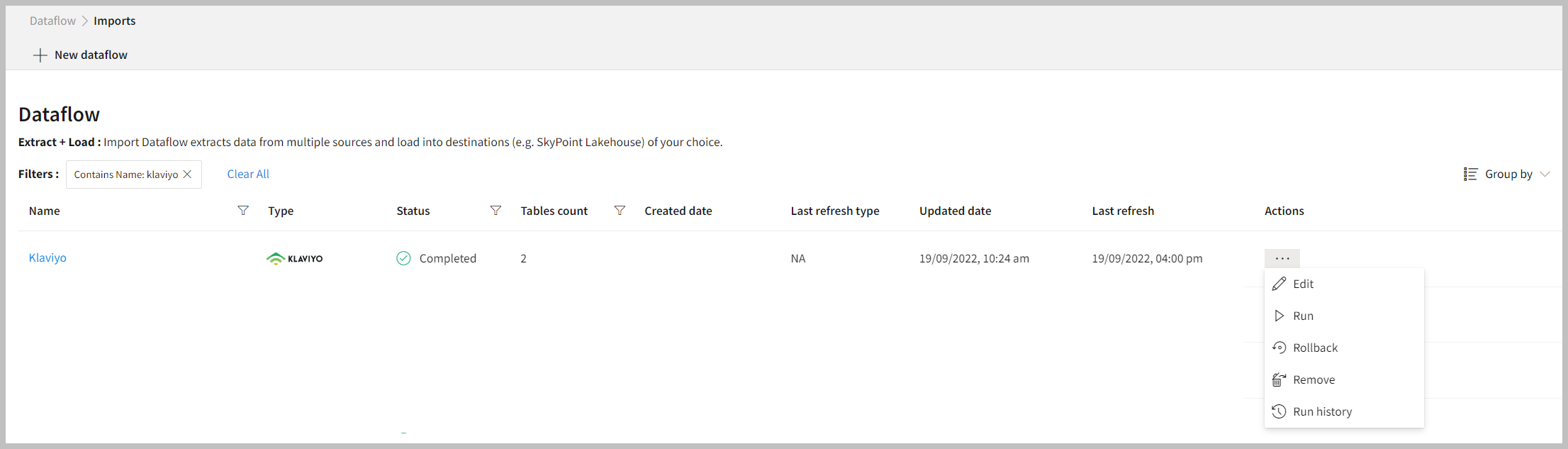
- Click on the connector on the Imports page that you want to modify.
- Select the horizontal ellipsis in the Actions column and do the following:
You can view the error message for data import failures in the Dataflow under Run History > Description.
Setup guide
Overview
This document will help you gather all credentials for connecting Klaviyo with skyData.Prerequisite
You should have access to an active Klaviyo account. To manage the API keys, you must have an Owner, Admin, or Manager role on the account.To create an API key
Follow the below steps to create a Private API key:- Log in to your Klaviyo account.
- Click Account > Settings.
- Select API Keys tab.
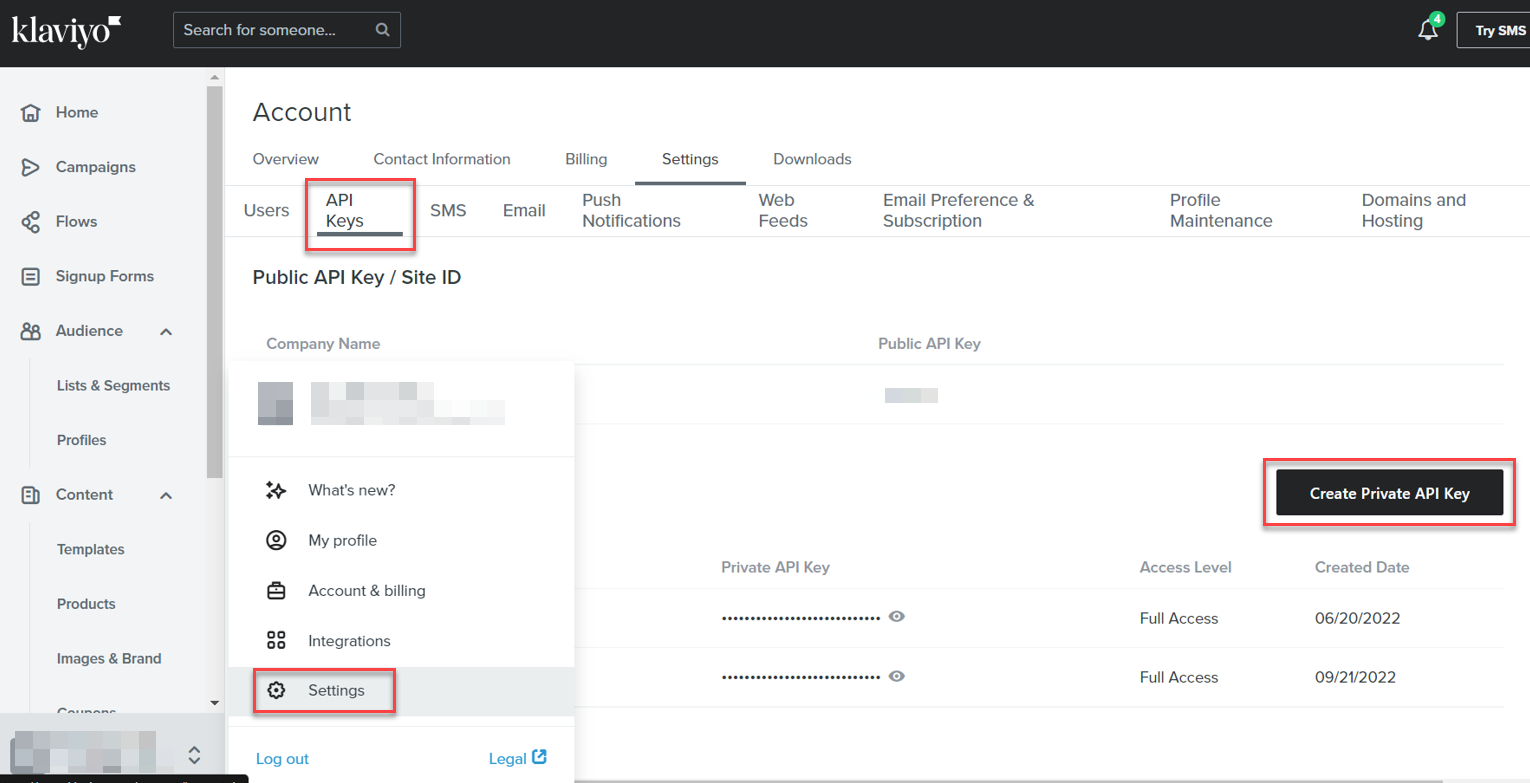
- Click Create Private API Key.
- Name the API key.
- Choose the Scope you want to give the API key.
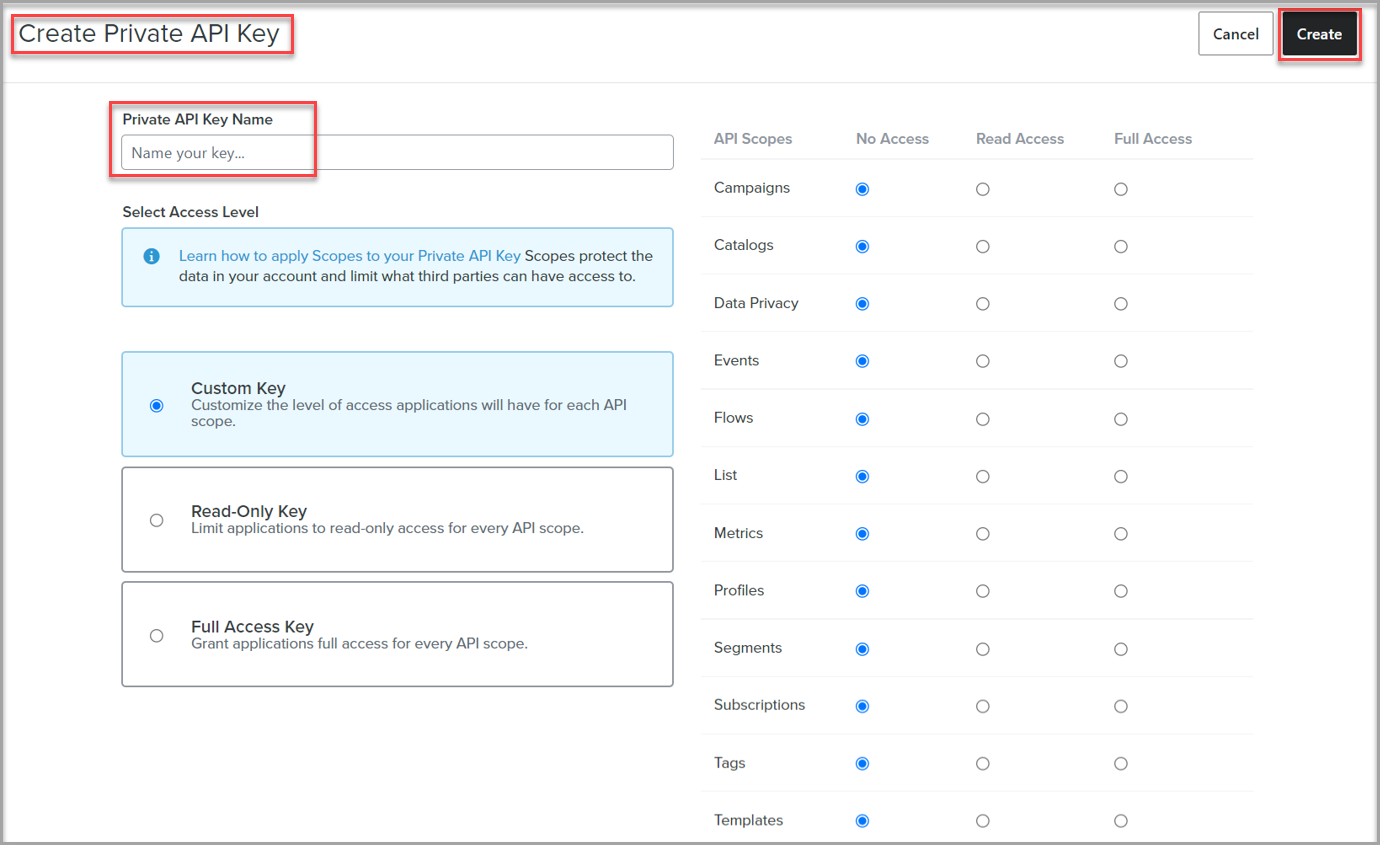
- Click Create.
You can select the scope to control third-party access to information when sharing the private API key.
Next step
After completing the data import, start the Master Data Management (MDM) - Stitch process to develop a unified view of your customers.ERD