

Connecting to SFTP (Simple File Transfer Protocol)
Overview
SFTP (Simple File Transfer Protocol) features hierarchical folders and file management. It supports user authentication that requires the user to enter username and password to login into the server. You can implement SFTP by opening a TCP connection to the remote host’s port. SFTP consists of 11 commands and supports features like user access control, file transfers, directory listing, directory changing, file renaming, and deleting. It supports three types of data transmission, namely:- American Standard Code for Information Interchange (ASCII): ASCII bytes are taken from the source system file, sent over the connection, and saved in the destination system file.
- Binary: The 8-bit bytes are extracted from the source system file, sent through the connection, and saved in the target system file.
- Continuous: The bits are taken from the original system file and transmitted over the network in 8-bit bytes without respecting word boundaries. Without any word boundaries, the bits are continuously received by the target system.
Prerequisite
You will need the following details to configure and import data:- Host
- Port
- Host Key Fingerprint
- Username
- Password
- Storage path.
Limitation
- Simple File Transfer Protocol (SFTP), which uses the Transmission Control Protocol port number 115, is an unencrypted, simplified form of File Transfer Protocol (FTP). It is less powerful than FTP and contains certain helpful features that are missing from Trivial FTP (TFTP).
Import data using SFTP connector
Follow the below steps to create a new dataflow for the SFTP import connector:- Go to Dataflow > Imports.
- Click New dataflow.
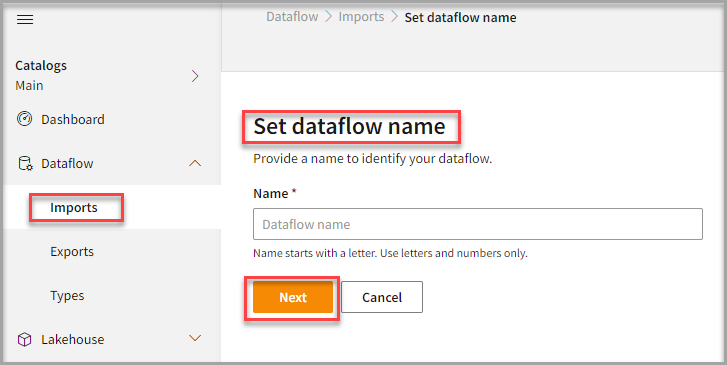
- In the Set dataflow name page, type dataflow name in the Name text area.
- Click Next.
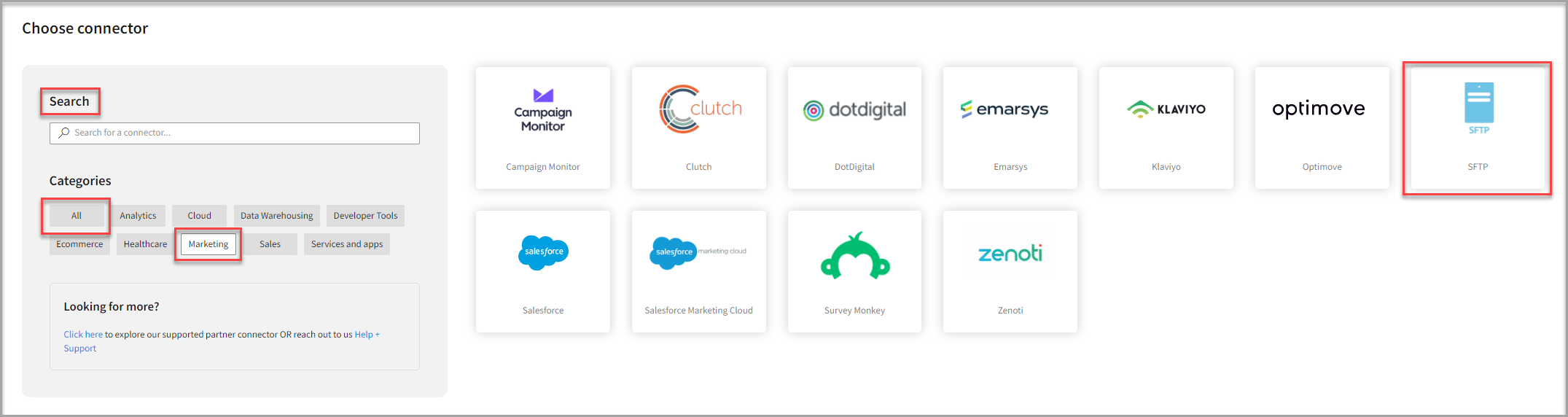
To add SFTP connector
- In the Choose connector page, select SFTP connector.
You can also use the Search feature to find the connector. The SFTP connector is located under the Marketing category.
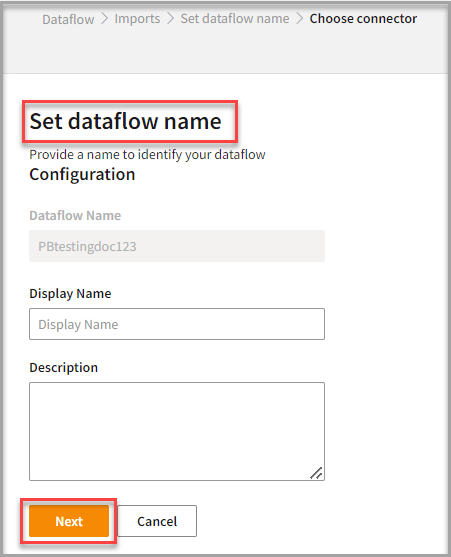
- Enter Display Name for your dataflow in the text area.
- Enter Description for your dataflow in the text area.
- Click Next.
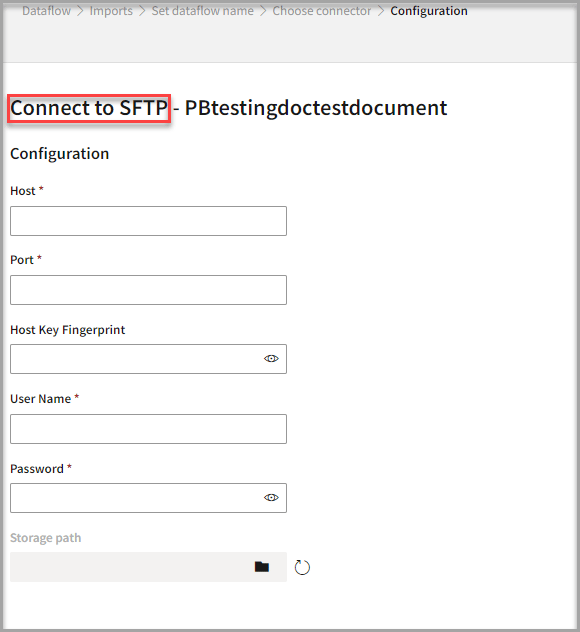
To configure SFTP
Follow the below steps to configure the connection to SFTP:- Enter your credentials such as Host, Port, Host Key Fingerprint, User Name and Password to connect with SFTP.
- Click the folder icon on Storage Path to select the storage path folder.

- Enter the Table details to process the data.
- If necessary, select the Advance settings option to modify the default settings.
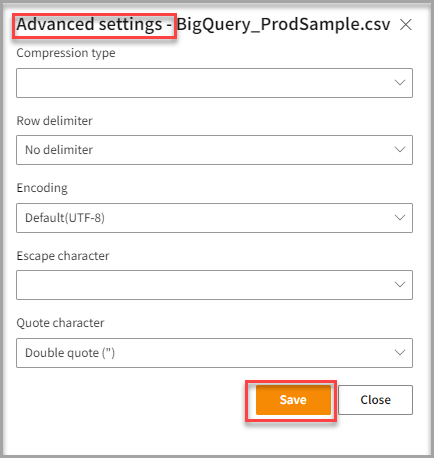
- Click Save to apply the changes.
Run, edit, and delete the imported data
After saving the connection, imported data appears on the Dataflow page. Also, you can see a list of the created tables in the Databases section.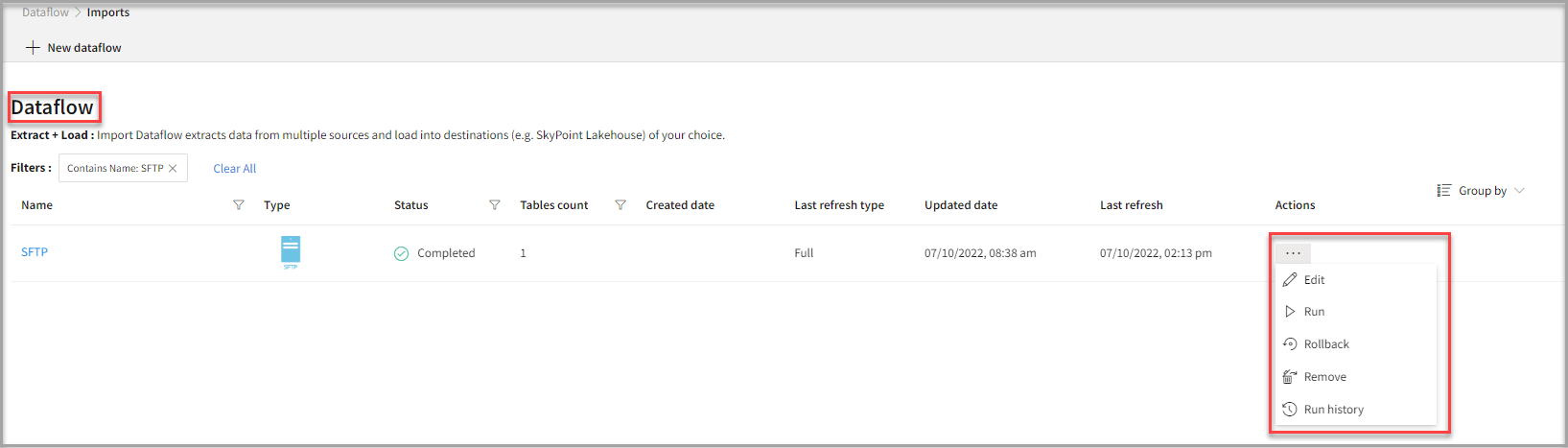
- Select the horizontal ellipsis in the Actions column and do the following: