> ## Documentation Index
> Fetch the complete documentation index at: https://docs.skypoint.ai/llms.txt
> Use this file to discover all available pages before exploring further.
#
# Using skyData Workspaces
## Overview
The Workspace module in skyData Studio allows users to view, configure, and manage workspaces linked to their instances. It provides secure access, promotes efficient resource utilization, and supports centralized workspace management across environments.
With this module, users can:
* Map a workspace to an instance.
* Open the connected Databricks environment to manage workspaces.
* Set up and access SQL credentials for their workspaces.
## To map new Workspaces
Users can map a workspace to an instance that is already connected to an another instance within a tenant.
1. In the left pane, go to **Lakehouse** > **Workspaces**.
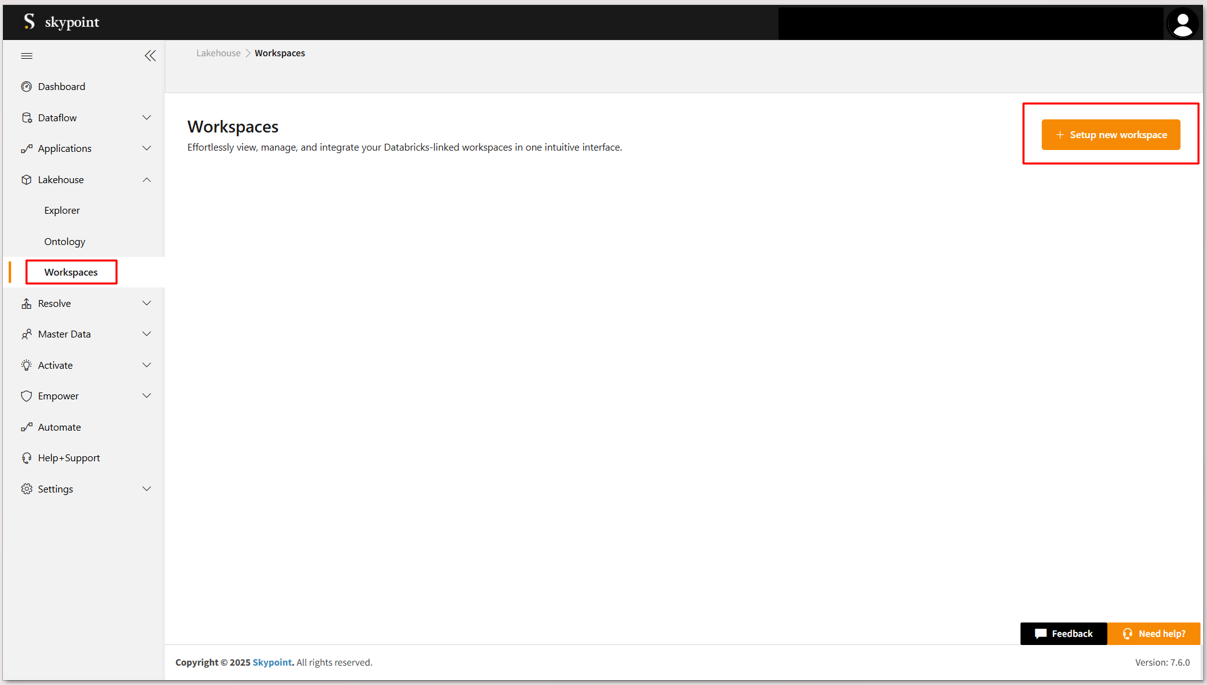 The Workspaces window appears.
2. Click **Setup New Workspaces** to map workspaces.
The Workspaces window appears.
2. Click **Setup New Workspaces** to map workspaces.
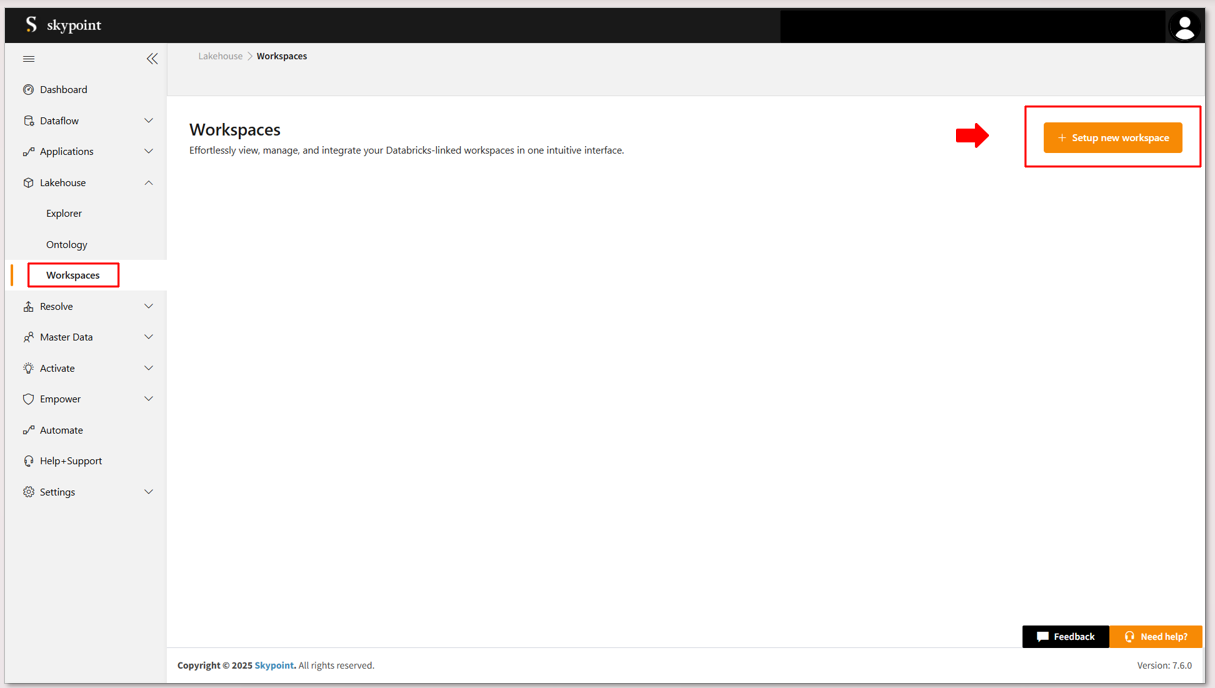 The setup workspace pop-up window appears.
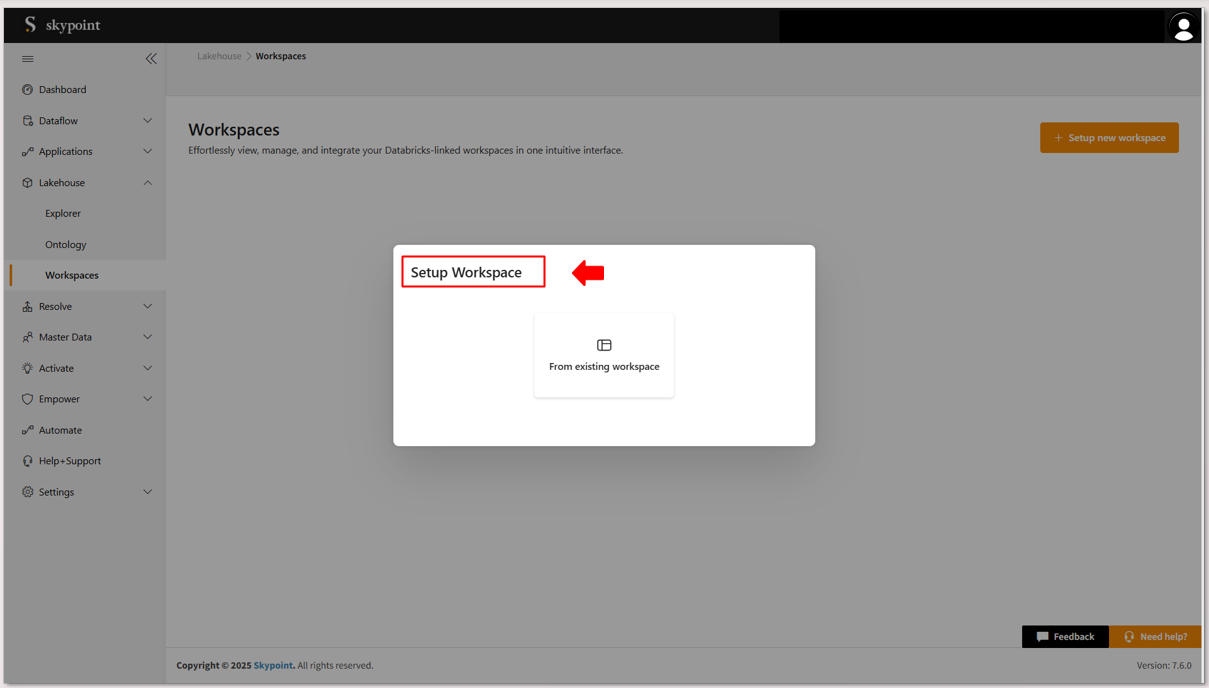 3. Click on **form existing workspace**.
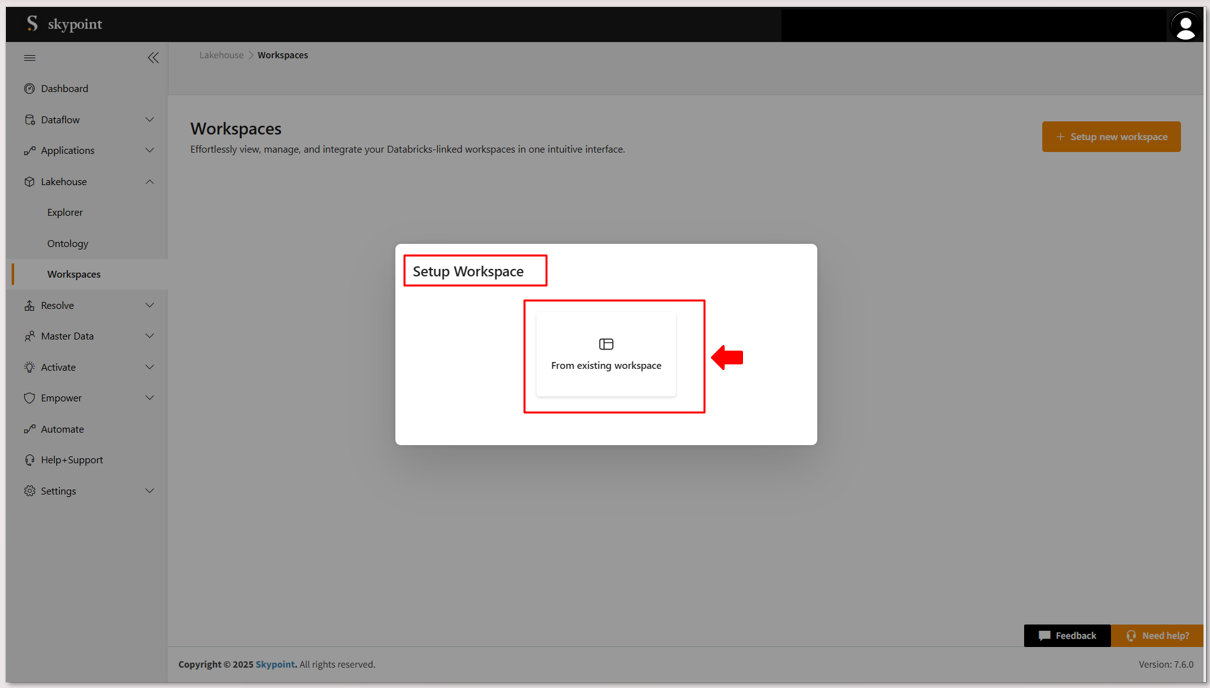 4. Select the workspace you want to map from the dropdown menu.
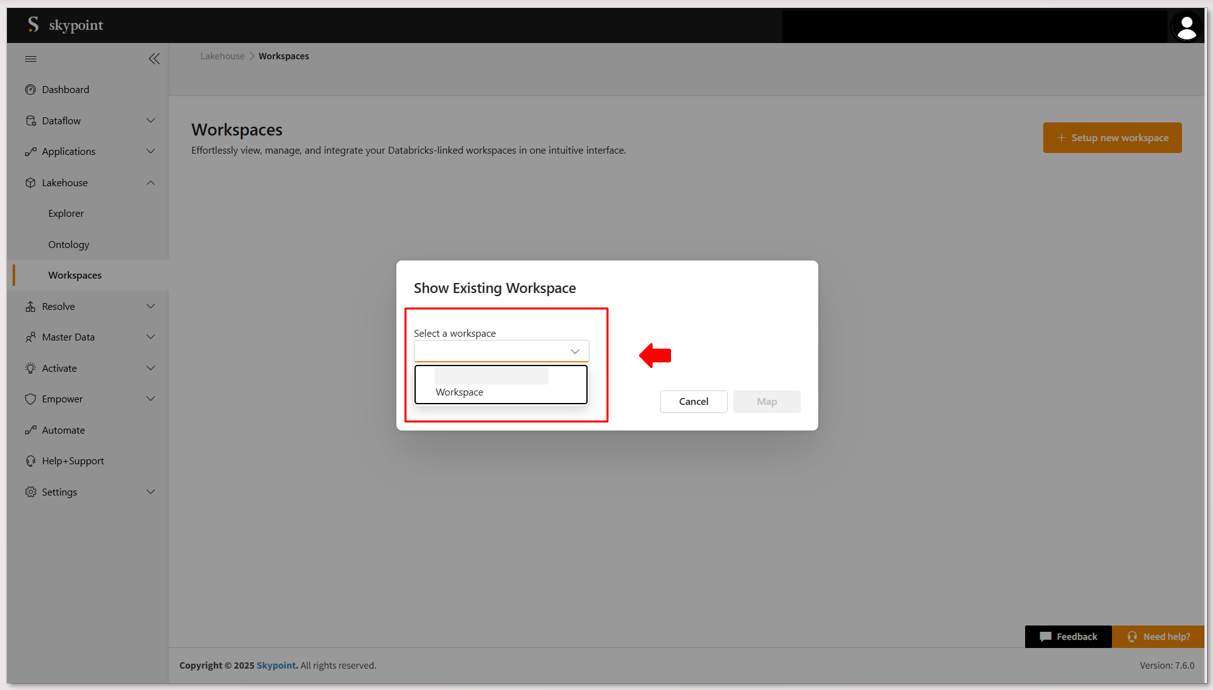 5. Click on **Map** to map the custom workspace to an instance.
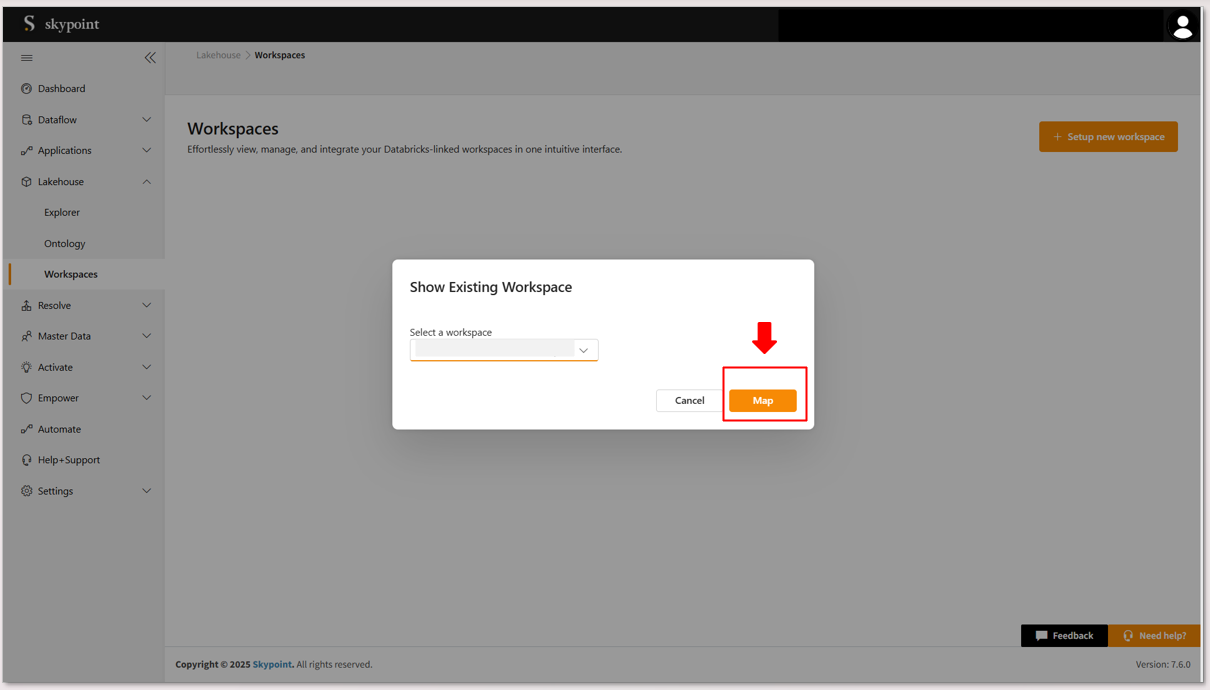 Only custom workspaces can be configured by users. Default workspaces are view-only and cannot be modified.
## To Access Databricks workspace from skyData studio
To open the workspace in Databricks, directly from the skyData studio
1. Click on **arrow** icon present on workspace you want to access.
This will re-direct you to the corresponding databricks workspace
Only custom workspaces can be configured by users. Default workspaces are view-only and cannot be modified.
## To Access Databricks workspace from skyData studio
To open the workspace in Databricks, directly from the skyData studio
1. Click on **arrow** icon present on workspace you want to access.
This will re-direct you to the corresponding databricks workspace
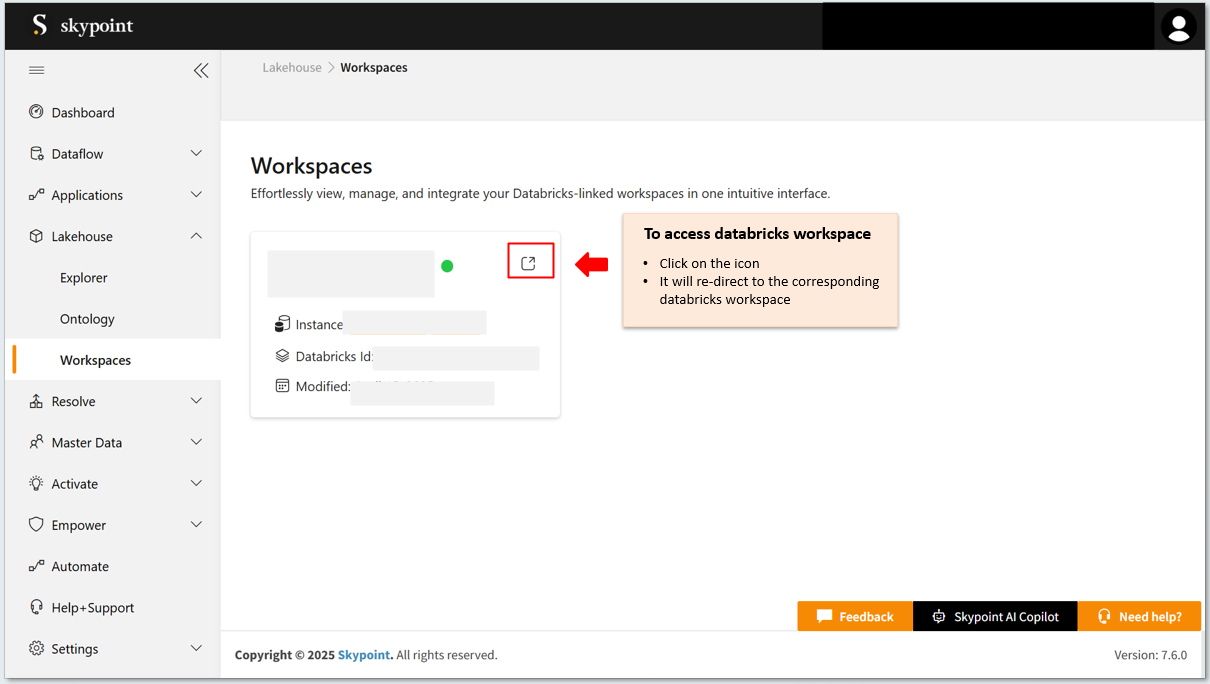 Default workspaces cannot be redirected to a Databricks workspace. Only custom workspaces support redirection to Databricks workspace.
2. Click on the workspace you want to access.
3. Workspace details page appears.
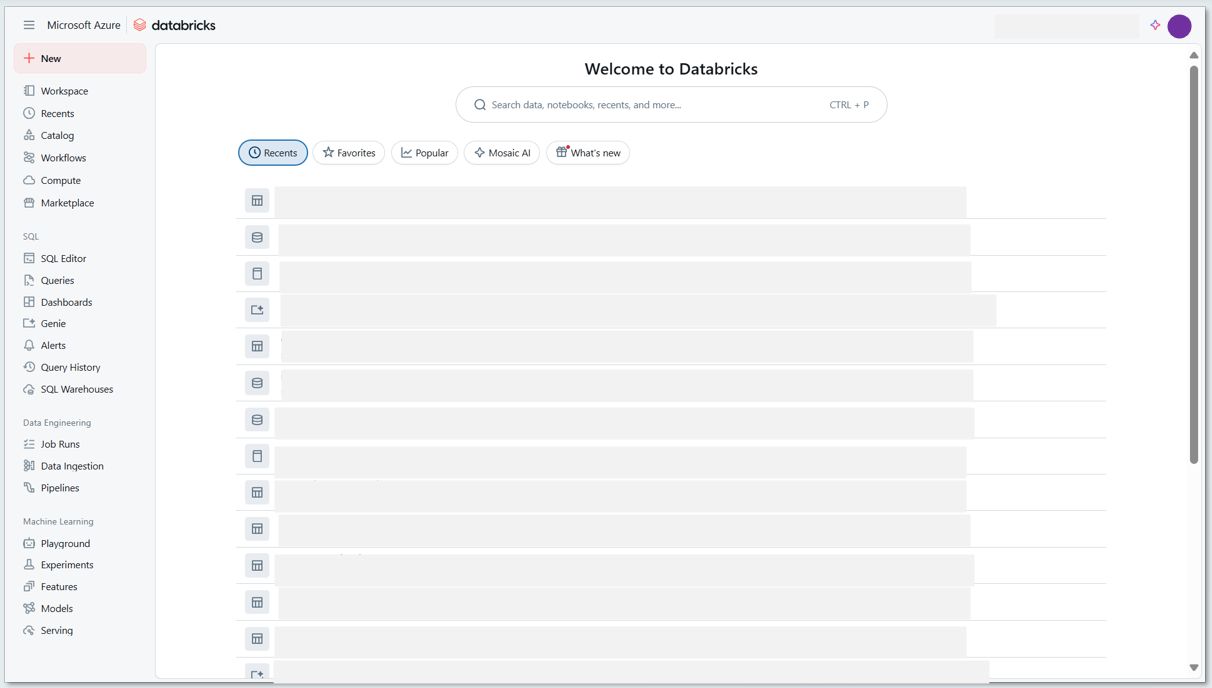
4. Click the **Open in Databricks** button located at the bottom-left corner.
Default workspaces cannot be redirected to a Databricks workspace. Only custom workspaces support redirection to Databricks workspace.
2. Click on the workspace you want to access.
3. Workspace details page appears.
4. Click the **Open in Databricks** button located at the bottom-left corner.
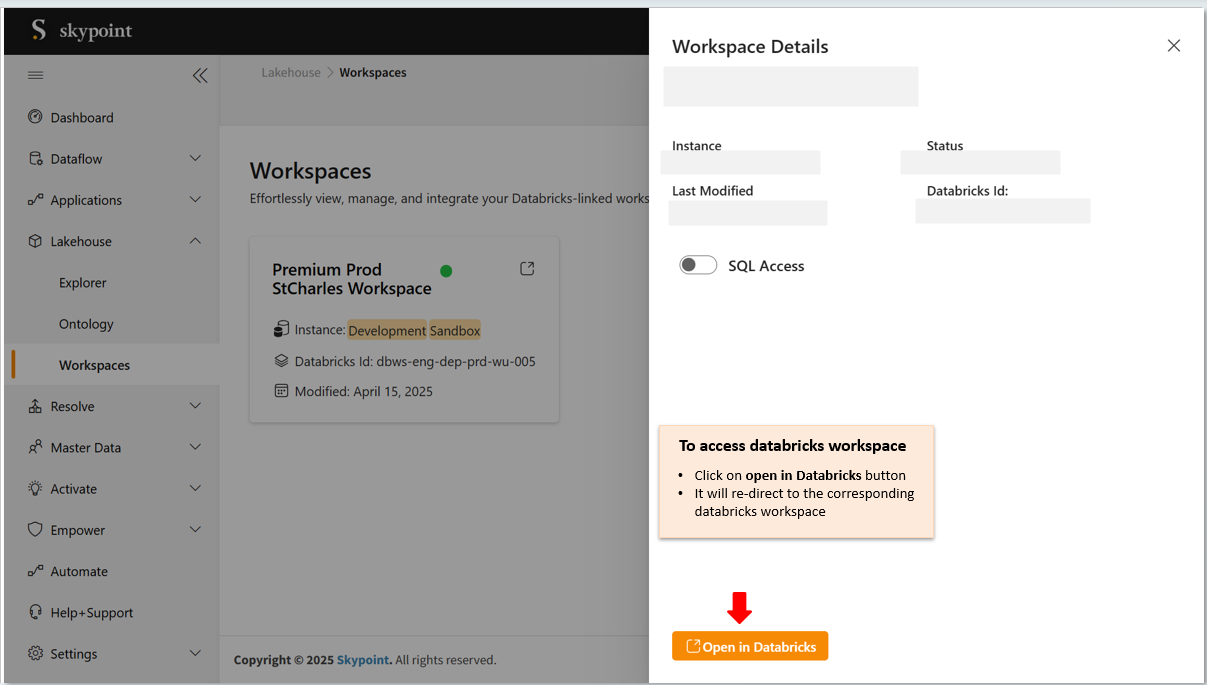 You will be redirected to the corresponding Databricks workspace
 ## To enable SQL Access
1. Access a **workspace** by clicking on its name.
The **Workspace Details** window appears
## To enable SQL Access
1. Access a **workspace** by clicking on its name.
The **Workspace Details** window appears
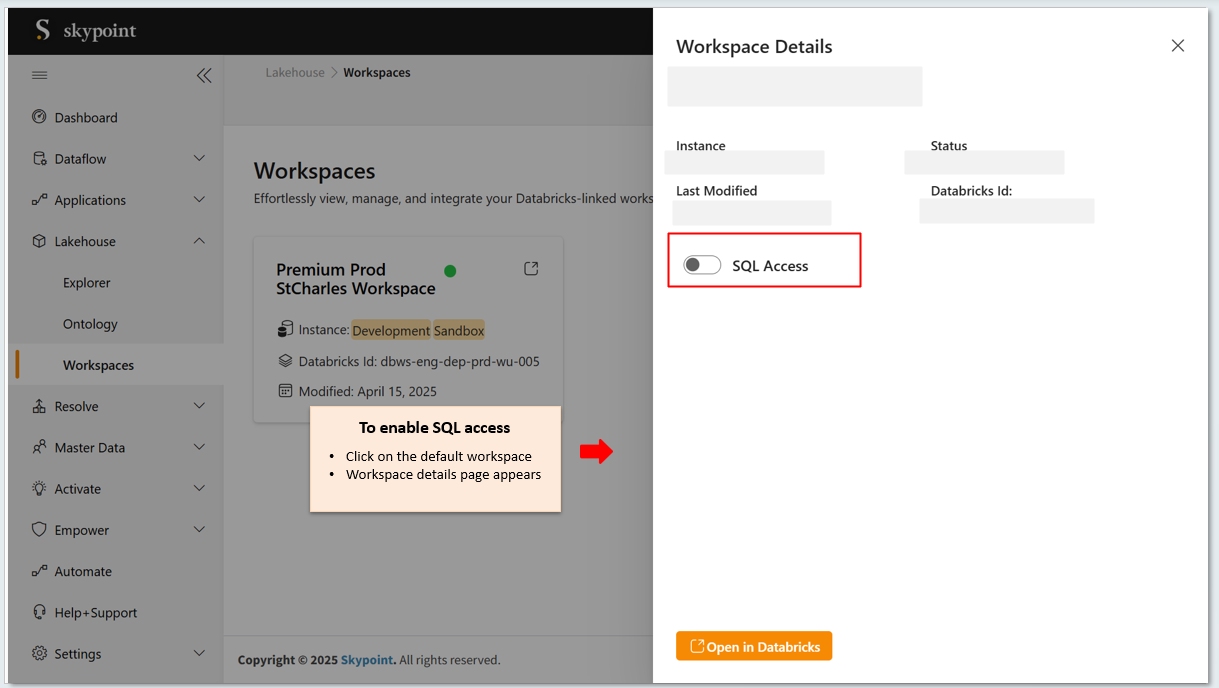 2. Click **SQL Access** to enable the SQL connection.
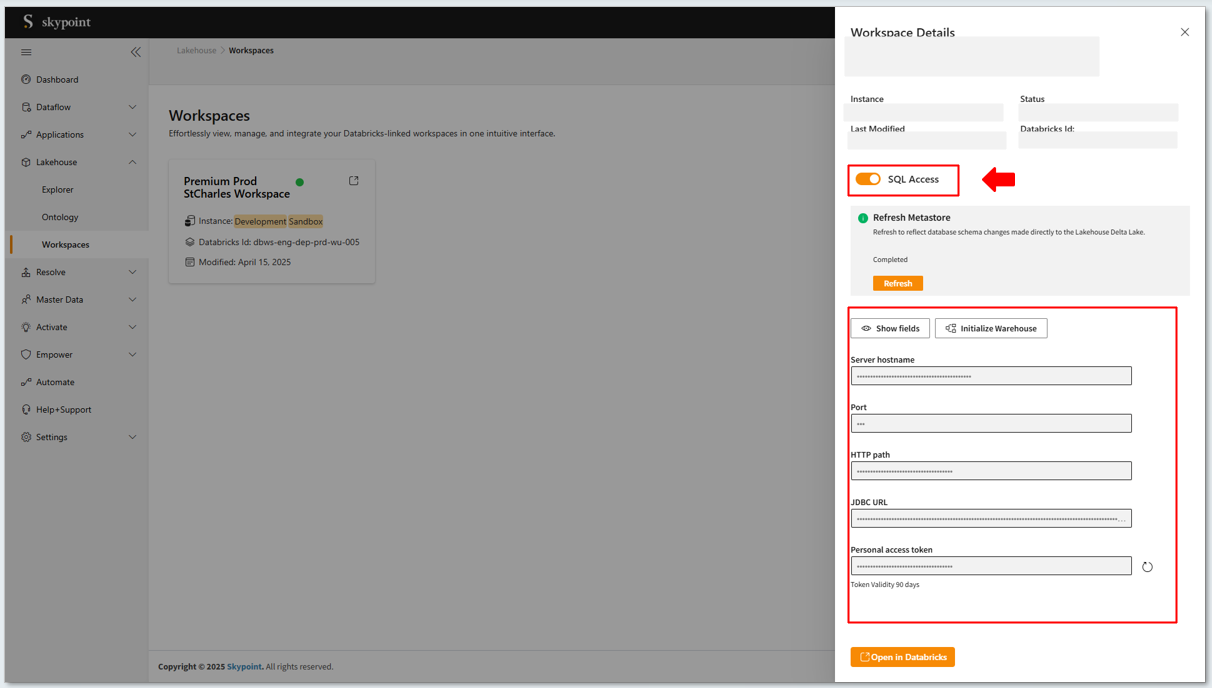 skyData supports **Refresh Hive Metastore** to reflect database schema changes made directly to the Lakehouse Delta Lake. With the click of the **Refresh Hive Metastore** button, the metadata gets refreshed to reflect the changes in Lakehouse Databases like listing new tables, new attributes, or removal of tables.
5. If necessary, do the following:
| To | Do |
| :------------------------------------------------------------------- | :---------------------------------------------------------------- |
| View and copy the credentials for SQL Access | Click **Show fields** and copy the credentials to your clipboard. |
| Initialize a cluster to quickly connect to Lakehouse and run queries | Click **Initialize Warehouse**. |
6. You need to obtain the following Lakehouse workspace SQL credentials:
* Server hostname
* Port
* HTTP path
* JDBC URL
* Personal access token
| Item | Description |
| :-------------------- | :--------------------------------------------------------------------------------------------------------------------------------------------------- |
| Server hostname | Indicates the root URL for Lakehouse workspace SQL endpoint. |
| Port | Refers to the port in your cluster credentials. |
| HTTP path | Refers to the Lakehouse SQL endpoint provisioned for the instance. |
| JDBC URL | Indicates the driver that is used to connect to a database. It is a standard protocol for each Instance, which is used to connect with data sources. |
| Personal access token | Contains your security credentials used to authenticate and connect to SQL endpoints. |
Refresh personal access token generates a personal access token for accessing the lakehouse tables. Clicking the **Refresh** icon, you can set the default expiry time to 90 days. An alert message starts displaying 7 days prior to access token expiration.
skyData is a multi-tenant Software as a Service (SaaS) platform where each customer is a tenant, and each tenant has one or more instances. You can create databases and tables in your Instance. Lakehouse SQL supports data integration at instance level.
When you click the **Enable** button, by default, the system loads data into Databricks from **Lakehouse** > **Explorer** and creates credentials to authenticate and explore your data through Power BI, Tableau, etc. Lakehouse workspace SQL integrates with all JDBC compliant tools for BI and ELT/ETL use cases.
Once you’ve enabled Lakehouse workspaces, you can begin visualizing and working with tools like Power BI or Tableau.
Also, you can integrate your Lakehouse workspace endpoints and Databricks with more MDS tools such as Fivetran, Airbyte, Dbt, etc. The third-party data integration with Databricks helps you to centralize data from disparate data sources into Lakehouse.
* To get started with third-party tools for data integration, click the **More MDS tools** tile.
Lakehouse workspace SQL capability provides direct full SQL access to your instance-level Delta Lakehouse accessible to Instance Administrator and above roles. You can use any SQL ingestion, transformation, or visualization tools to interact bi-directionally with Lakehouse including Fivetran, Dbt, Power BI, Tableau, and Looker. Any external changes to the Lakehouse will be automatically synchronized using Delta Lake **Change Data Feed (CDF)** to update the skyData metadata store.
## See also
[Tenants](tenant.md)
[Instances](instance.md)
[Explorer](entities.md)
skyData supports **Refresh Hive Metastore** to reflect database schema changes made directly to the Lakehouse Delta Lake. With the click of the **Refresh Hive Metastore** button, the metadata gets refreshed to reflect the changes in Lakehouse Databases like listing new tables, new attributes, or removal of tables.
5. If necessary, do the following:
| To | Do |
| :------------------------------------------------------------------- | :---------------------------------------------------------------- |
| View and copy the credentials for SQL Access | Click **Show fields** and copy the credentials to your clipboard. |
| Initialize a cluster to quickly connect to Lakehouse and run queries | Click **Initialize Warehouse**. |
6. You need to obtain the following Lakehouse workspace SQL credentials:
* Server hostname
* Port
* HTTP path
* JDBC URL
* Personal access token
| Item | Description |
| :-------------------- | :--------------------------------------------------------------------------------------------------------------------------------------------------- |
| Server hostname | Indicates the root URL for Lakehouse workspace SQL endpoint. |
| Port | Refers to the port in your cluster credentials. |
| HTTP path | Refers to the Lakehouse SQL endpoint provisioned for the instance. |
| JDBC URL | Indicates the driver that is used to connect to a database. It is a standard protocol for each Instance, which is used to connect with data sources. |
| Personal access token | Contains your security credentials used to authenticate and connect to SQL endpoints. |
Refresh personal access token generates a personal access token for accessing the lakehouse tables. Clicking the **Refresh** icon, you can set the default expiry time to 90 days. An alert message starts displaying 7 days prior to access token expiration.
skyData is a multi-tenant Software as a Service (SaaS) platform where each customer is a tenant, and each tenant has one or more instances. You can create databases and tables in your Instance. Lakehouse SQL supports data integration at instance level.
When you click the **Enable** button, by default, the system loads data into Databricks from **Lakehouse** > **Explorer** and creates credentials to authenticate and explore your data through Power BI, Tableau, etc. Lakehouse workspace SQL integrates with all JDBC compliant tools for BI and ELT/ETL use cases.
Once you’ve enabled Lakehouse workspaces, you can begin visualizing and working with tools like Power BI or Tableau.
Also, you can integrate your Lakehouse workspace endpoints and Databricks with more MDS tools such as Fivetran, Airbyte, Dbt, etc. The third-party data integration with Databricks helps you to centralize data from disparate data sources into Lakehouse.
* To get started with third-party tools for data integration, click the **More MDS tools** tile.
Lakehouse workspace SQL capability provides direct full SQL access to your instance-level Delta Lakehouse accessible to Instance Administrator and above roles. You can use any SQL ingestion, transformation, or visualization tools to interact bi-directionally with Lakehouse including Fivetran, Dbt, Power BI, Tableau, and Looker. Any external changes to the Lakehouse will be automatically synchronized using Delta Lake **Change Data Feed (CDF)** to update the skyData metadata store.
## See also
[Tenants](tenant.md)
[Instances](instance.md)
[Explorer](entities.md)