> ## Documentation Index
> Fetch the complete documentation index at: https://docs.skypoint.ai/llms.txt
> Use this file to discover all available pages before exploring further.
# Signup
## Overview
Welcome to Skypoint AI Studio! Setting up your Skypoint AI account is straightforward. Simply follow these easy steps for a quick start with Skypoint AI Studio.
Explore the different ways to start your Skypoint AI journey:
1. **Self Sign-up**
2. **Sign-up via Invitation**
## Self Sign-up
How to sign-up and create an account
1. Go to the [Sign Up](https://app.skypointcloud.com/signup) page.
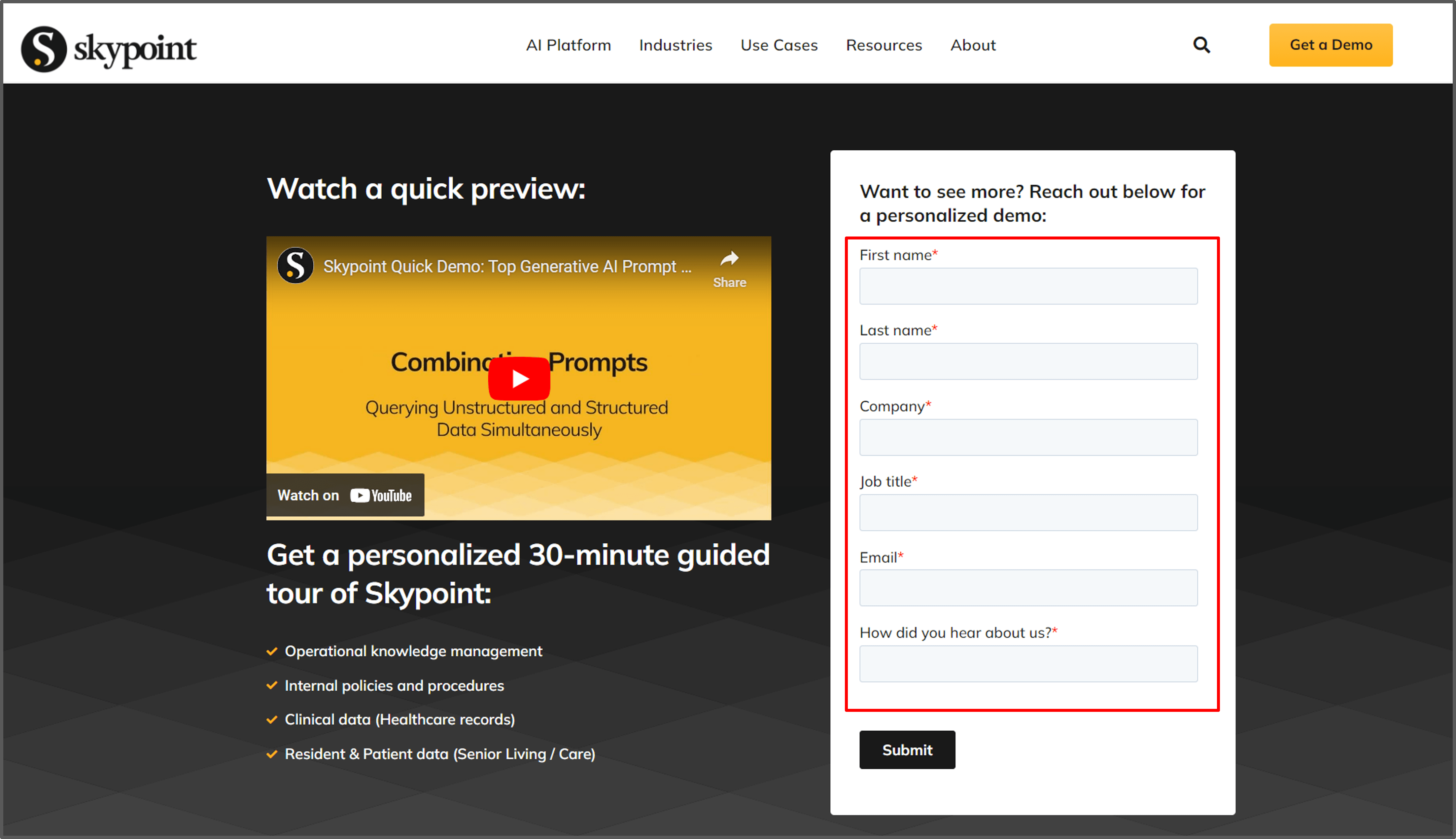
 Get expert support from our Senior Solution Architects by clicking on the **Request Demo** button and submitting your **First name**, **Last name**, **Company**, **Job title**, and **Work email**.
 2. You have the following sign-up options available:
| If you want to | Then |
| :--------------------------- | :----------------------------------------------------- |
| Enter your email ID | Type your email in the text box and click **Sign Up**. |
| Enter your Microsoft account | Select **Sign Up with Microsoft**. |
| Enter your Google account | Select **Sign Up with Google**. |
| Enter your Skypoint email ID | Select **Sign Up with Skypoint**. |
2. You have the following sign-up options available:
| If you want to | Then |
| :--------------------------- | :----------------------------------------------------- |
| Enter your email ID | Type your email in the text box and click **Sign Up**. |
| Enter your Microsoft account | Select **Sign Up with Microsoft**. |
| Enter your Google account | Select **Sign Up with Google**. |
| Enter your Skypoint email ID | Select **Sign Up with Skypoint**. |
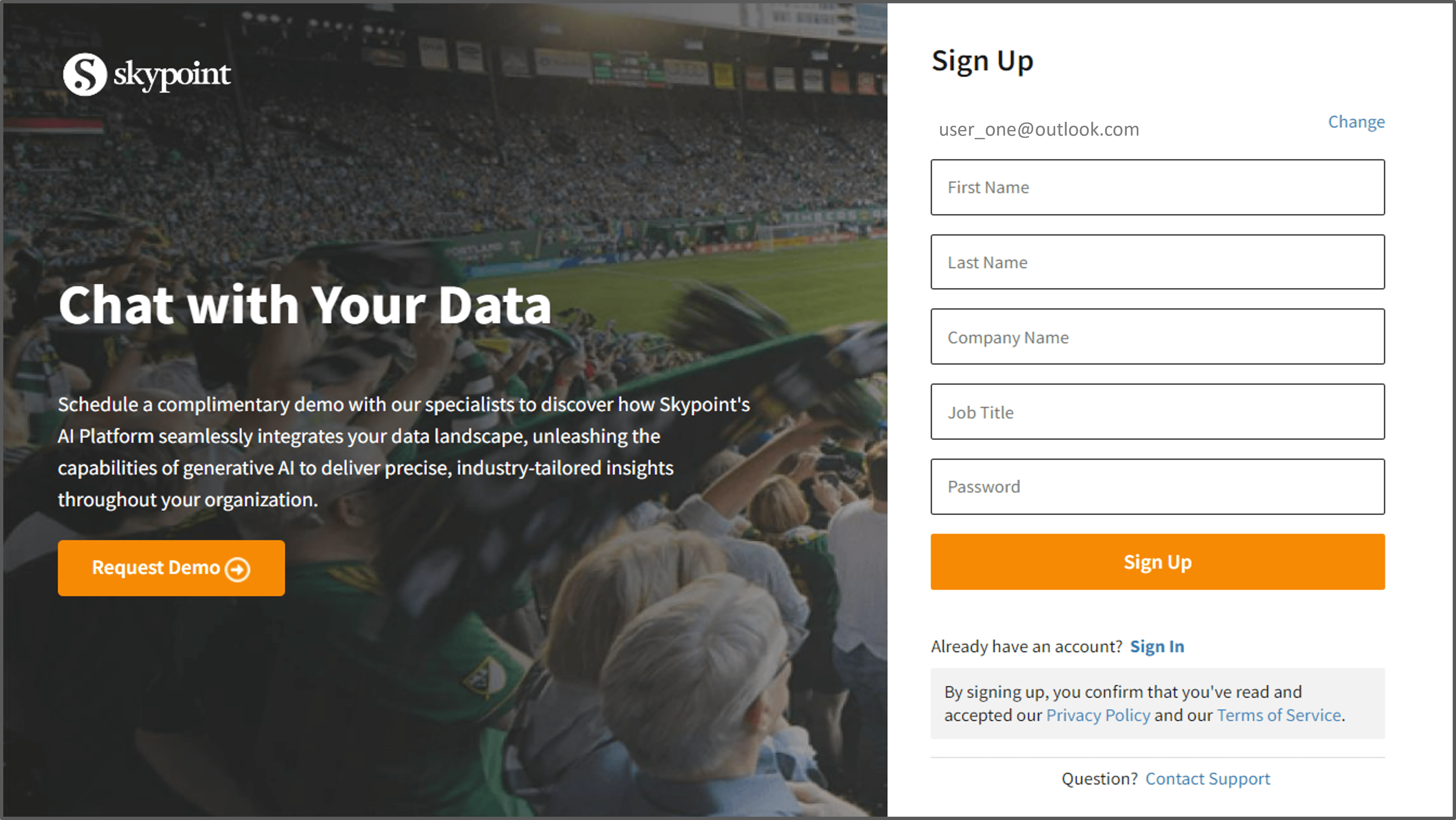 3. If you enter email ID to sign up, click the **Sign Up** button to continue.
4. Fill up the mandatory details, like **First Name**, **Last Name**, **Company Name**, **Job Title** and **Password** in the fields as shown in the below figure.
To ensure your password is strong, follow these guidelines:
* Make it at least eight characters long.
* Use a mix of lowercase and uppercase letters, numbers, and symbols.
5. Next, click the **Sign Up** button to confirm the changes.
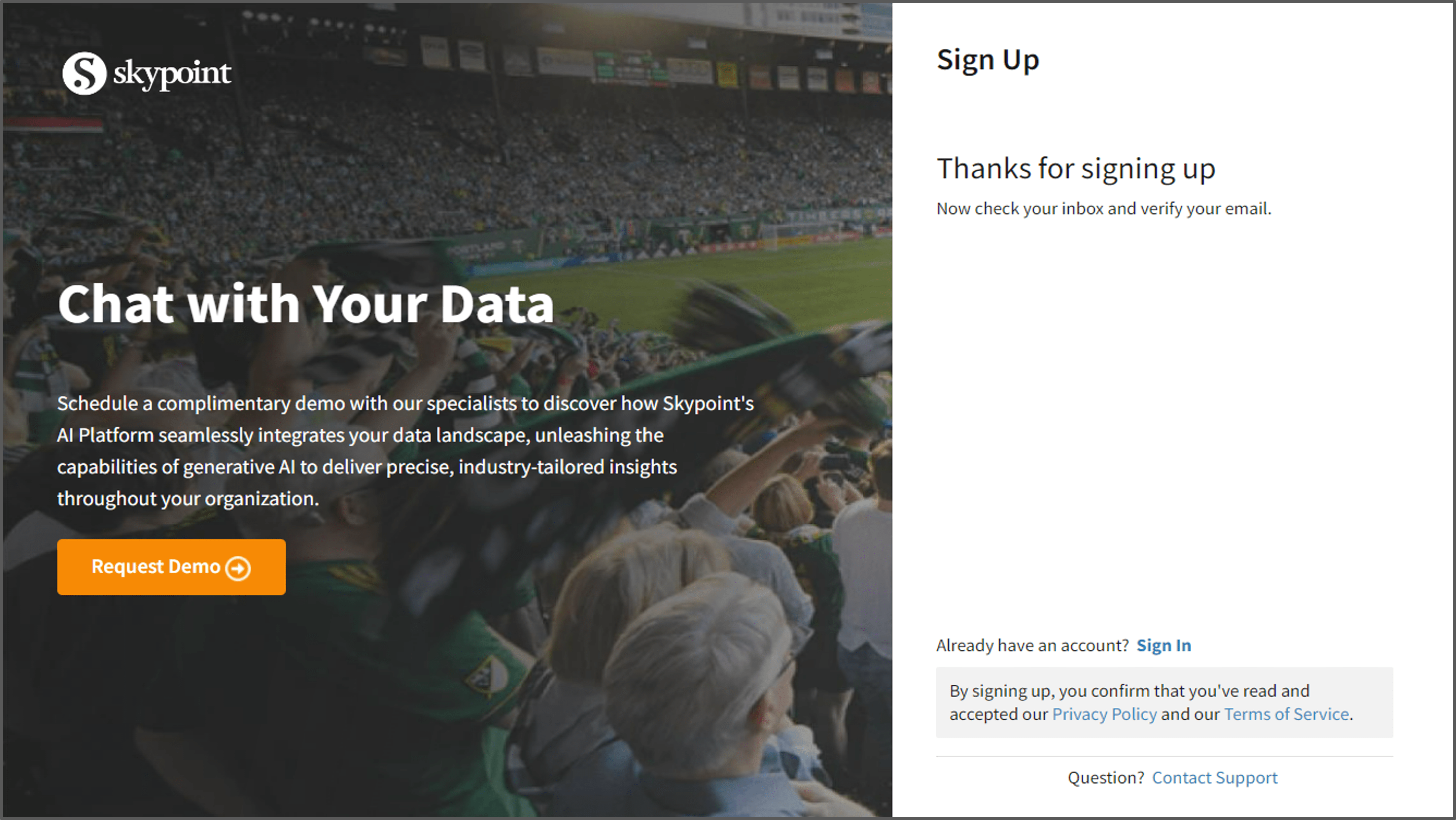
6. Upon successful sign up, you will receive the following pop-up message.
3. If you enter email ID to sign up, click the **Sign Up** button to continue.
4. Fill up the mandatory details, like **First Name**, **Last Name**, **Company Name**, **Job Title** and **Password** in the fields as shown in the below figure.
To ensure your password is strong, follow these guidelines:
* Make it at least eight characters long.
* Use a mix of lowercase and uppercase letters, numbers, and symbols.
5. Next, click the **Sign Up** button to confirm the changes.
6. Upon successful sign up, you will receive the following pop-up message.
 7. Simultaneously, you will receive a verification email containing a hyperlink. Make sure to open your mailbox and click on the link to verify your account.
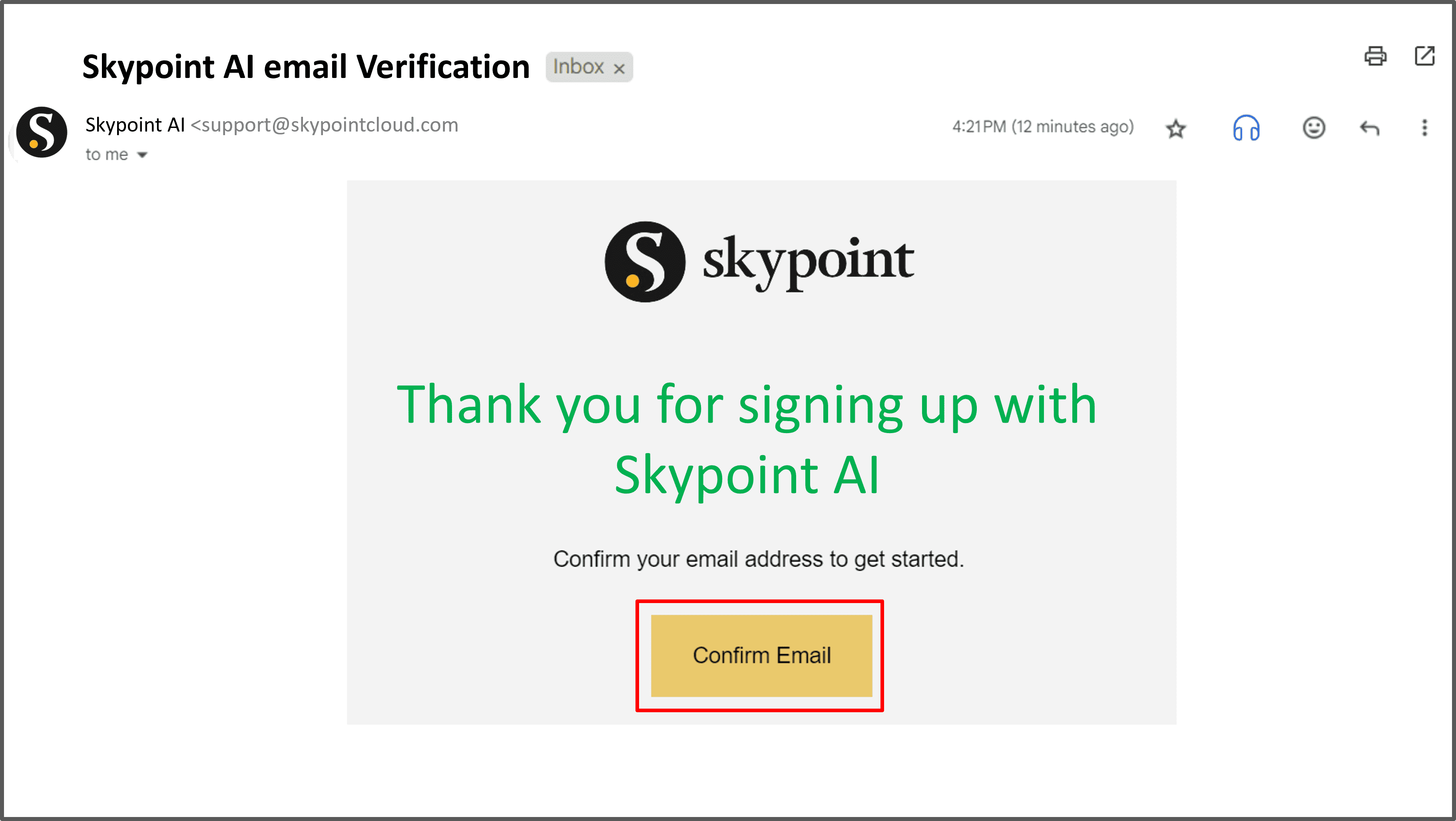 8. Click the highlighted **Confirm Email** button to complete the verification process. You will then be redirected to the **Sign in** page.
9. Once you have completed the signing up, [sign in](login.md) with your account to explore our products and drive meaningful actions.
Start exploring Skypoint AI Studio with a free 14-day trial. Sign up now to gain access to numerous applications, test the app using sample data, or start chatting with your own customer data.
## Sign-up via Invitation
How to sign-up using invitation link
1. Click on the **Accept Invitation** button from the invitation email.
8. Click the highlighted **Confirm Email** button to complete the verification process. You will then be redirected to the **Sign in** page.
9. Once you have completed the signing up, [sign in](login.md) with your account to explore our products and drive meaningful actions.
Start exploring Skypoint AI Studio with a free 14-day trial. Sign up now to gain access to numerous applications, test the app using sample data, or start chatting with your own customer data.
## Sign-up via Invitation
How to sign-up using invitation link
1. Click on the **Accept Invitation** button from the invitation email.
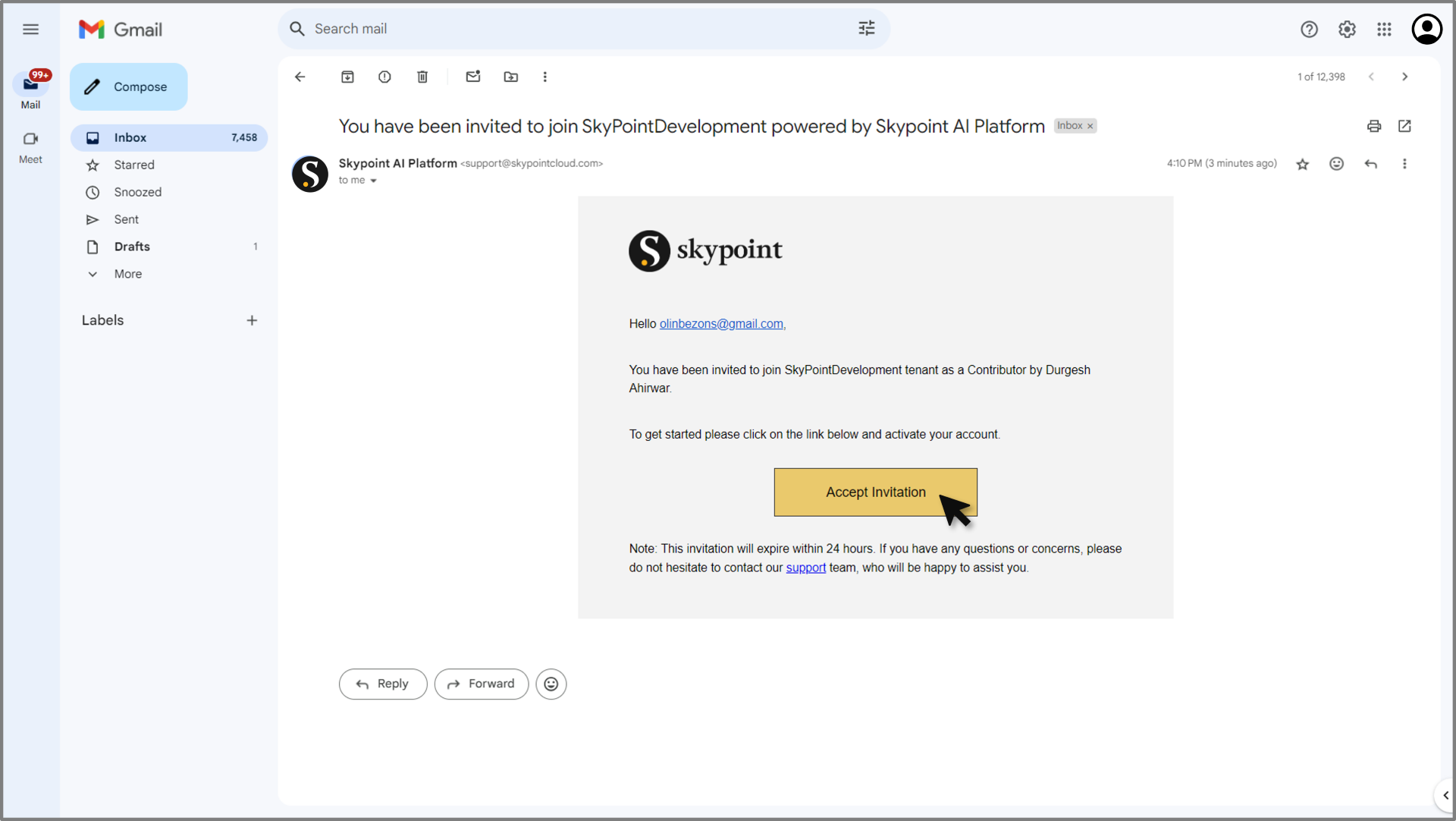 2. Use the same email ID that received the invitation to proceed with signing up.
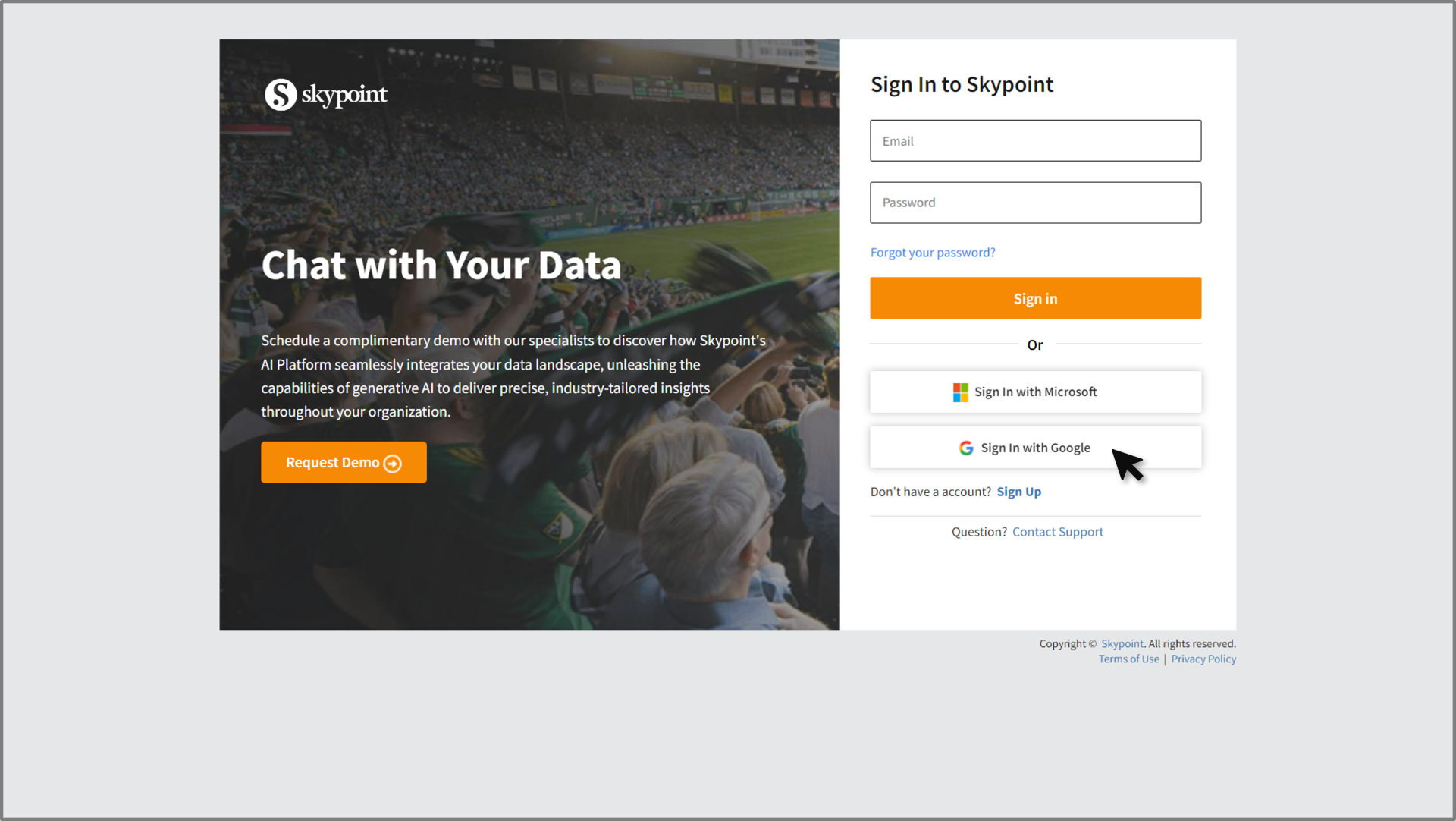 3. Make sure the correct email account is selected before clicking the **Continue** button.
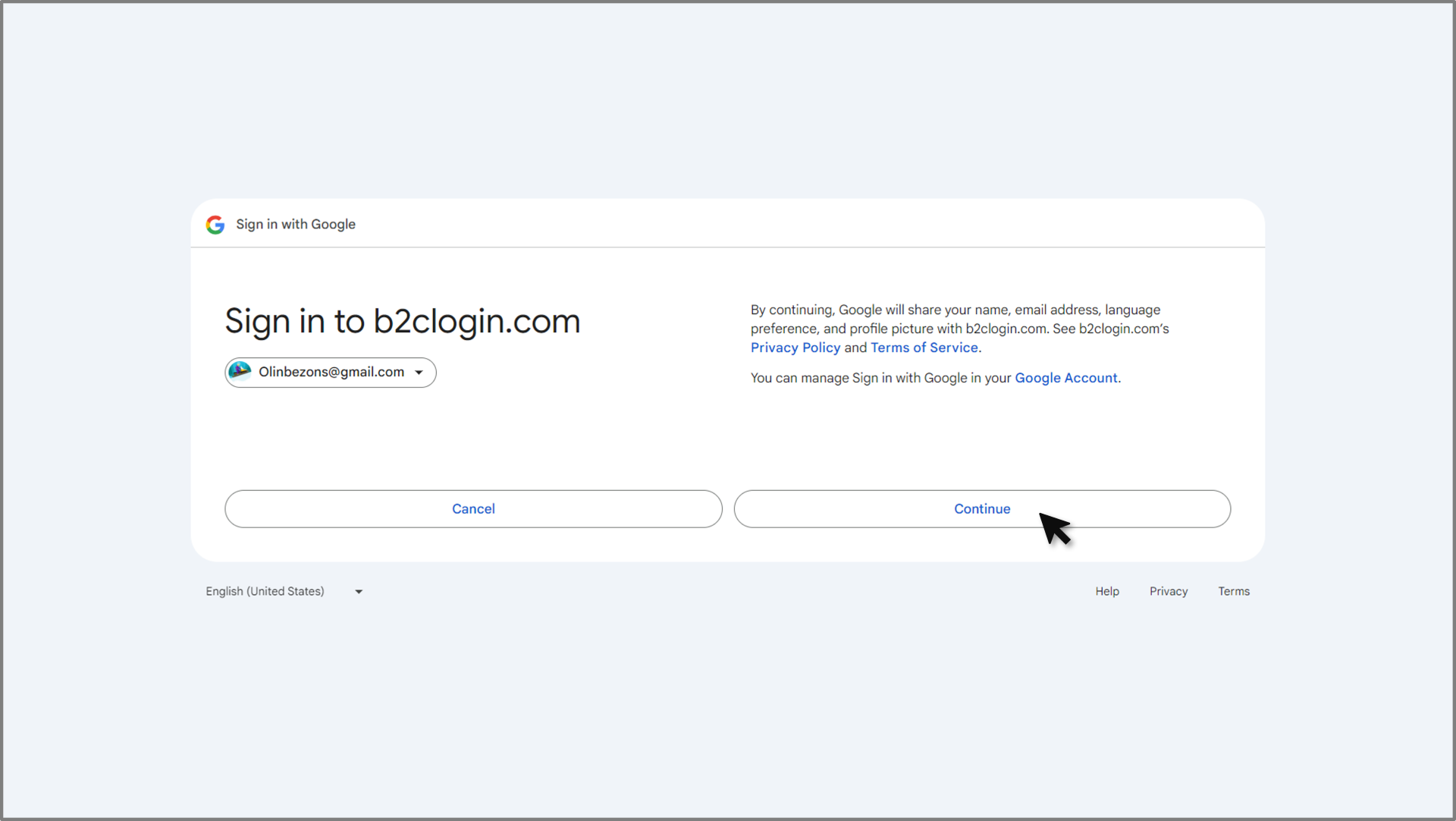 4. Enter your company name and click the **Sign-Up** button.
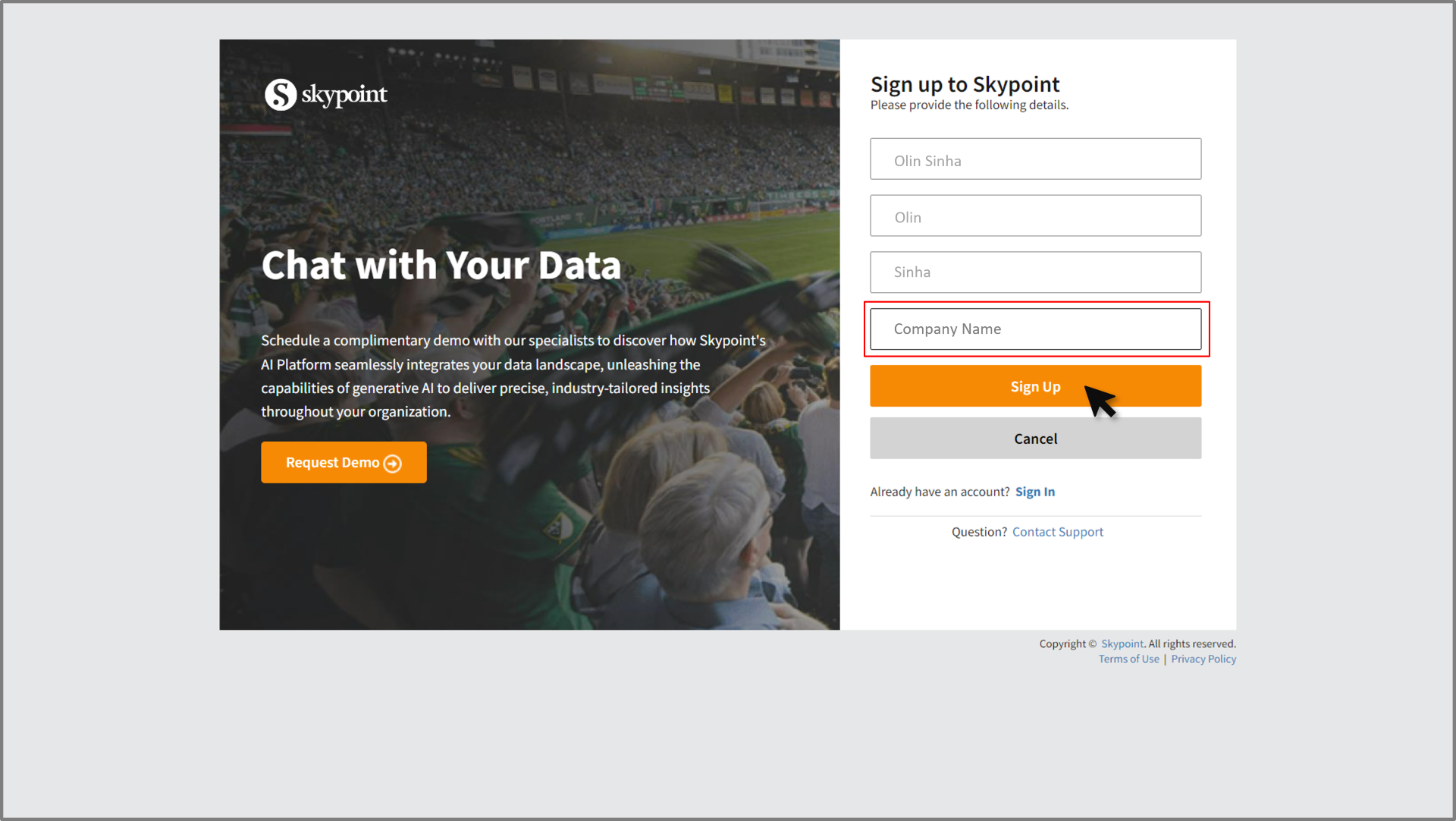 **Congratulations!** You’ve successfully signed up for Skypoint AI.
5. After completing the sign-up process, **sign in** with your account to explore our products and drive meaningful actions.
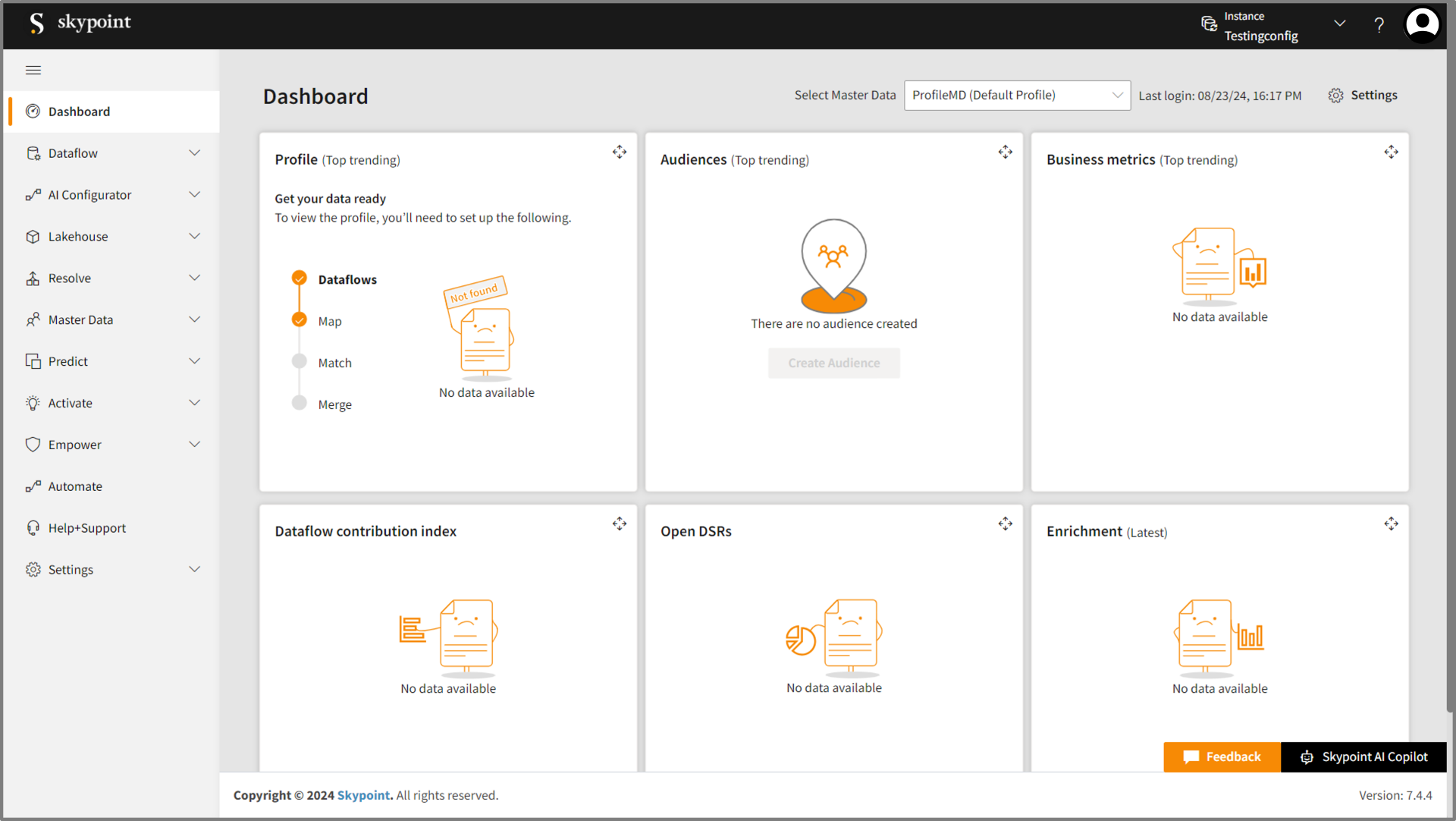
6. Upon signing in, you'll have access to the Skypoint AI Studio dashboard.
**Congratulations!** You’ve successfully signed up for Skypoint AI.
5. After completing the sign-up process, **sign in** with your account to explore our products and drive meaningful actions.
6. Upon signing in, you'll have access to the Skypoint AI Studio dashboard.
 If you have any questions, contact Skypoint AI Support Team. A Skypoint AI representative will help you meet any special requirements and ensure you are signing up for the most efficient and cost-effective solutions. Click [Contact Support](https://skypointcloud.com/customer-support/).