> ## Documentation Index
> Fetch the complete documentation index at: https://docs.skypoint.ai/llms.txt
> Use this file to discover all available pages before exploring further.
#
# Salesforce
**To integrate Salesforce CRM Connector, below details are to be configured**:
1. User Name
2. Password
3. Security Token
4. Environment URL
## Steps to Configuration
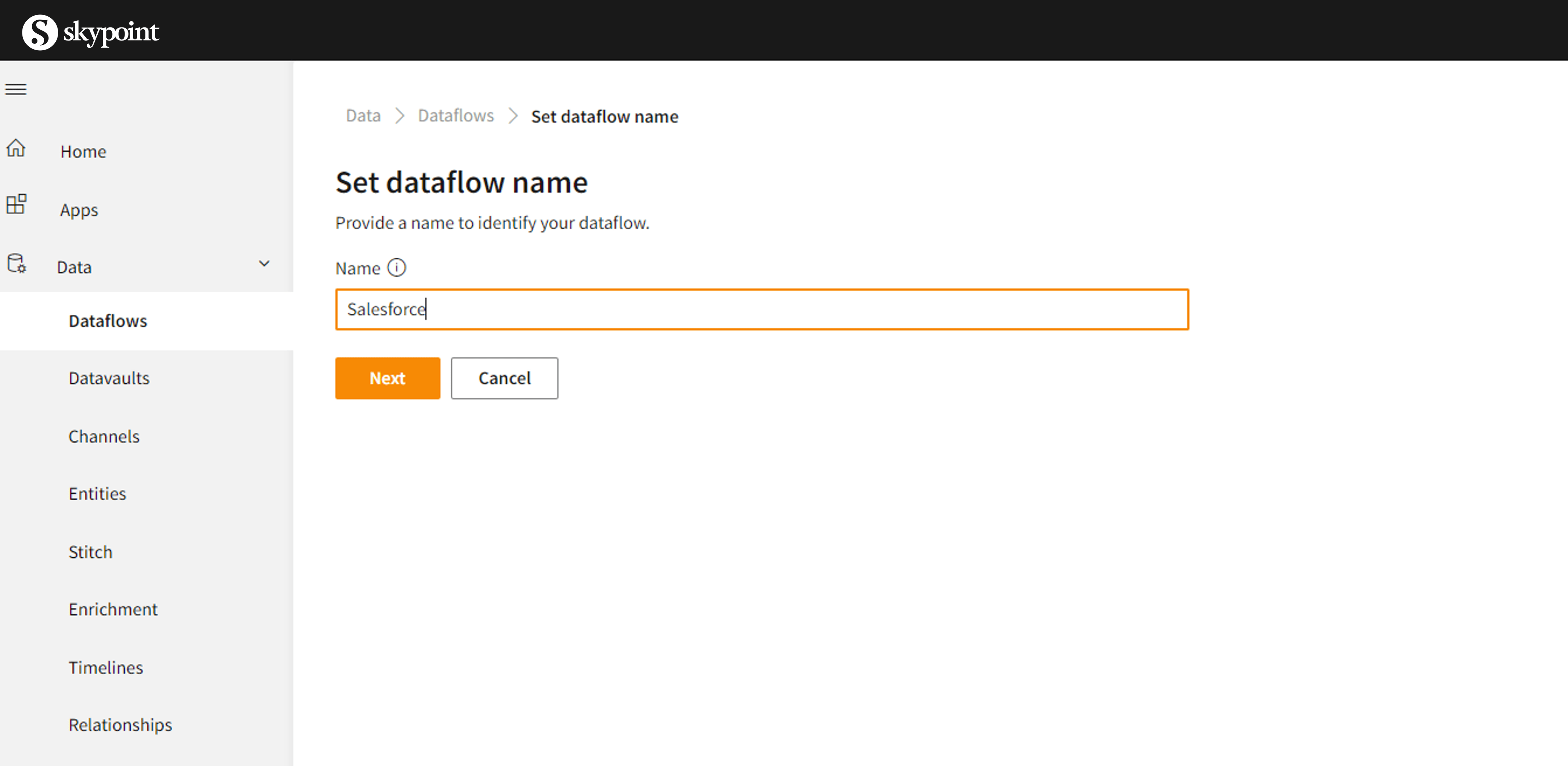
1. Navigate to **Data** > **Dataflows** and click on *+ Add Dataflow*
 2. Under Select **Dataflow name**, mention the connector name.
 3. From **Choose Connector**, click the connector name **Salesforce**.
 You will be directed to configuration set up as below.
4. Under **General**, below the **Dataflow Name**, enter the name of the connector and mention the description about the connector (optional) and click on Save.
You will be directed to configuration set up as below.
4. Under **General**, below the **Dataflow Name**, enter the name of the connector and mention the description about the connector (optional) and click on Save.
 5. Click on **Connector**, which is right next to **General**. Under **Configuration**, mention the details as required.
* User Name
* Security Token
* Password
* Environment URL and Click on connect
5. Click on **Connector**, which is right next to **General**. Under **Configuration**, mention the details as required.
* User Name
* Security Token
* Password
* Environment URL and Click on connect
 4. Once its completed, you will be able to see the imported entities from the Salesforce connector.
## The following properties are supported for the Salesforce connector service
1. **Environment URL specify the URL of the Salesforce instance.**
* Default is "[https://login.salesforce.com](https://login.salesforce.com)".
* To copy data from sandbox, specify "[https://test.salesforce.com](https://test.salesforce.com)".
* To copy data from custom domain, specify, for example, "https\://\[domain].my.salesforce.com".
2. **Username specify a username for the user account.**
3. **Password specify a password for the user account.**
4. **Security Token specify a security token for the user account.**
* Note : Salesforce account password expires after **every 90 days**, along with that new security token is generated and mailed.
**For instructions on how to get and reset a security token, [Click here](https://help.salesforce.com/articleView?id=user_security_token.htm\&type=5).**
**skyData imports Account, Contacts, Leads, Opportunities, all fields including custom fields.**
**Please note that Salesforce rate limits and throttles API calls. API Request Limits and Allocations.**
**To maintain optimum performance and ensure that the Lightning Platform API is available to all our customers, Salesforce balances transaction loads by imposing two types of limits, [Click here](https://developer.salesforce.com/docs/atlas.en-us.salesforce_app_limits_cheatsheet.meta/salesforce_app_limits_cheatsheet/salesforce_app_limits_platform_api.htm)**
4. Once its completed, you will be able to see the imported entities from the Salesforce connector.
## The following properties are supported for the Salesforce connector service
1. **Environment URL specify the URL of the Salesforce instance.**
* Default is "[https://login.salesforce.com](https://login.salesforce.com)".
* To copy data from sandbox, specify "[https://test.salesforce.com](https://test.salesforce.com)".
* To copy data from custom domain, specify, for example, "https\://\[domain].my.salesforce.com".
2. **Username specify a username for the user account.**
3. **Password specify a password for the user account.**
4. **Security Token specify a security token for the user account.**
* Note : Salesforce account password expires after **every 90 days**, along with that new security token is generated and mailed.
**For instructions on how to get and reset a security token, [Click here](https://help.salesforce.com/articleView?id=user_security_token.htm\&type=5).**
**skyData imports Account, Contacts, Leads, Opportunities, all fields including custom fields.**
**Please note that Salesforce rate limits and throttles API calls. API Request Limits and Allocations.**
**To maintain optimum performance and ensure that the Lightning Platform API is available to all our customers, Salesforce balances transaction loads by imposing two types of limits, [Click here](https://developer.salesforce.com/docs/atlas.en-us.salesforce_app_limits_cheatsheet.meta/salesforce_app_limits_cheatsheet/salesforce_app_limits_platform_api.htm)**