> ## Documentation Index
> Fetch the complete documentation index at: https://docs.skypoint.ai/llms.txt
> Use this file to discover all available pages before exploring further.
#
# Klaviyo
## Steps to Export
Export lets you extract data from the Lakehouse and load into Klaviyo.
 ## Step 01 - Add export
* Click on **Set up** in Klaviyo export gallery.
* Enter a Name. (Name starts with a letter and only **Letters** and **Numbers** are allowed. No spaces)
* Display name (which displays the name in the UI of the export saved).
* Select credentials:
* Select from existing
* Create new
## Step 02 - Select from existing
**In order to allow skyData access to your Klaviyo account, you'll need the following details:**
* **Select Dataflow**
* **API key**
* Click **Next** Button.
## Step 02 - Create new
**In order to allow skyData access to your klaviyo account, you'll need the following details:**
* **API Key**
* Click **Next** Button.
## Step 03 - Entities to export
Here all the Lakehouse data will be available Entity wise.
* Select the entities from the list to be exported
* Click **Create** and then click on three dot button and select **Run**.
* The export will be started.
## To check export history
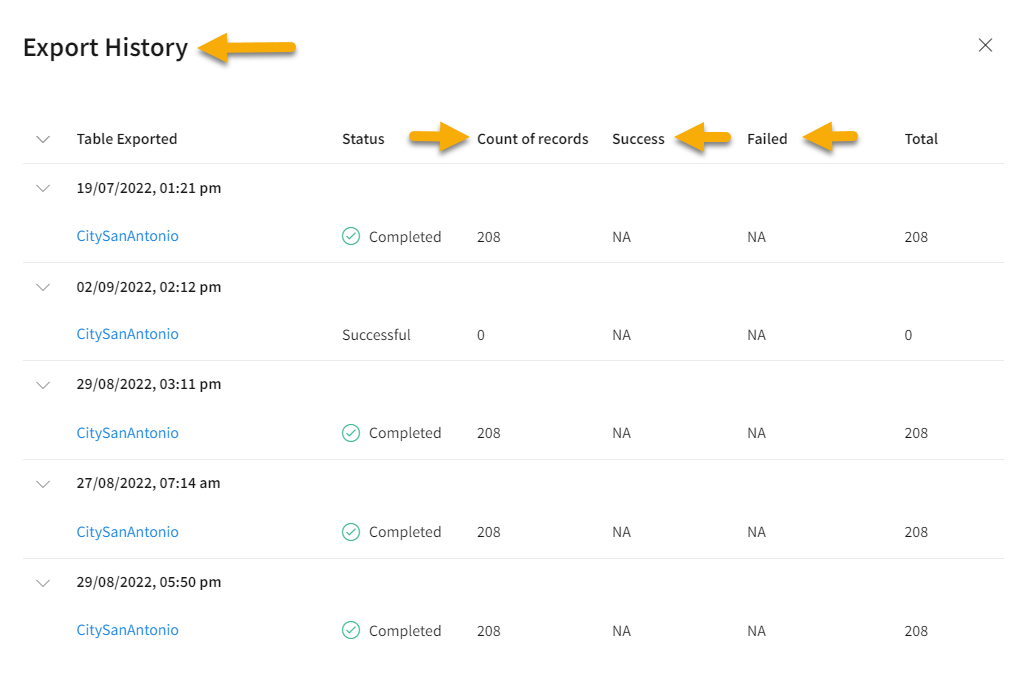
You can check the success, failures, and total number of records in the Export history. Follow the below steps to check the export history:
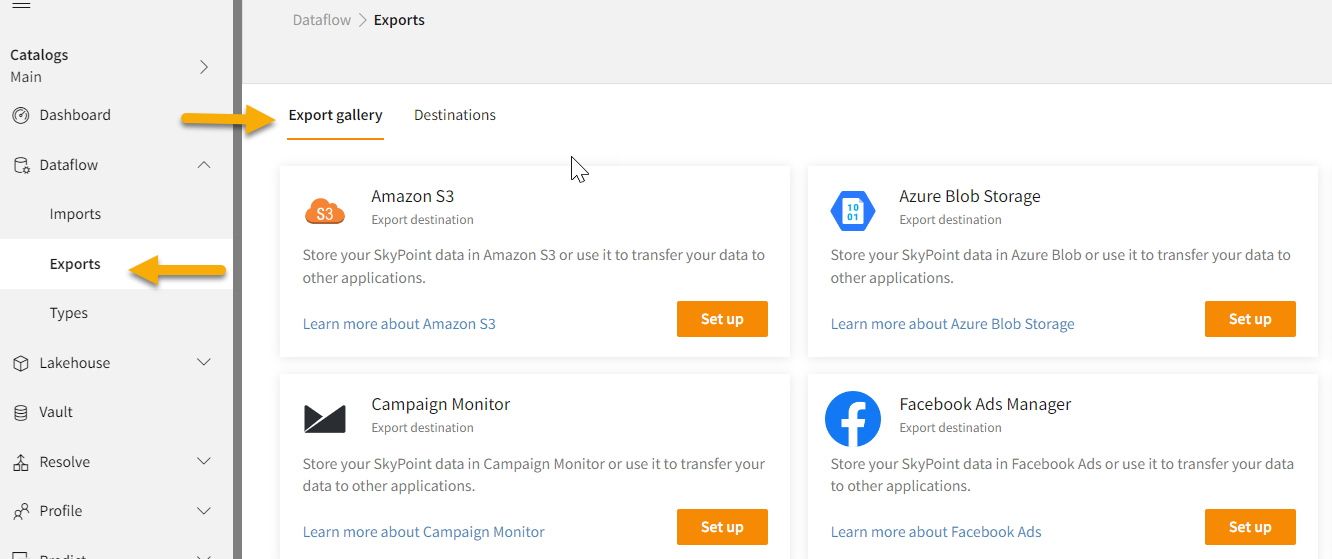
1. Go to **Dataflow > Exports**.
The **Export gallery** page appears.
***
## Step 01 - Add export
* Click on **Set up** in Klaviyo export gallery.
* Enter a Name. (Name starts with a letter and only **Letters** and **Numbers** are allowed. No spaces)
* Display name (which displays the name in the UI of the export saved).
* Select credentials:
* Select from existing
* Create new
## Step 02 - Select from existing
**In order to allow skyData access to your Klaviyo account, you'll need the following details:**
* **Select Dataflow**
* **API key**
* Click **Next** Button.
## Step 02 - Create new
**In order to allow skyData access to your klaviyo account, you'll need the following details:**
* **API Key**
* Click **Next** Button.
## Step 03 - Entities to export
Here all the Lakehouse data will be available Entity wise.
* Select the entities from the list to be exported
* Click **Create** and then click on three dot button and select **Run**.
* The export will be started.
## To check export history
You can check the success, failures, and total number of records in the Export history. Follow the below steps to check the export history:
1. Go to **Dataflow > Exports**.
The **Export gallery** page appears.
***
 ***
2. Click the **Destinations** tab.
3. Click the horizontal ellipsis in the **Actions** column of your Klaviyo export.
The **Actions** list appears.
***
***
2. Click the **Destinations** tab.
3. Click the horizontal ellipsis in the **Actions** column of your Klaviyo export.
The **Actions** list appears.
***
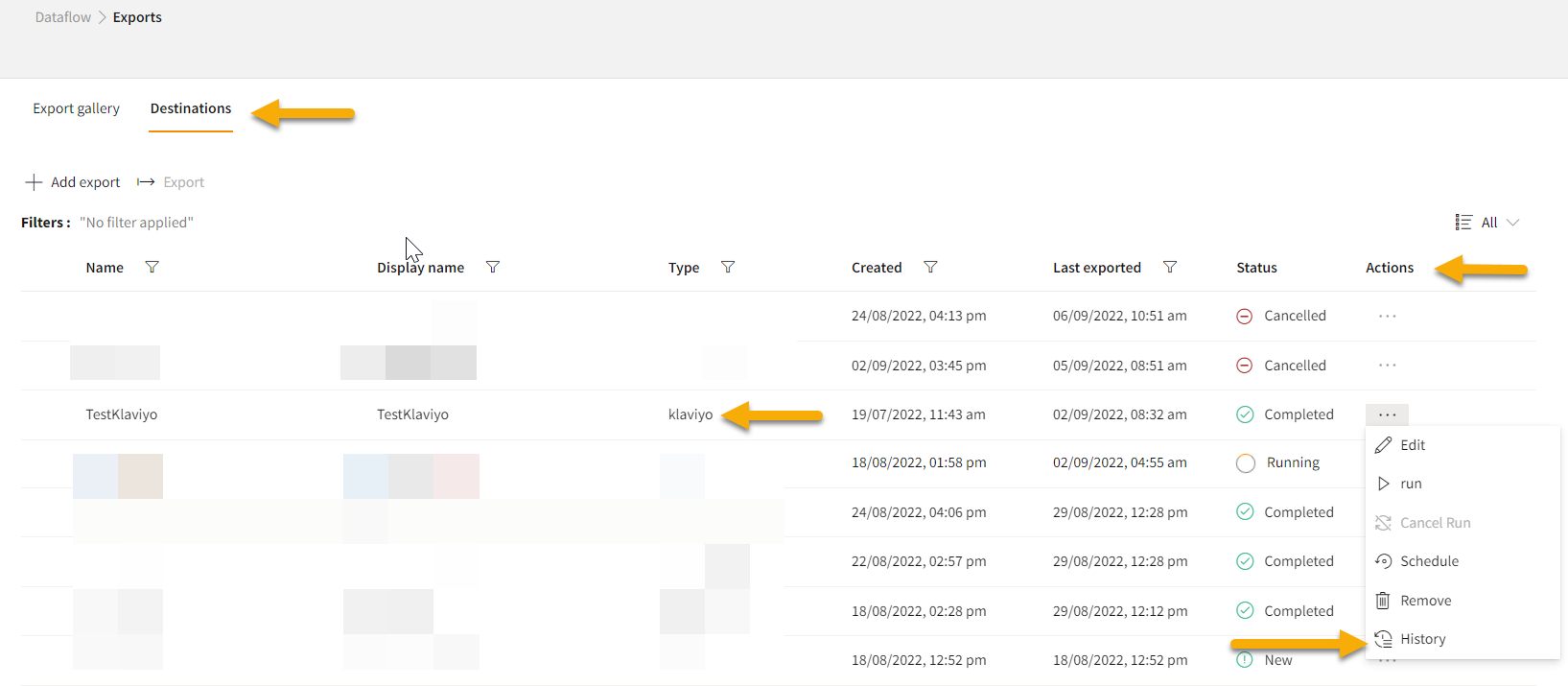 ***
4. Click **History** on the **Actions** list.
The **Export History** pop-up appears.
***
***
4. Click **History** on the **Actions** list.
The **Export History** pop-up appears.
***
 ***
***