> ## Documentation Index
> Fetch the complete documentation index at: https://docs.skypoint.ai/llms.txt
> Use this file to discover all available pages before exploring further.
#
# Connecting Fivetran and Databricks on skyDataP
## Overview
Skypoint provides built-in connectors and the flexibility to integrate with external tools like Fivetran, dbt, Power BI, and Tableau to seamlessly import data from user databases. With Fivetran, users can securely transfer data from multiple sources to Databricks on skyDataP within a robust cloud network. This guide will walk you through the steps to set up your data pipeline.
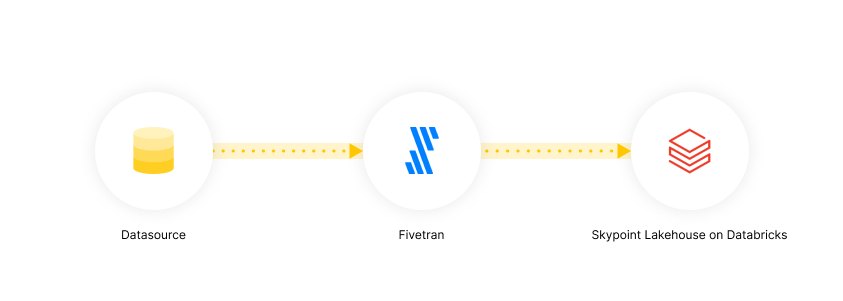
Find the architectural outline of the data pipeline as follows:
 ## Prerequisite
* You have an active account with Fivetran and skyDataP & credentials to access them.
## Setup Guide to Connect Fivetran and Databricks on skyDataP
The setup involves two key steps:
* Integrating your Data Source with Fivetran
* Connect Fivetran to Databricks on skyDataP
## Step 1: Integrate your Data Source with Fivetran
Fivetran offers a comprehensive range of connectors to integrate with your databases.
1. Follow the Fivetran setup guide to configure the connectors, required to set up connection with your data source.
2. Prepare the following prerequisites for your source and destination to streamline the setup:
* Valid database credentials
* An active Fivetran account
* skyData account with access to the Studio.
## Step 2: Connect Fivetran to Databricks on skyDataP
### Actions on skyData Studio
* Log in to your skyData Studio account.
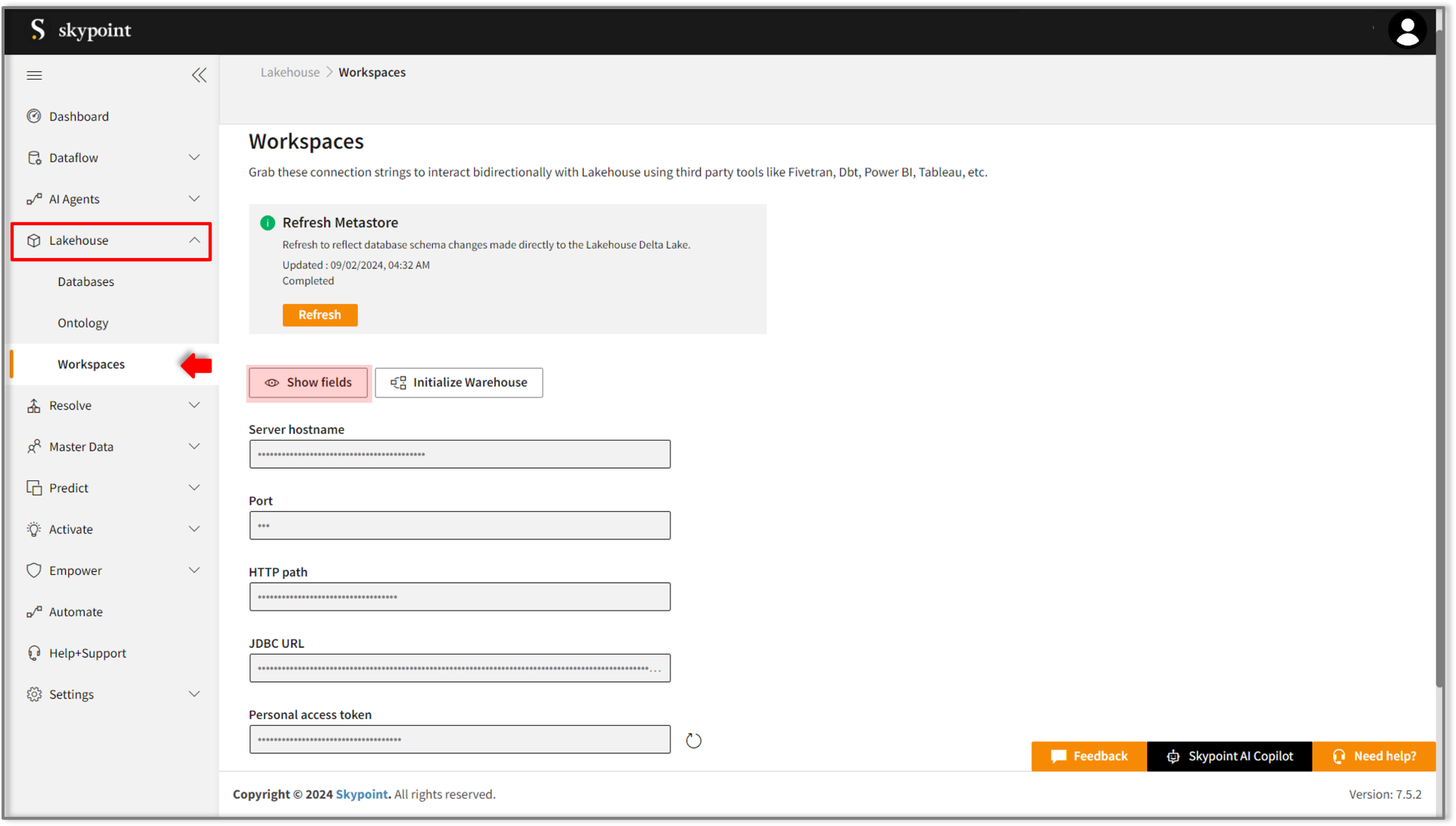
* Go to Lakehouse > Workspaces.
* Click the Show Fields button to display connection strings.
## Prerequisite
* You have an active account with Fivetran and skyDataP & credentials to access them.
## Setup Guide to Connect Fivetran and Databricks on skyDataP
The setup involves two key steps:
* Integrating your Data Source with Fivetran
* Connect Fivetran to Databricks on skyDataP
## Step 1: Integrate your Data Source with Fivetran
Fivetran offers a comprehensive range of connectors to integrate with your databases.
1. Follow the Fivetran setup guide to configure the connectors, required to set up connection with your data source.
2. Prepare the following prerequisites for your source and destination to streamline the setup:
* Valid database credentials
* An active Fivetran account
* skyData account with access to the Studio.
## Step 2: Connect Fivetran to Databricks on skyDataP
### Actions on skyData Studio
* Log in to your skyData Studio account.
* Go to Lakehouse > Workspaces.
* Click the Show Fields button to display connection strings.
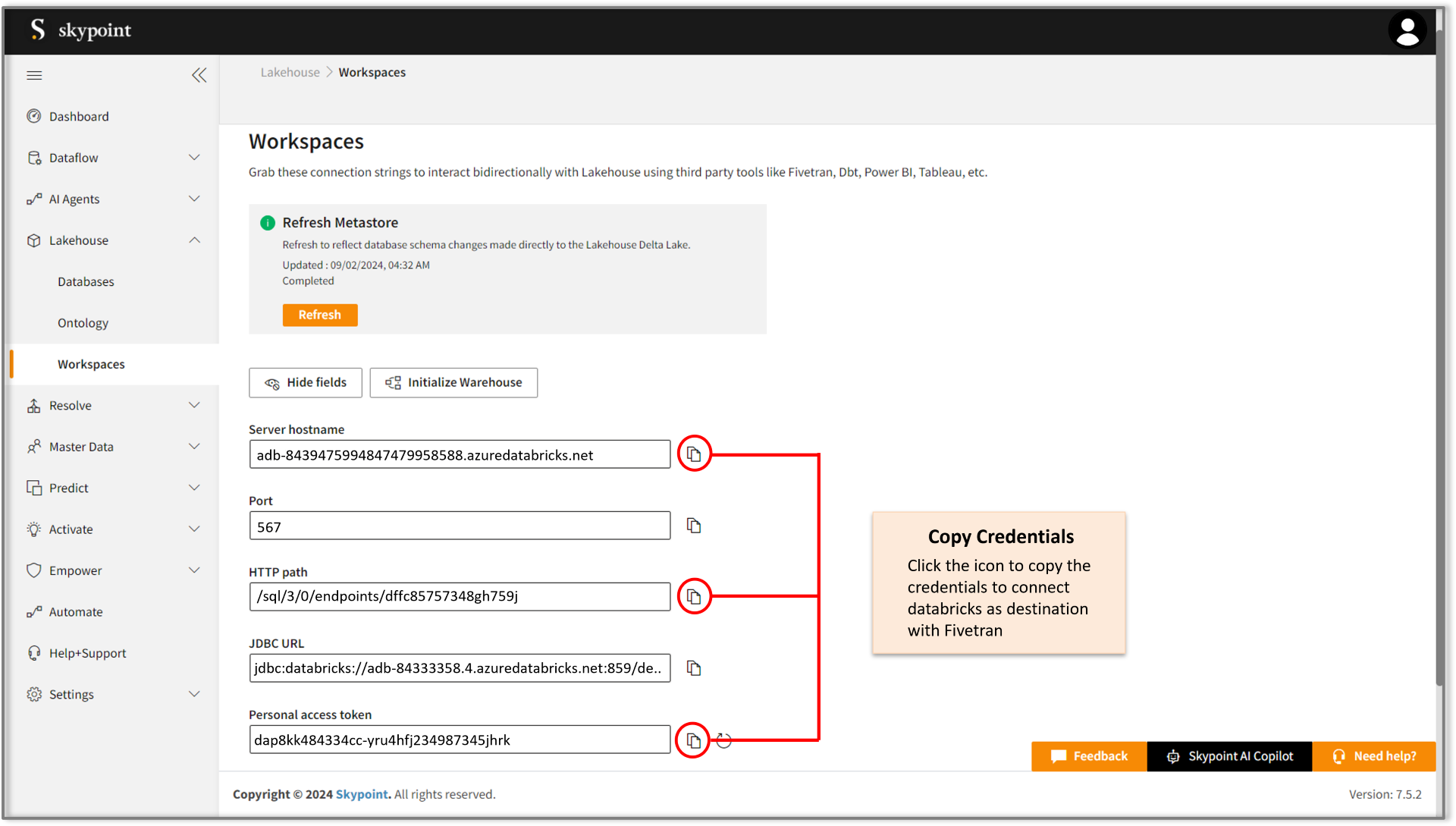
 * Copy the following credentials:
* Server Hostname
* HTTP Path
* Personal Access Token
* Copy the following credentials:
* Server Hostname
* HTTP Path
* Personal Access Token
 ### Actions on Fivetran
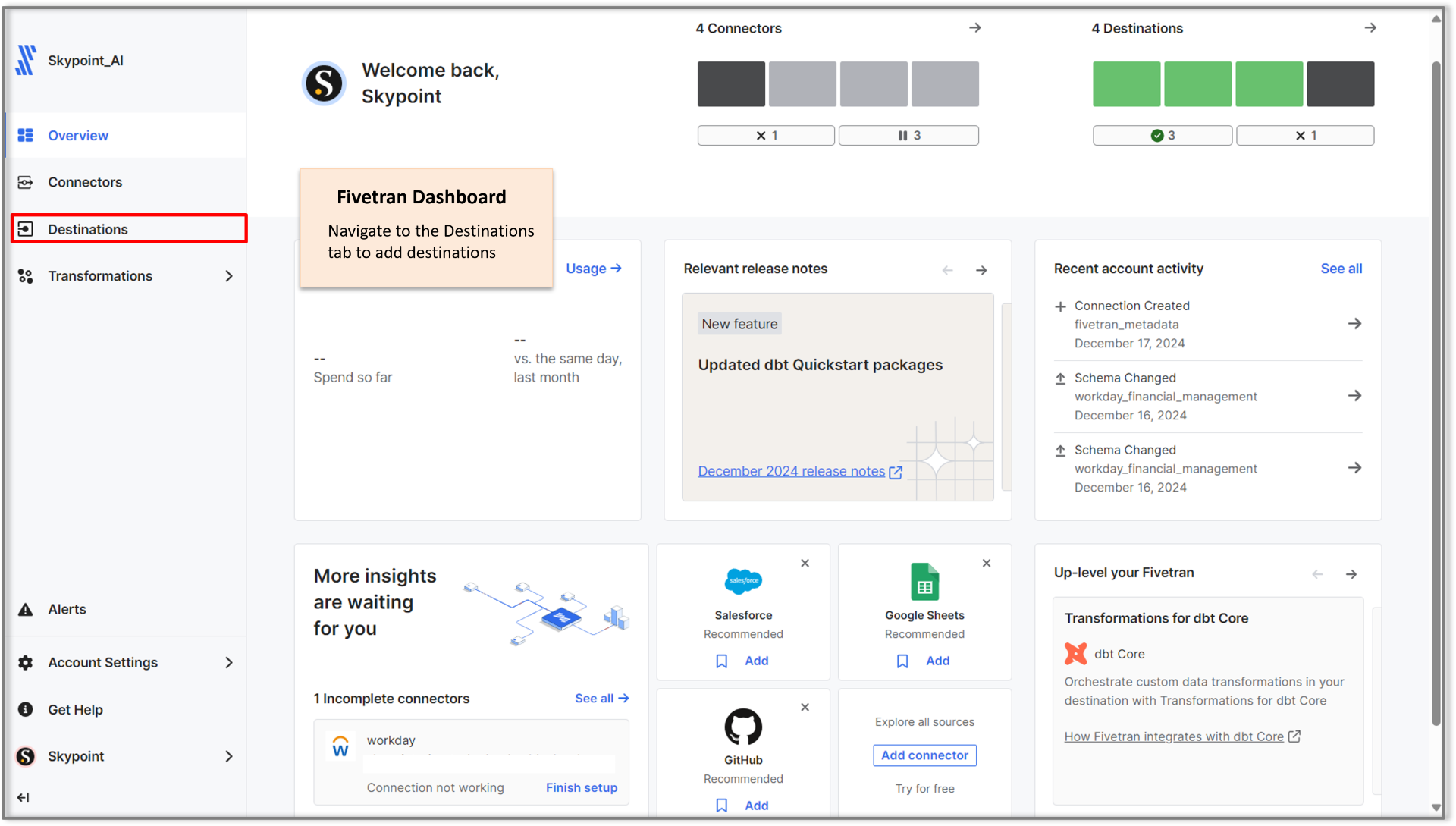
* Log in to your Fivetran account.
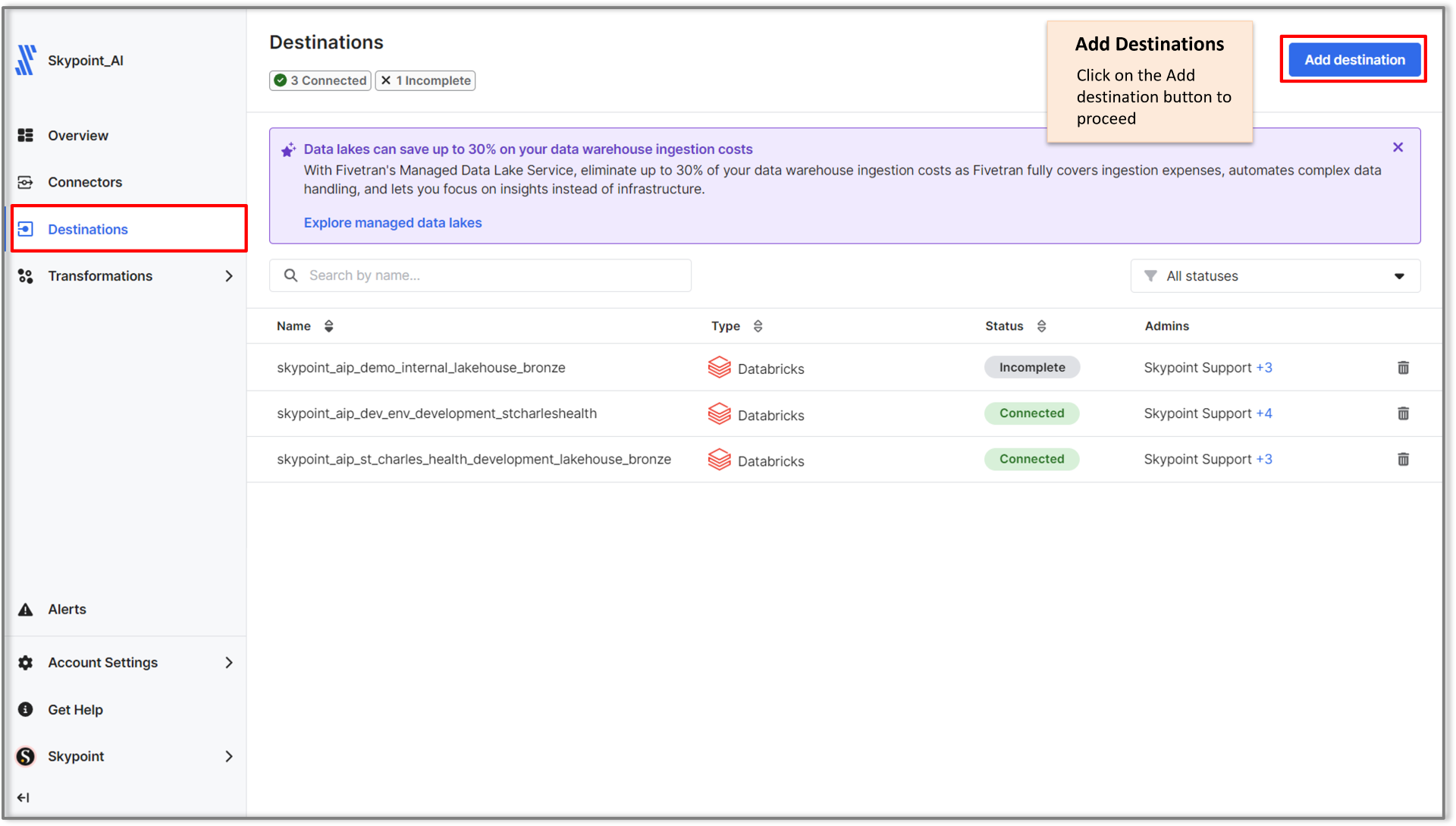
* From the left panel, navigate to Destinations.
### Actions on Fivetran
* Log in to your Fivetran account.
* From the left panel, navigate to Destinations.
 * Click Add Destination.
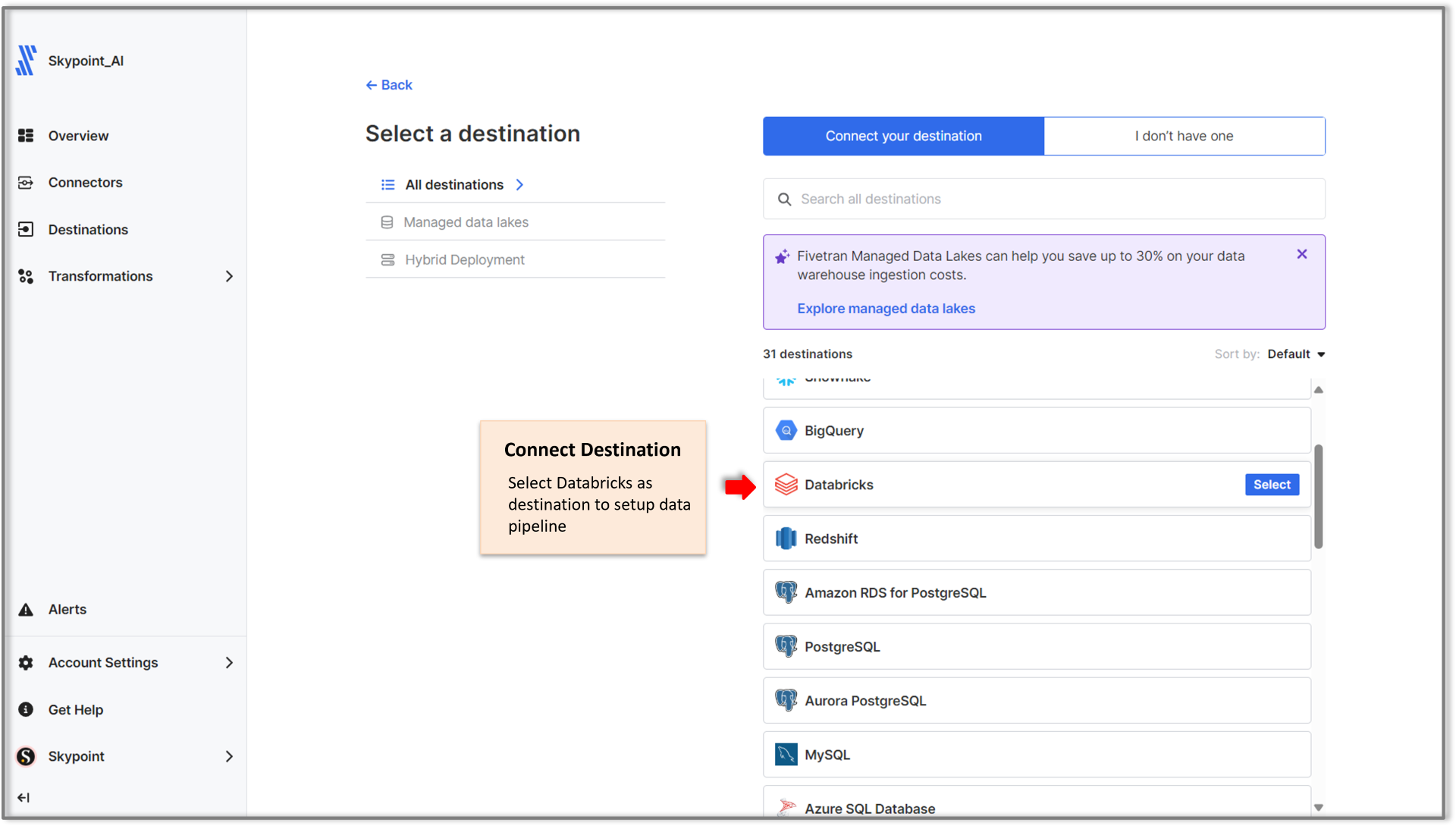
 * Select Databricks as your destination.
This selection is based on the fact that Skypoint Lakehouse is built on Databricks, ensuring seamless integration, enhanced compatibility, and optimal performance.
* Select Databricks as your destination.
This selection is based on the fact that Skypoint Lakehouse is built on Databricks, ensuring seamless integration, enhanced compatibility, and optimal performance.
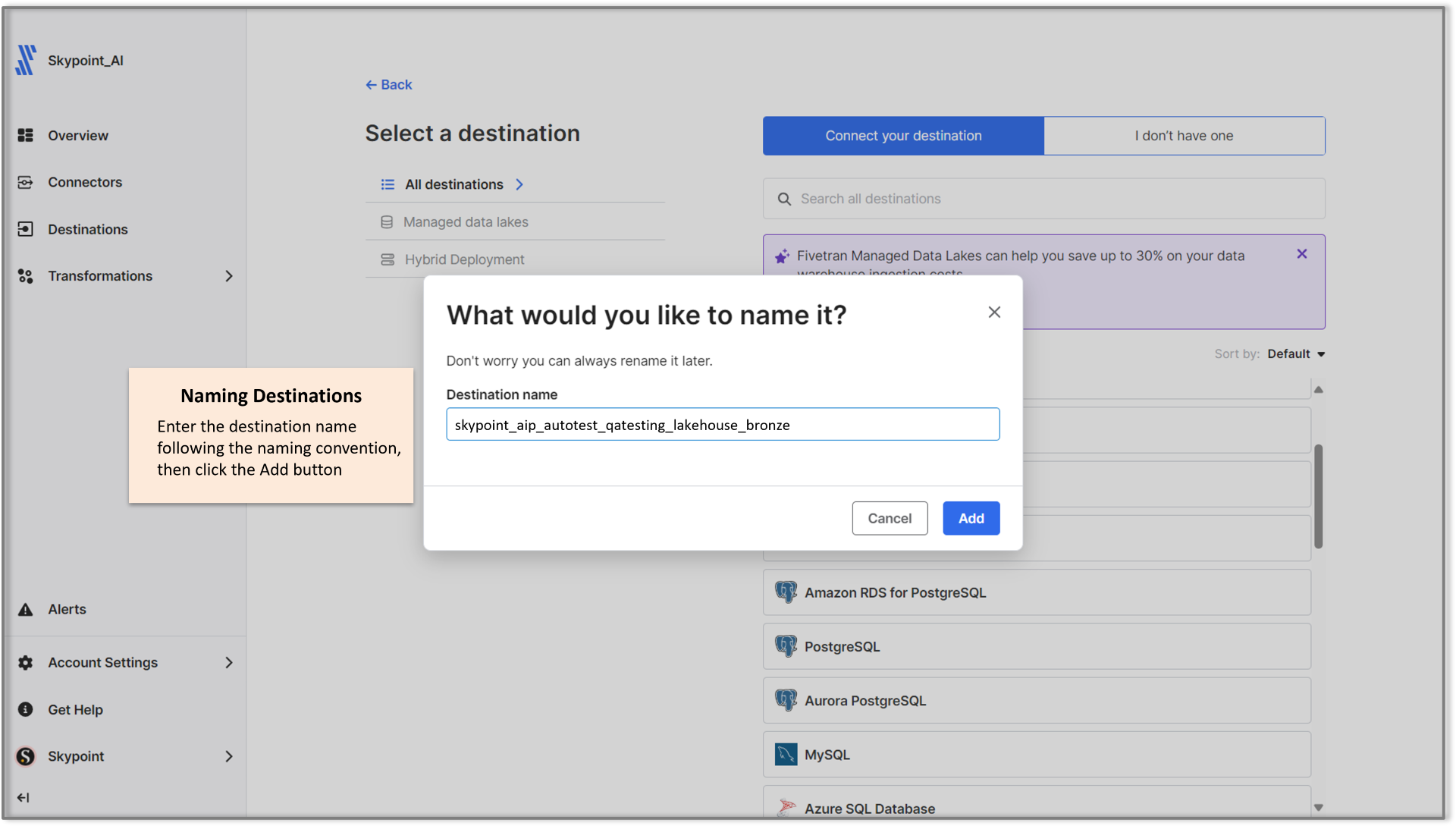
 * Name the destination by following the naming convention for the destination as follows:
`skypoint_aip____lakehouse_bronze`
**Components:**
* **`skypoint_aip`**: Identifies the skyDataP platform.
* **``**: Placeholder for the tenant's name.
* **``**: Placeholder for the instance name.
* **`lakehouse_bronze`**: Specifies the Bronze layer in the Lakehouse architecture.
* Name the destination by following the naming convention for the destination as follows:
`skypoint_aip____lakehouse_bronze`
**Components:**
* **`skypoint_aip`**: Identifies the skyDataP platform.
* **``**: Placeholder for the tenant's name.
* **``**: Placeholder for the instance name.
* **`lakehouse_bronze`**: Specifies the Bronze layer in the Lakehouse architecture.
 * Key in the required credentials by copying from skyData Studio.
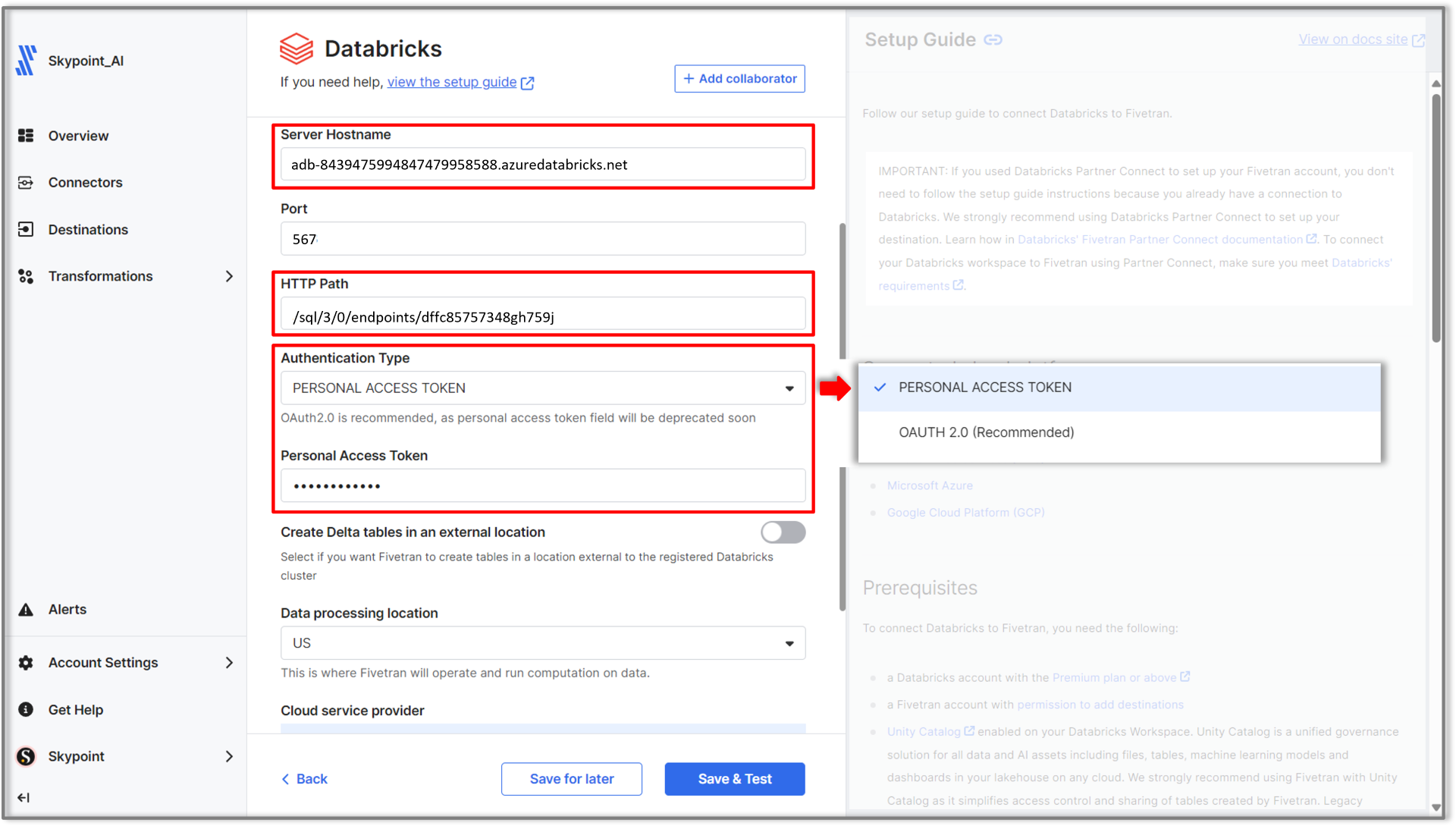 * Under **Authentication Type,** select **Personal Access Token** from the dropdown menu.
* Key in the personal access token in the field below.
* Click Save & Test to verify the connection.
* Under **Authentication Type,** select **Personal Access Token** from the dropdown menu.
* Key in the personal access token in the field below.
* Click Save & Test to verify the connection.
 ### Congratulations! You’ve successfully connected Fivetran with Databricks on skyDataP. Your data pipeline is ready to sync securely!
## Post-Setup Verification
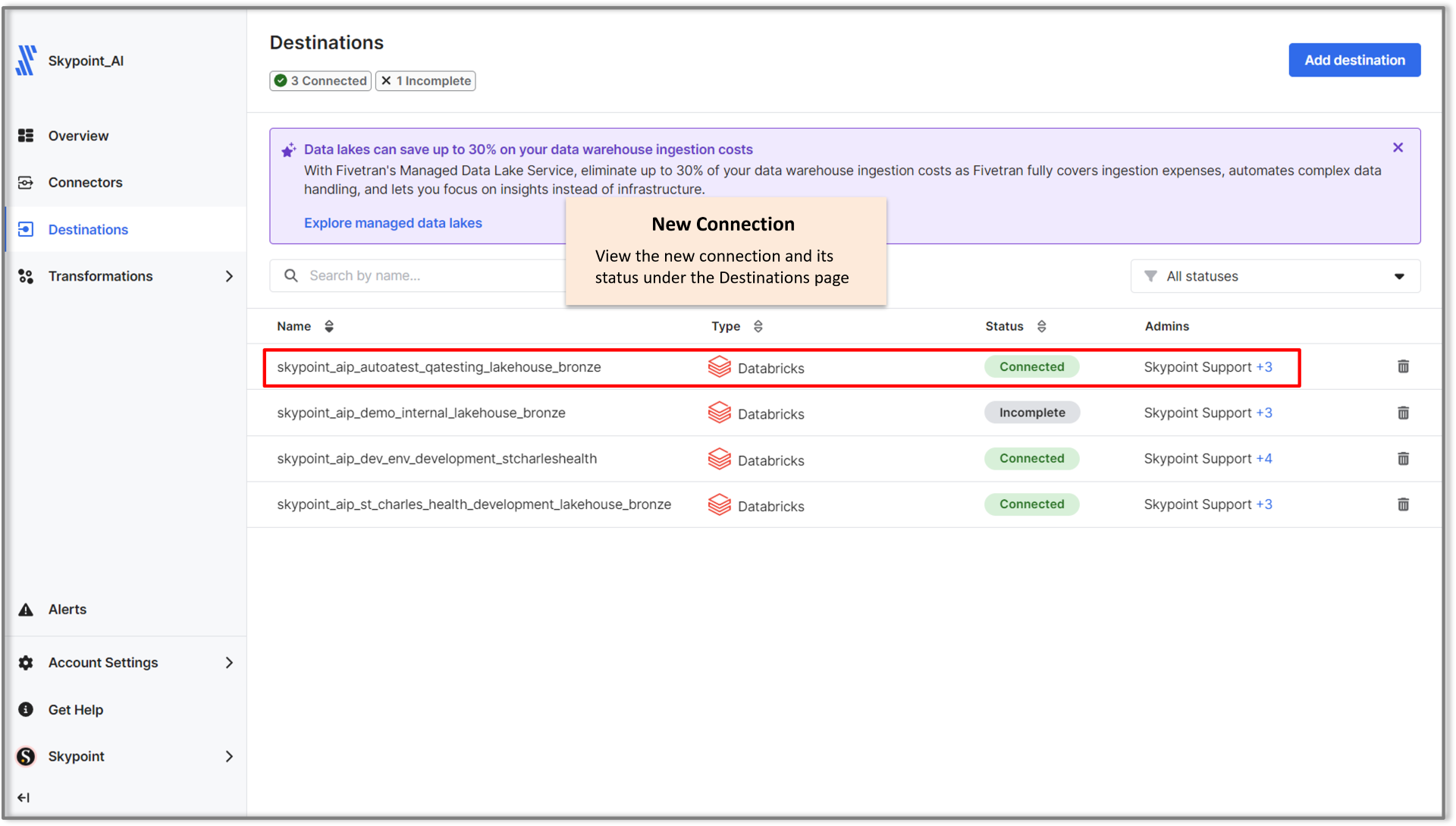
* The new connection will appear on the Destinations page.
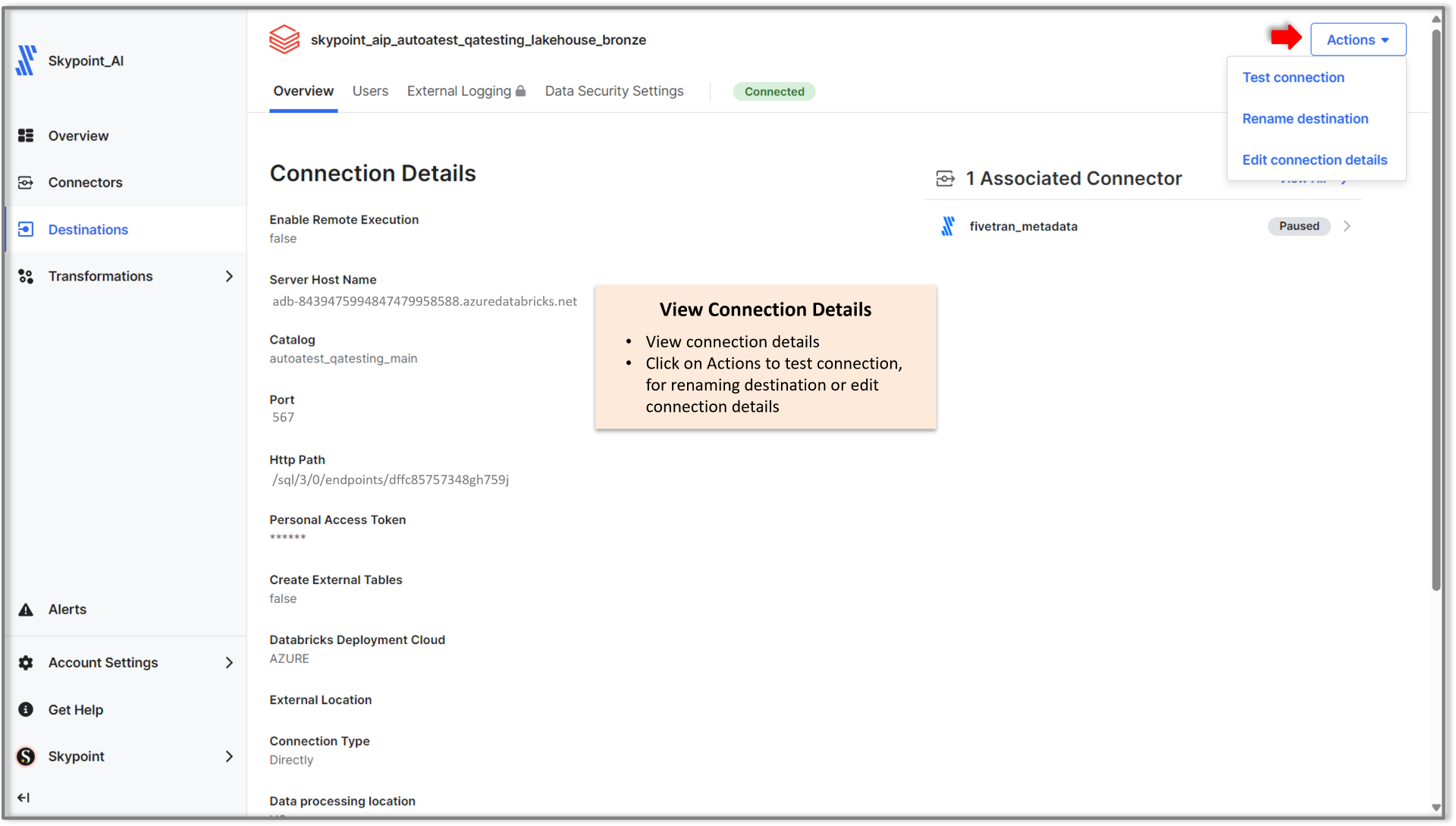
* Click on the connection to view its details.
* Use the **Actions** menu to:
* Test the connection
* Rename the destination
* Edit connection details
### Congratulations! You’ve successfully connected Fivetran with Databricks on skyDataP. Your data pipeline is ready to sync securely!
## Post-Setup Verification
* The new connection will appear on the Destinations page.
* Click on the connection to view its details.
* Use the **Actions** menu to:
* Test the connection
* Rename the destination
* Edit connection details
 ## Next step
After completing the data import, start the [Master Data Management (MDM) - Stitch](stitch.md) process to develop a unified view of your customers.
## Next step
After completing the data import, start the [Master Data Management (MDM) - Stitch](stitch.md) process to develop a unified view of your customers.