> ## Documentation Index
> Fetch the complete documentation index at: https://docs.skypoint.ai/llms.txt
> Use this file to discover all available pages before exploring further.
#
# Integrating DBeaver with Lakehouse SQL
## Overview
DBeaver is an open-source database tool for developers, analysts, and database administrators. It supports Databricks as well as other popular databases. You can use the skyData Lakehouse SQL tool to run SQL commands and browse database objects in Databricks. Also, you can perform CRUD (Create, Read, Update, and Delete) operations using an SQL server.\
Follow the below steps to integrate DBeaver with Lakehouse SQL:
## Step 1: Install DBeaver and Download Databricks JDBC Driver
Follow the below steps to install DBeaver and Download Databricks JDBC Driver:
* Download **DBeaver** from [https://dbeaver.io/download/](https://dbeaver.io/download/). Choose Dbeaver Community 22.2.0, run the process, and set up the tool. You download the latest version. This article is tested with version 22.2.0.
* Download the [Databricks JDBC Driver](https://databricks.com/spark/jdbc-drivers-download) onto your local development machine. Extract the `databricksJDBC42.jar` file from the downloaded `DatabricksJDBC42.zip` file.
Once DBeaver is installed, follow the below steps to configure and work with databases in Lakehouse SQL.
## Step 2: Configure the Databricks JDBC Driver for DBeaver
Set up DBeaver with information about the Databricks JDBC Driver that you downloaded earlier.
1. Start DBeaver.
2. If you are prompted to create a new database, click **No**.
3. If you are prompted to connect to or select a database, click **Cancel**.
4. Click **Database** > **Driver Manager**.
5. In the **Driver Manager** dialog box, click **New**.
6. In the **Create new driver** dialog box, click the **Libraries** tab.
7. Click **Add File**.
8. Browse to the `databricksJDBC42.jar` file that you extracted earlier and click **Open**.
9. Click **Find Class**.
10. In the **Driver class** list, confirm that **com.simba.spark.jdbc.Driver** is selected.
11. On the **Settings** tab, for **Driver Name**, enter `Databricks`.
12. On the **Settings** tab, for **Class Name**, enter `com.simba.spark.jdbc.Driver`.
13. Click **OK**.
14. In the **Driver Manager** dialog box, click **Close**.
## Step 3: Connect DBeaver to your Lakehouse SQL endpoint
Use DBeaver to connect to the Lakehouse SQL endpoint to access the databases in your Databricks workspace.
1. In DBeaver, click **Database > New Database Connection**.
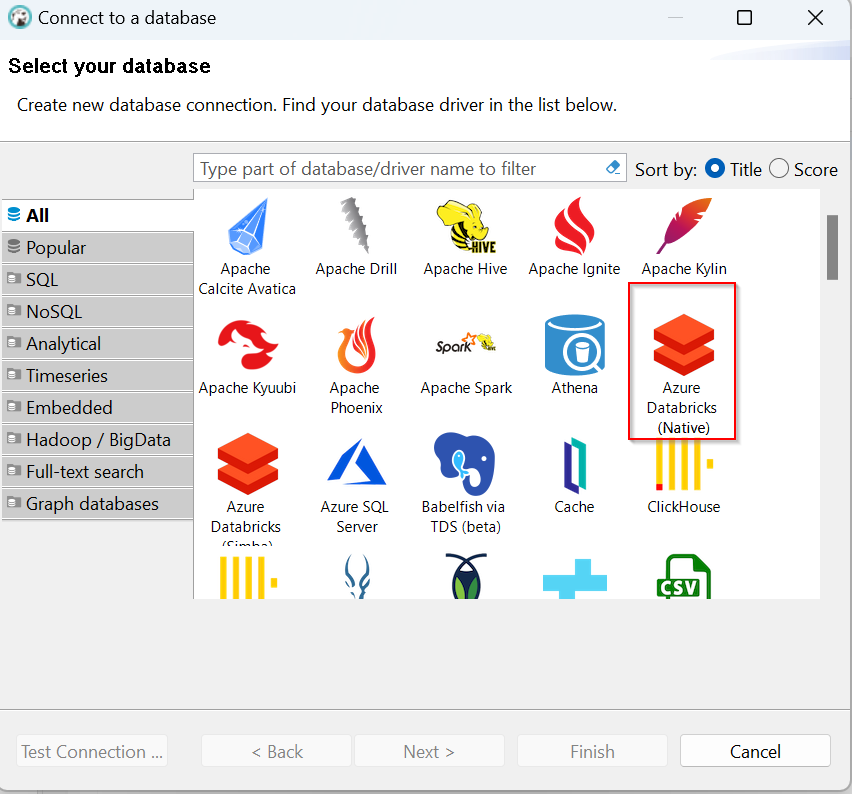
 2. In the **Connect to a database** dialog box, on the **All** tab, click **Azure** **Databricks** **(Native)**, and then click **Next**.
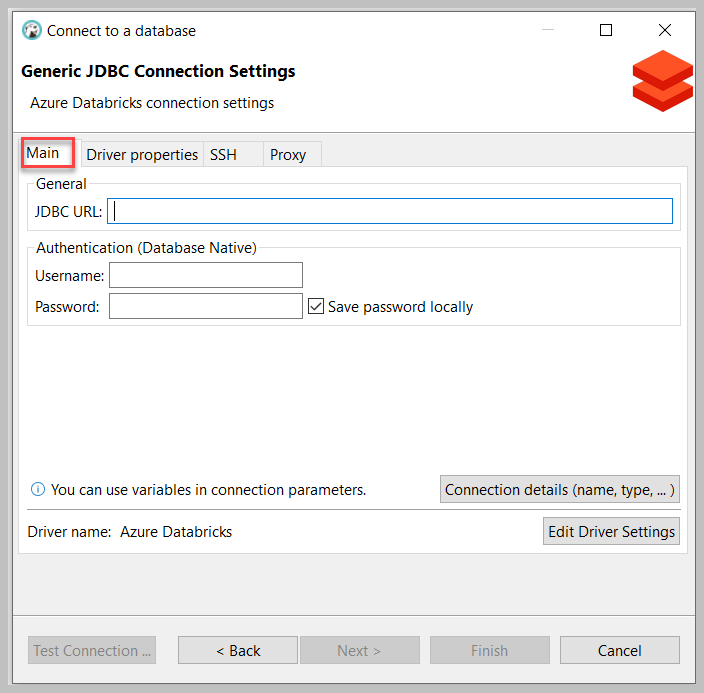
 3. Click the **Main** tab and enter credentials to connect.
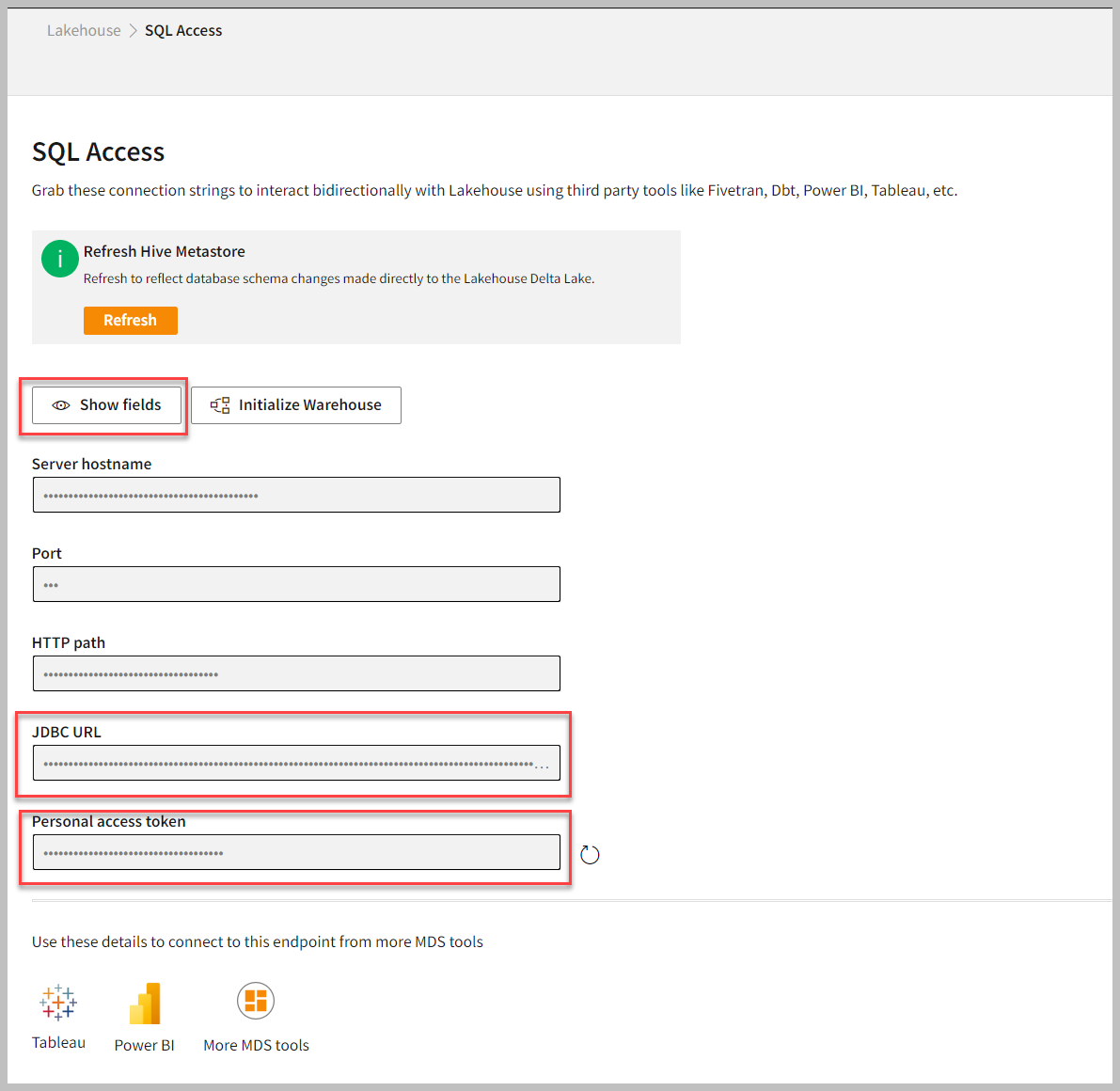
 4. To find credentials such as JDBC URL and Personal access token, follow the below steps:
1. Open Skypoint Studio.
2. In the left pane, go to **Lakehouse** > **SQL Access**.
3. Click **Show fields** to copy your credentials to your clipboard. For more information, refer to [Getting started with skyData Lakehouse SQL](lakehousesql).
4. To find credentials such as JDBC URL and Personal access token, follow the below steps:
1. Open Skypoint Studio.
2. In the left pane, go to **Lakehouse** > **SQL Access**.
3. Click **Show fields** to copy your credentials to your clipboard. For more information, refer to [Getting started with skyData Lakehouse SQL](lakehousesql).
 5. Enter **JDBC URL** and do the following:
| To | Do |
| --------------------- | ------------------------------------------------------------------------------- |
| Validate **Username** | Type token. This token is just the word token only. |
| Validate **Password** | Enter the Personal Access token that you have taken from the Skypoint Platform. |
6. Check **Save password locally**.
7. Click **Test Connection**.
8. If the connection succeeds, click **OK** in the **Connection Test** dialog box.
9. In the **Connect to a database** dialog box, click **Finish**.
In the **Database Navigator** window, a new entry is displayed.
## Step 4: Use DBeaver to browse databases and their objects
Use DBeaver to access databases and database objects in your Lakehouse SQL workspaces such as tables and table properties, views, indexes, data types, and other object types.
1. In the **Database Navigator** window, right-click **Azure Databricks**.
5. Enter **JDBC URL** and do the following:
| To | Do |
| --------------------- | ------------------------------------------------------------------------------- |
| Validate **Username** | Type token. This token is just the word token only. |
| Validate **Password** | Enter the Personal Access token that you have taken from the Skypoint Platform. |
6. Check **Save password locally**.
7. Click **Test Connection**.
8. If the connection succeeds, click **OK** in the **Connection Test** dialog box.
9. In the **Connect to a database** dialog box, click **Finish**.
In the **Database Navigator** window, a new entry is displayed.
## Step 4: Use DBeaver to browse databases and their objects
Use DBeaver to access databases and database objects in your Lakehouse SQL workspaces such as tables and table properties, views, indexes, data types, and other object types.
1. In the **Database Navigator** window, right-click **Azure Databricks**.
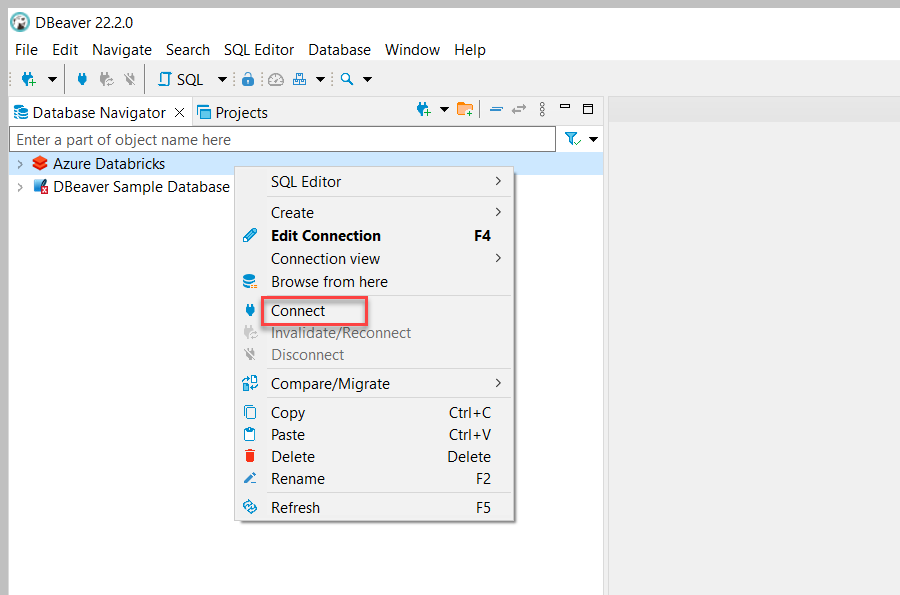 2. If **Connect** is enabled, click it. (If **Connect** is disabled, you are already connected.)
3. Expand **hive\_metastore**.
2. If **Connect** is enabled, click it. (If **Connect** is disabled, you are already connected.)
3. Expand **hive\_metastore**.
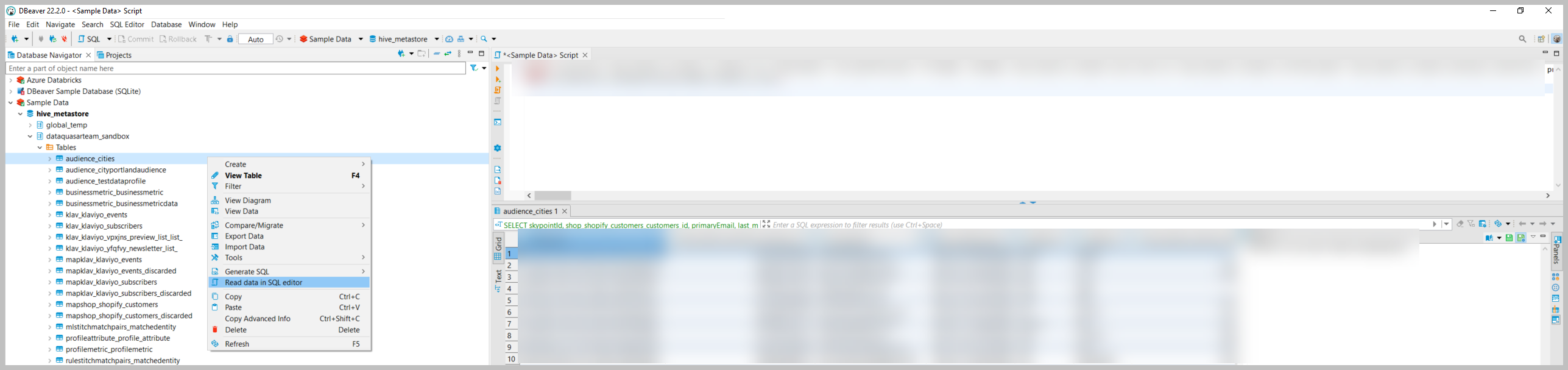 4. Expand the database that you want to browse.
5. Expand **Tables**.
6. Right-click on the table you wish to query and click on read data in SQL editor.
7. Repeat the instructions in this step to access additional databases and database objects.
4. Expand the database that you want to browse.
5. Expand **Tables**.
6. Right-click on the table you wish to query and click on read data in SQL editor.
7. Repeat the instructions in this step to access additional databases and database objects.